
Quick Tip: How to quickly create clean and sharp dividers in Photoshop
Let me show you a really cool trick to create a really clean divider for your website! It will take less than 1 minute and the result is amazing. This technique also works when you want to make a bevel effect, but way cooler than what you can find now in hundreds of web design tutorials.
So I’m guessing you’re using the standard Drop Shadow effect at 90 degrees, 1 px Distance and 1 px Size. Hey, you know what? Everyone else uses the same setting, over and over again and it gets boring. Really boring. The same goes for the all-known 2 px Bevel and Emboss effect, its presence in every new website design gets pretty boring.
We are designers and the “If it ain’t broken, don’t fix it” rule doesn’t apply to us. We must constantly improve every tiny aspect and make our design look flawless. Pixel perfection is our target, after all!
That’s about it with the introduction, let’s get to the point.
STEP 1
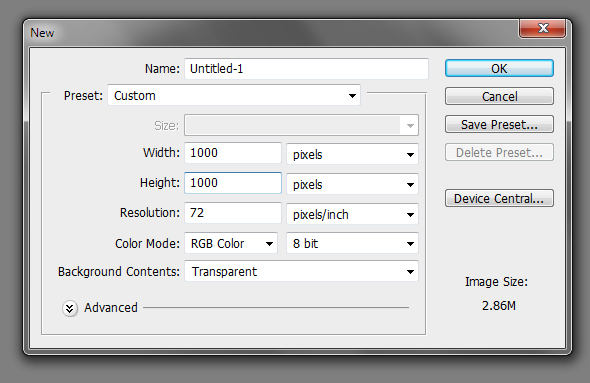
Go to File > New… and create a document of 1000 x 1000 px in RGB color mode at 72 dpi (web setting).
STEP 2
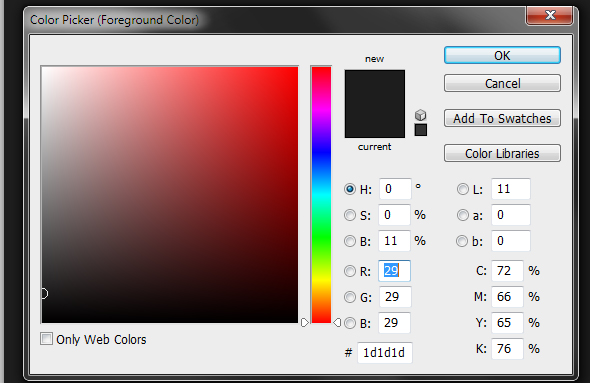
Grab the Paint Bucket Tool (G) and fill the background with a dark gray (#1d1d1d).
STEP 3
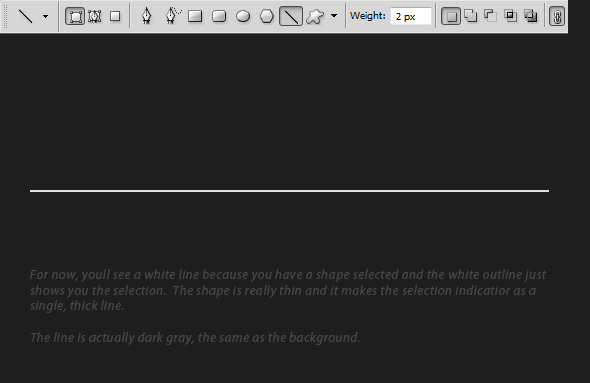
Grab the Line Tool (U) set it to 2 px, hold the SHIFT key and click-drag a horizontal line. Double-click the layer thumb and change its color to a darker gray (#111111).

STEP 4
In the Layers palette (F7), click the “fx” and select “Drop Shadow”. Use the settings in the image below.
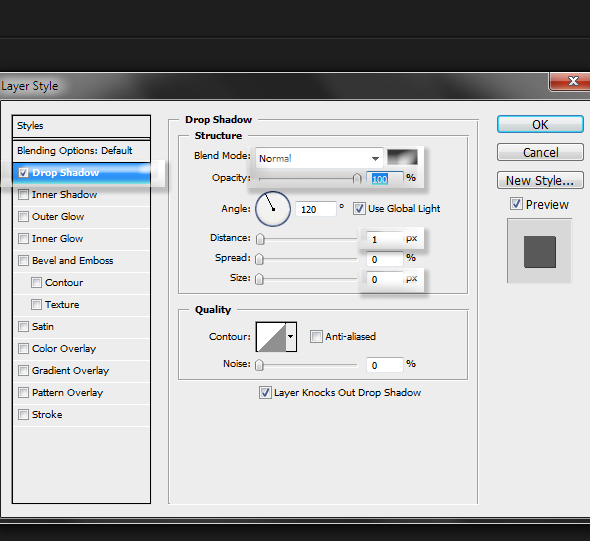
Why does it look better?
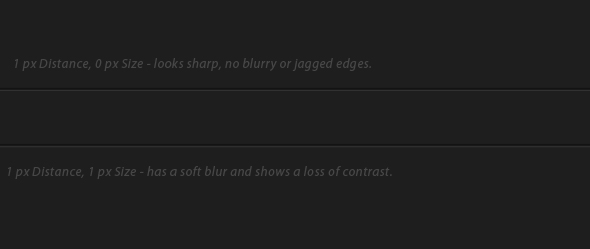
When you set a size, it will create a gradient-like effect, which becomes blurry and it’s particularly visible in small sized shadow effects. Check out the difference in the image below and see it for yourself!
Ut looks great man thanks for share
That is a great tip; thank you!
By the way, can I take this tutorial and convert it to a tutorial for GIMP? Thanks!
brilliant
Thanks for this tutorial.. Now I have more idea about Photoshop…
very simple trick ! thanx