

How to Create an Artistic Watercolor Ad with Photoshop and Illustrator
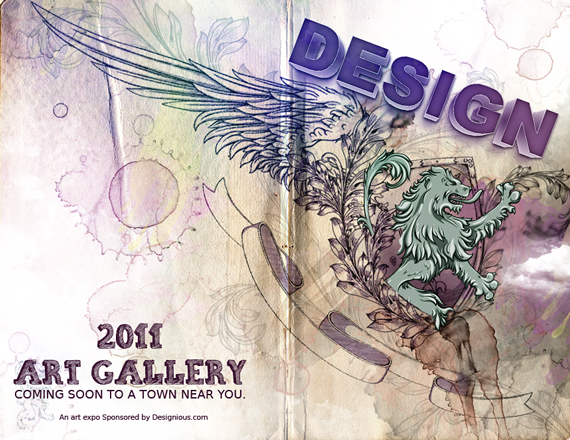
Today we will create a colorful artistic ad using Photoshop and Illustrator. Following this tutorial will not only improve your Photoshop skills, but you will also learn how to create compositions that are easily absorbed by your audience.
Useful tips you will learn:
– extract objects from backgrounds
– use adjustment layers
– create layer masks
– maximize the efficiency of brushes
– use vector images in Photoshop
– use various effects in Illustrator
– retouch images
– sketch font
– learn useful shortcuts of various commands
Difficulty: Beginner – Intermediate
Completion time: 30-40 min
Tools: Photoshop and Illustrator
Resources:
– Griffins vector pack by designious.com
– Wings vector pack 17 by designious.com
– Shields Vector pack 2 by designious.com
– Scrolls vector pack 13 by designious.com
– Old book by ekoh-stock
– 3D Action by designious.com
– watercolor brushes by mcbadshoes
– cloud brushes by JavierZhX
– Sketch 2 font by designious.com
– Stains brushes by korn-field-102
Check this out: The following resources used in this tutorial: Griffins Vector Pack, Wings Vector Pack 17, Shields Vector Pack 2 and 3D Action are all part of this amazing bundle we’re having on Designious from January 27th until February 1st – Design Cocktail 4. Besides the awesome resources mentioned, this bundle includes even more goodies (a Giga Vector Pack 2, PS brushes, Seamless Patterns Mega Pack, a collection of t-shirt designs, a membership for designioustimes.com and more) – all for just $29. It’s really a steal so we suggest you add this bundle to your library today!
NOTE:
Extract the “sketch” Font onto your desktop, then copy it. Paste it into your C:\Windows\Fonts directory. Do this before you start Photoshop, or else it will require a restart for it to load the font.
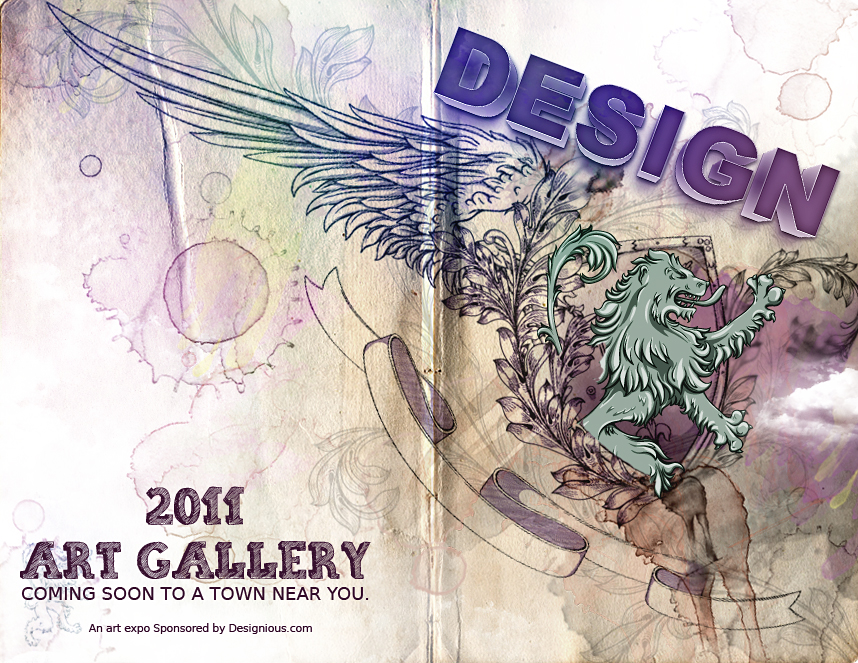
Final Image Preview of Artistic Watercolor Ad with Photoshop and Illustrator
STEP 1
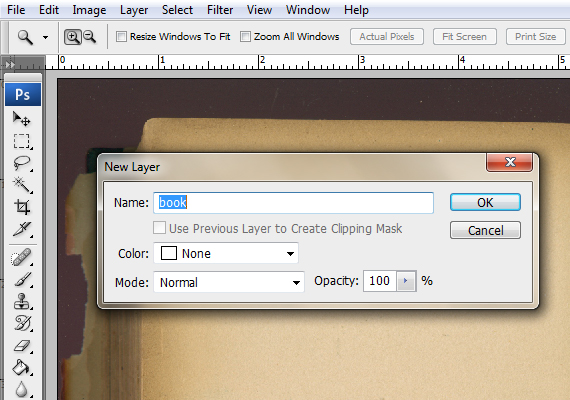
Open the “old book” picture (File > Open…). In the Layers palette (F7), double-click the lock. When prompted to name the layer, type in “book” and hit OK.
STEP 2
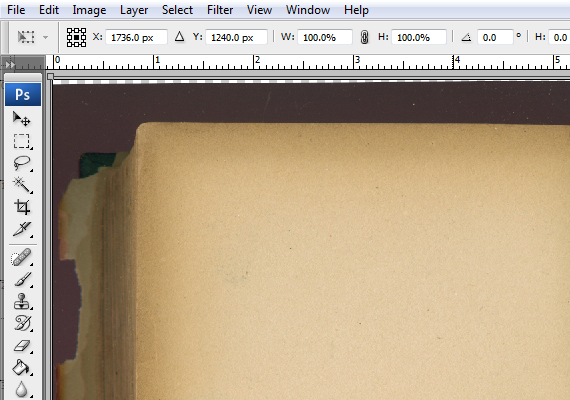
Go to Edit > Free Transform (CTRL+T) and rotate it a bit, the book is a bit crooked. Hit Enter to exit Free Transform mode.
STEP 3
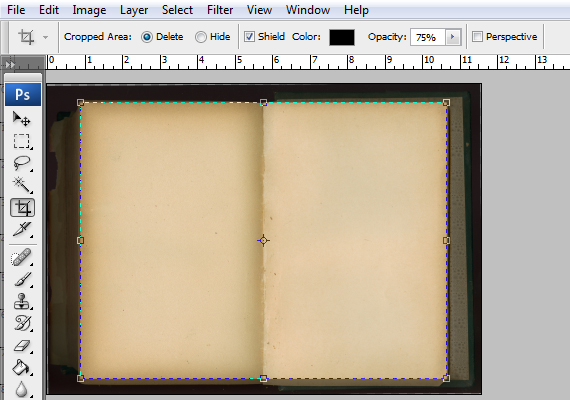
Grab the Crop Tool (C) and crop it like below. Hit Enter to exit Crop mode.
STEP 4
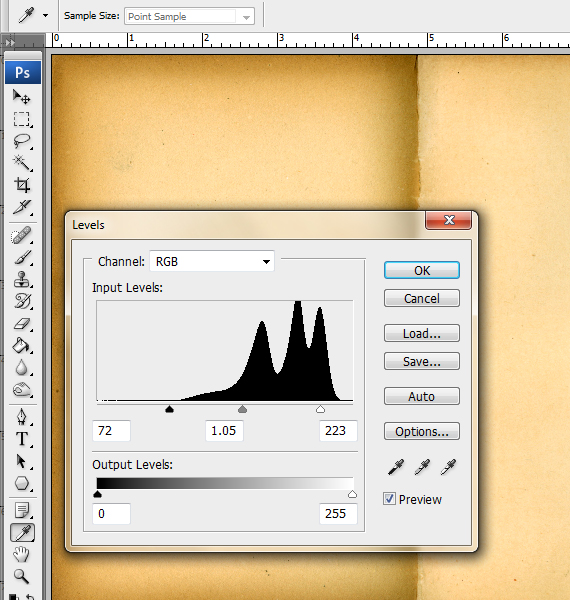
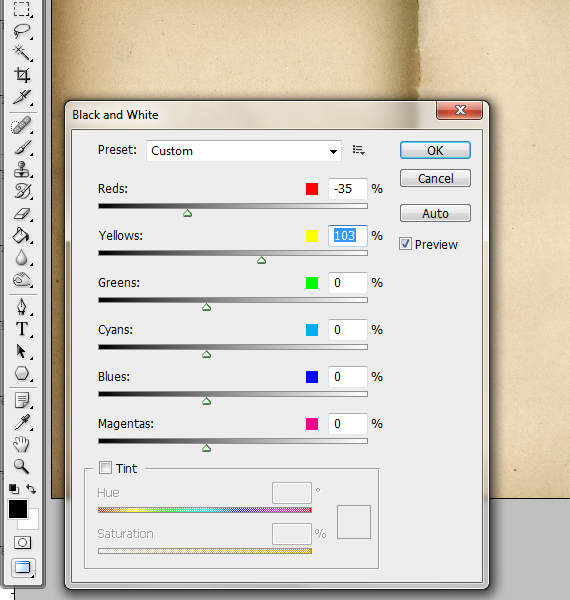
Go to Layer > New Adjustment Layer > Levels and Black & White. Use the settings below for each.
STEP 5
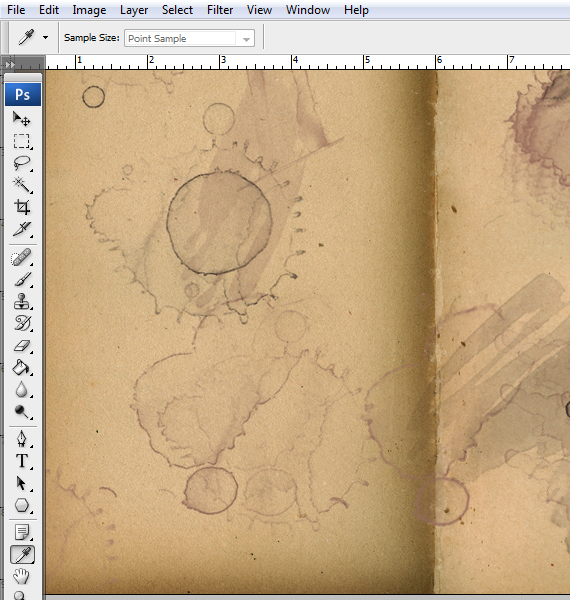
Open the “watercolor brushes” .abr file. Just double-click it, it will be loaded into the brushes palette. Grab the Brush Tool (B), create a new layer (CTRL+SHIFT+N) and paint some randomly colored spots. Use a dark brown color.
STEP 6
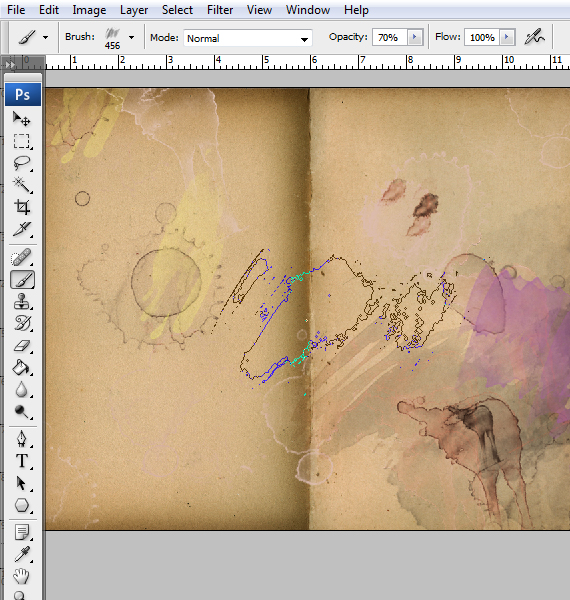
Create a new layer (CTRL+SHIFT+N) and paint more spots, but this time, make them more faded. To do this, change the brush Opacity to 60-70%.
STEP 7
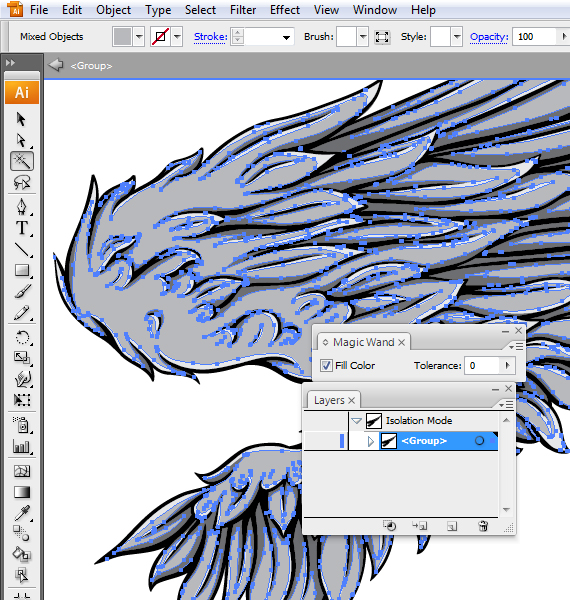
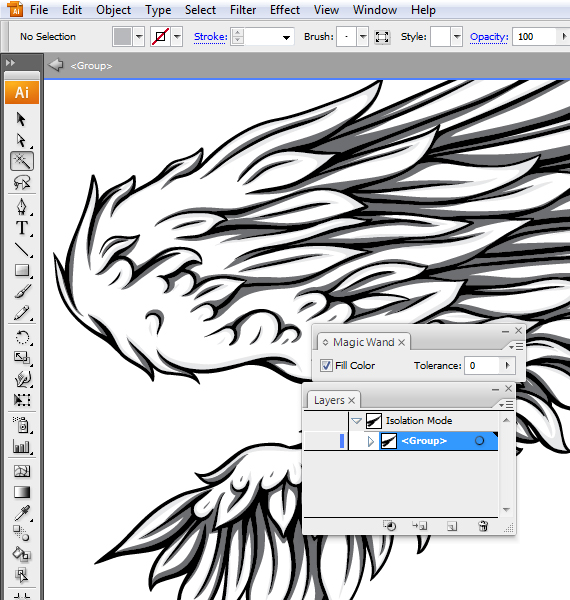
Open the “wings vector pack”. Select one and double-click it to enter Group Edit mode. Now grab the Magic Wand Tool (Y), hit Enter and set Tolerance to “0”. Click the fill of the chosen wing and hit “Delete”.
STEP 8
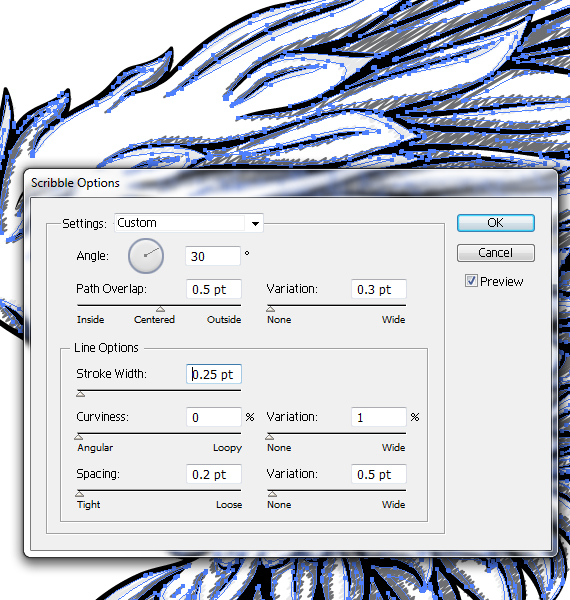
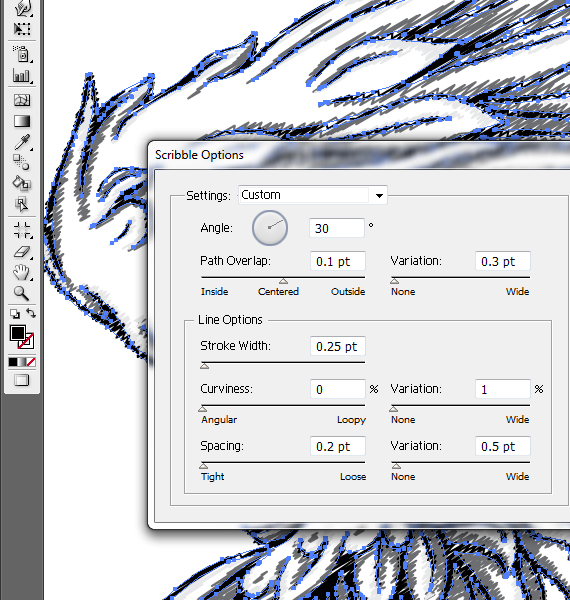
Select the entire shape (CTRL+A), hold the ALT key and click the outline. Go to Effect > Stylize > Scribble. Use the settings below and hit OK.
STEP 9
Select the contour and Go to Effect > Stylize > Scribble. Use the settings below. Hit OK.
STEP 10
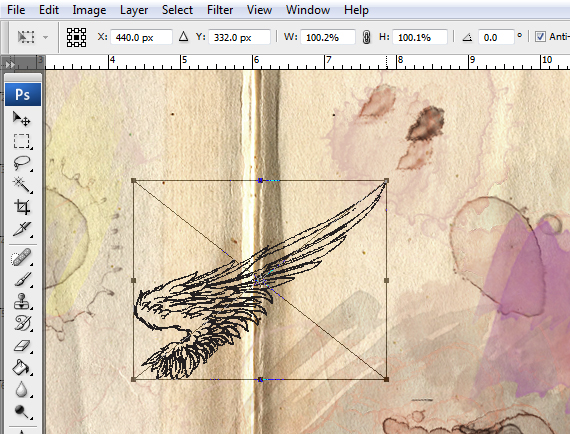
CTRL+click outside the artwork to exit Group edit mode. Select the wing and click-drag it into Photoshop. Insert it as “Smart Object” – you will be prompted to select it on drag-drop.
STEP 11
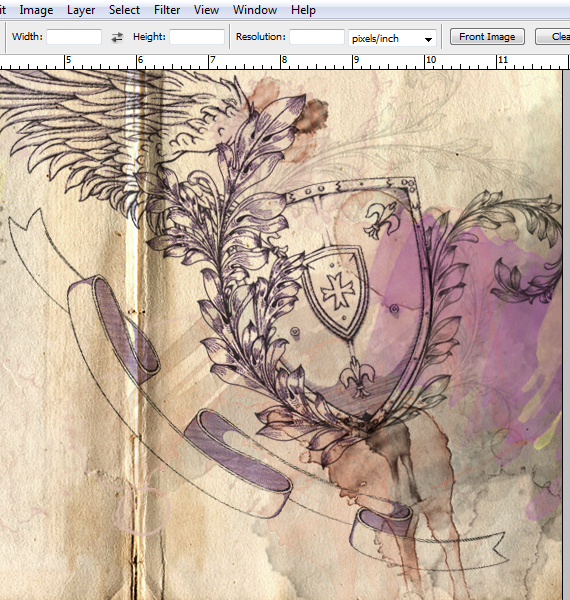
Resize it and place it like below. In the Layers palette, set Blending mode to “Multiply”. Do the same for the shield, scroll and flower.
STEP 12
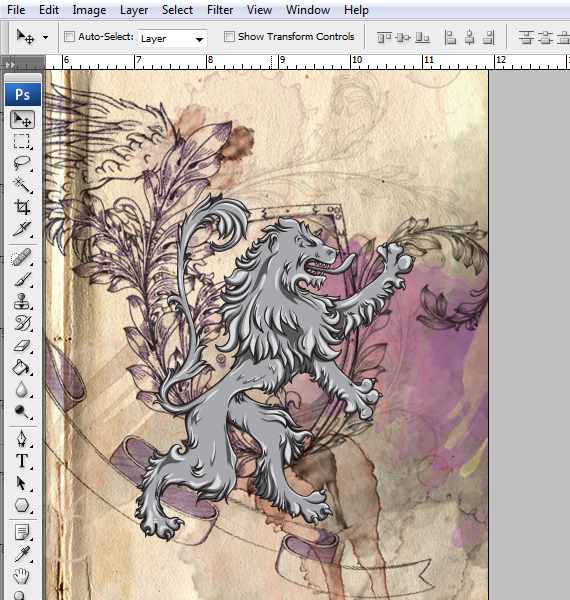
Open the “griffins vector pack”. Select a griffin and click-drag it into our document in Photoshop.
Resize it like below and hit Enter. Right-click near the layer thumb and select “Rasterize layer”.
STEP 13
Go to Image > Adjustments > Hue/Saturation (CTRL+U). Check the “Colorize” box. Use the settings below.
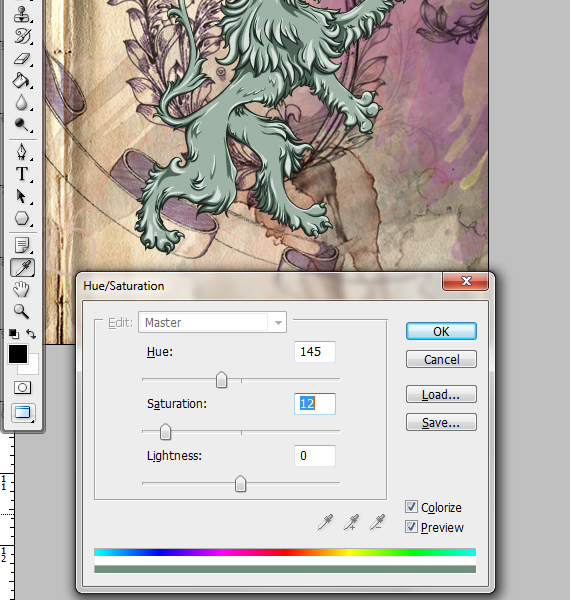
STEP 14
Go to Layer > Layer Mask > Reveal All. Grab the Brush Tool (B), set it to a round, hard brush (Hardness is 100%) and paint over the area shown below. Do the same for the extra areas of the wing, shield and flower.
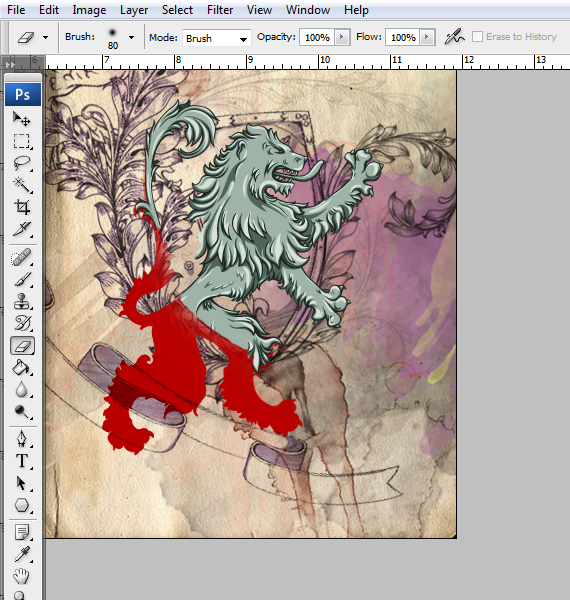
STEP 15
Copy another flower from the “Floral vector Pack” and paste it into our document. Resize it like below, hit Enter and set the layer Opacity to 10%. Rasterize it and mask the extra areas, like in STEP 14.
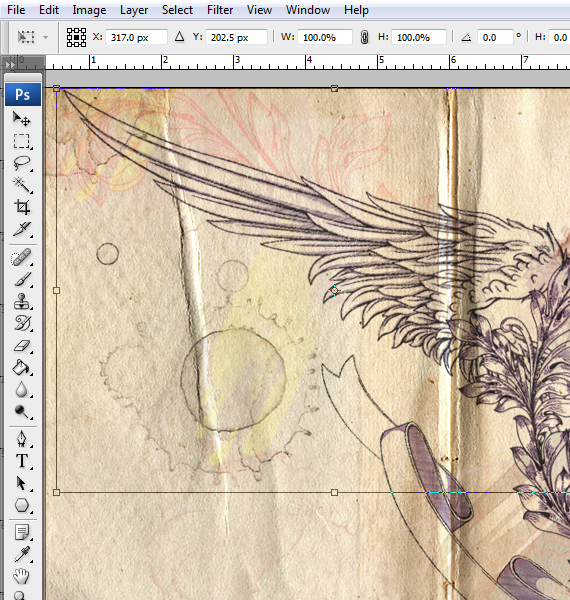
STEP 16
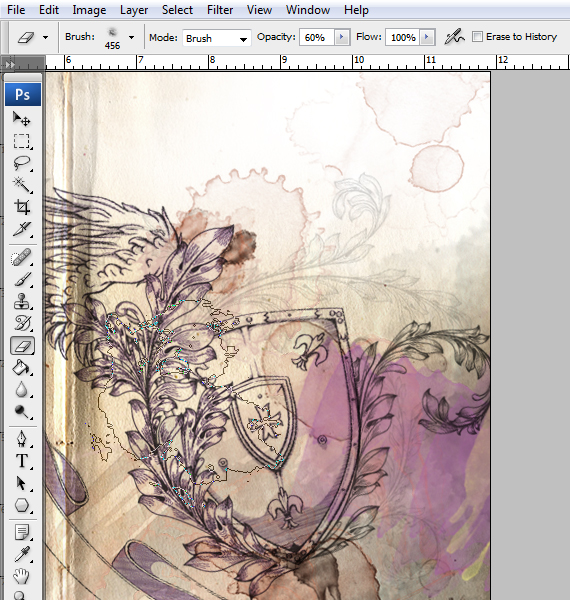
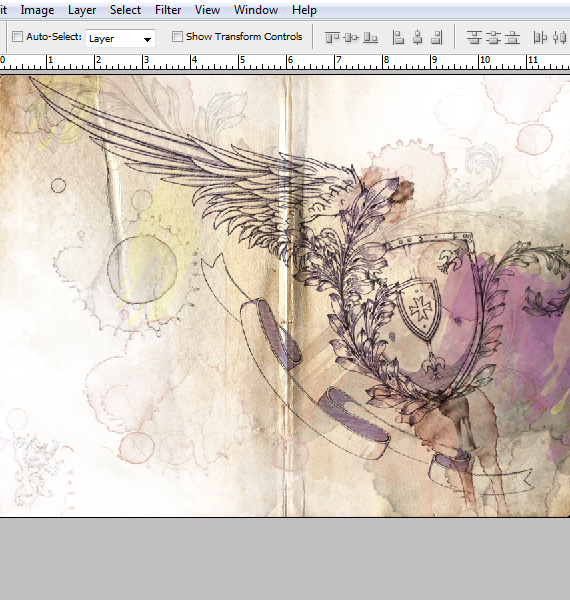
Open the cloud brushes. Create a new layer (CTRL+SHIFT+N), hit D, then X (resets foreground/background colors and switches between them), grab a cloud brush and paint over the bottom left and top right corner, like below.
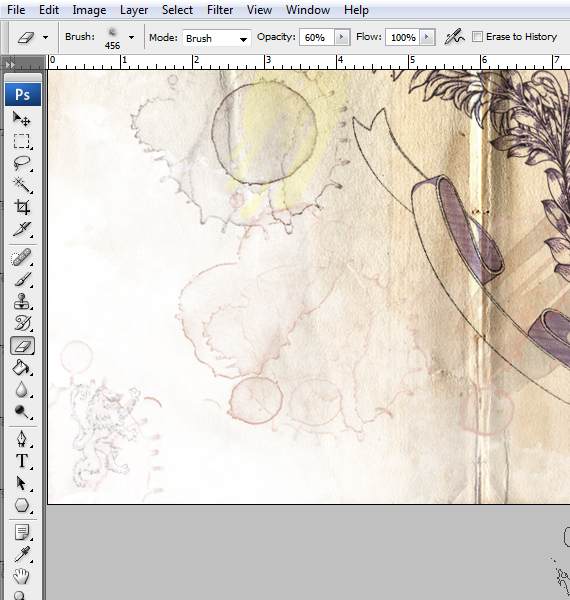
STEP 17
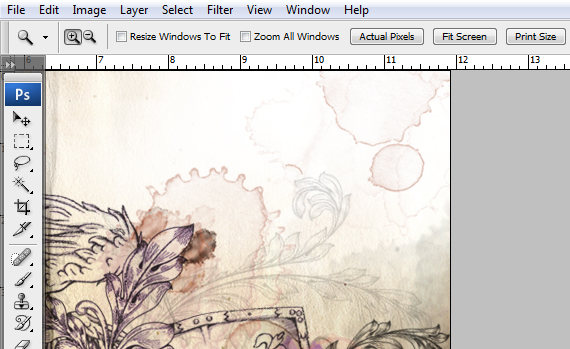
Create a new layer (CTRL+SHIFT+N) and paint more watercolor spots over the white areas created, but make them more faded – set the brush Opacity to 70%.
STEP 18
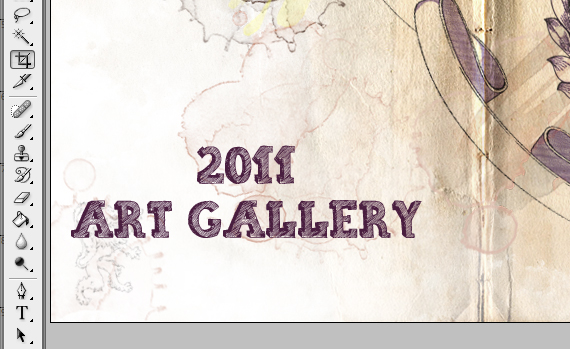
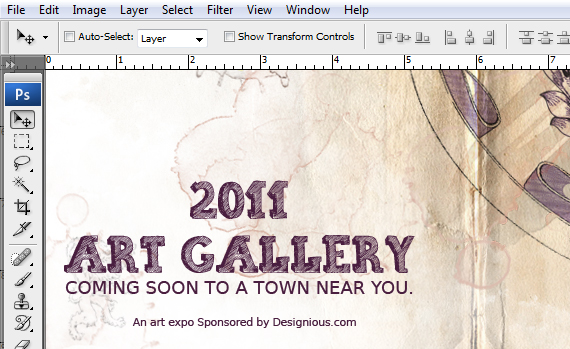
Grab the Horizontal Type Tool (T) and click-drag to create a text box. Type in a title of your choosing. Mine is “2011 <Return> ART GALLERY”. Set the text alignment to “Center Text” and Font to “sketch”. Set it to a dark red color.
STEP 19
Create another type box and type in your quote. I chose “COMING TO A TOWN NEAR YOU.” with Arial font. Do the same for the smaller text.
We use different fonts to create a visual path for a clear reading: the large sketchy font stands out more, followed by smaller capitals, ending with the tiny sponsor text.
STEP 20
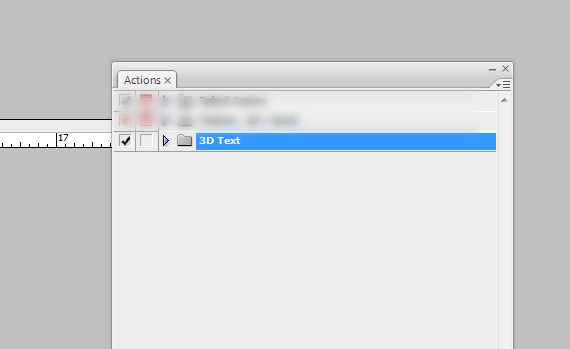
In the Actions window (Window > Actions), access the menu and select Load Actions… and load the “3D Action file. Create the “DESIGN” 3D text by following the instructions from the archive.
STEP 21
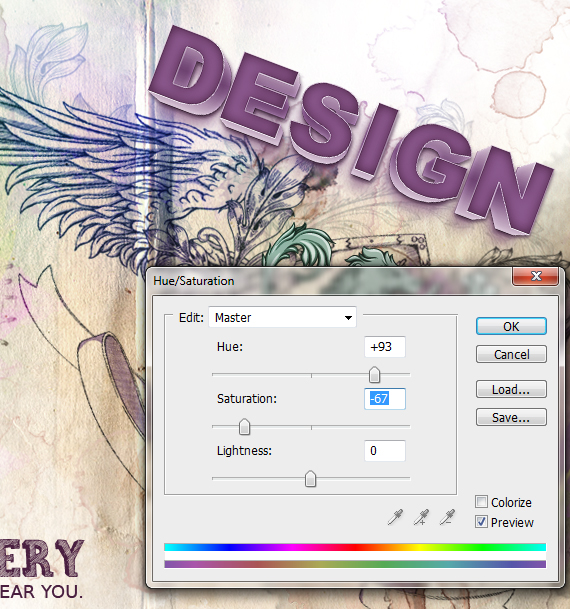
Go to Window > Tile Horizontally and click-drag the layer into our document. Hit CTRL+T to enter Free transform mode and place it like below. Hit Enter. Hit CTRL+U (Hue/Saturation) and use the settings below.
STEP 22
Create a new layer (CTRL+SHIFT+N) and place it above all other layers (CTRL+SHIFT+]).
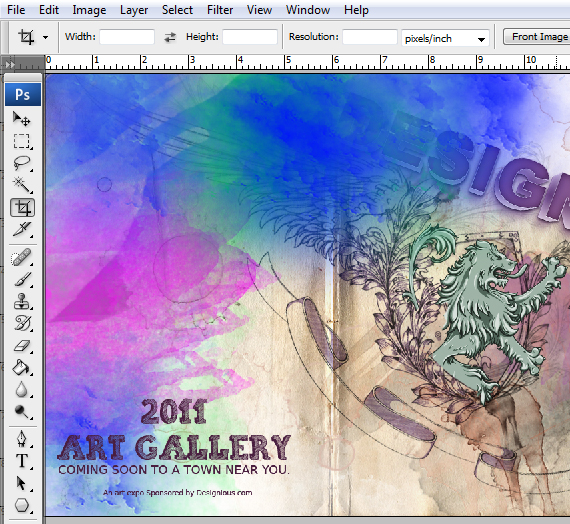
Grab the Brush Tool (B), set it to a round, soft brush and paint some random, colored spots, like below. Set the layer’s Blending mode to “Soft Light”.
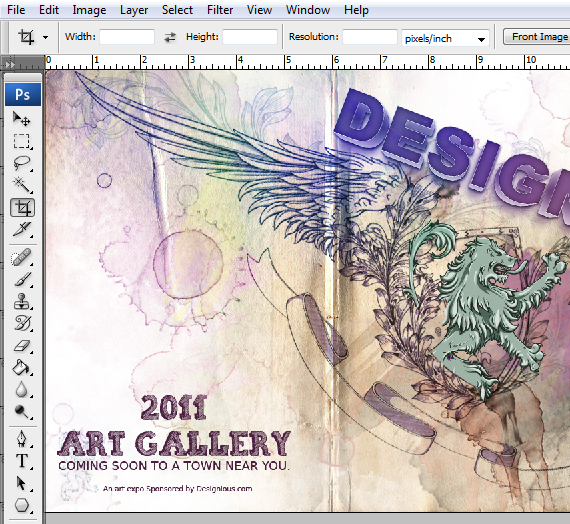
STEP 23
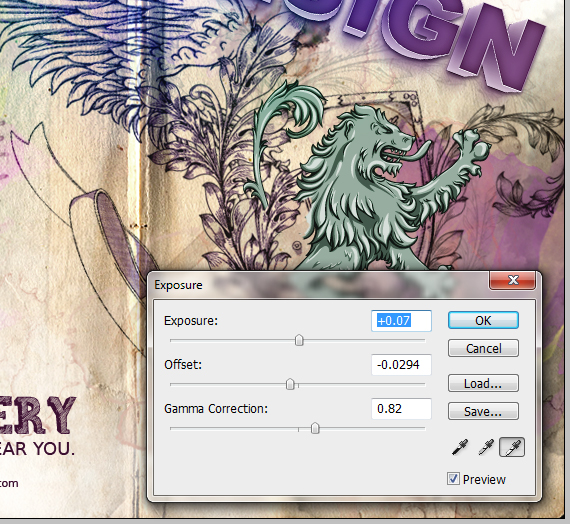
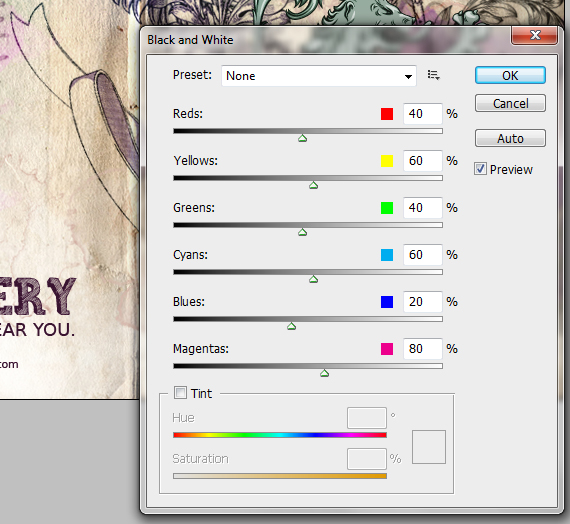
Select the top-most layer and go to Layer > New Adjustment Layer > Exposure and Black & White. use the settings below. For Exposure, set Opacity to 45% and for the Black & White, use 15% Opacity.
STEP 24
Select all artwork (CTRL+A) and copy merged layers (CTRL+SHIFT+C), then paste it (CTRL+V). Go to Filter > Sharpen > Unsharp Mask. Use the default settings and hit OK.
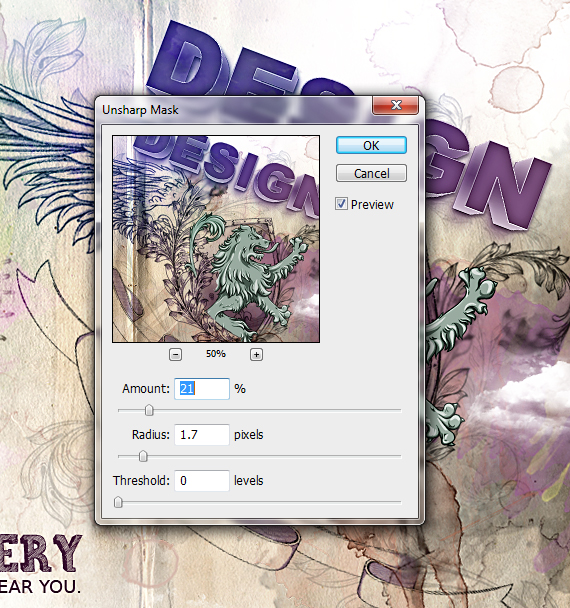
If you want the lines to bleed in a bit, grab the Lasso Tool (L), select the area you want and go to Filter > Blur > Gaussian Blur. Use a 2-4 px setting and hit OK.
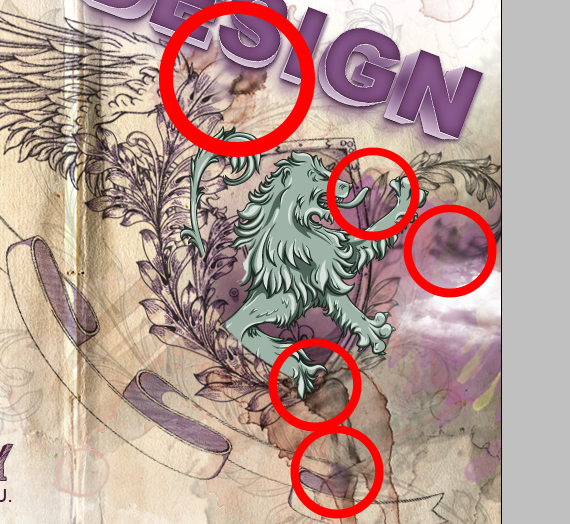
Done!
Thanks!
I’ve been collecting source images and brushes for a while now with the intention of making something very similar to this for a while now. Just the motivation I needed :)
aaaaaaaaaaaaaaa
interesante gracias por el aporte
I have a question. I did black&white of step4 as you did. but, my piece became monotone. why??? I’m non-English-speaking pupil so please give me expatiation. thanks.
Set the layer Opacity to 15-20%. Black & White layer desaturates the entire image without destroying it.
Reducing the Opacity will make a partial desaturation.
Woooo………..great creativity.
Do want sell your Wallpaper or Design (Free Upload )?????
awesome techniques.
This is a really cool effect! Thanks for sharing the tutorial.
Wow very good post