

How to Create 3D Text Without The Use of Any 3D Tools

When you saw the title, you probably said “Impossible, you can’t create 3D text with Photoshop!” Not entirely accurate. We can create extrusions even if the command isn’t available, adjust the depth and direction of the extrusion path or use shading and all we need is a different point of view on things. Sounds pretty good so far, huh?
Difficulty: beginner
Completion time: 3-5 min
Tools: Photoshop CS3 or later
Resources: Showcard Gothic font
Final Image Preview

STEP 1
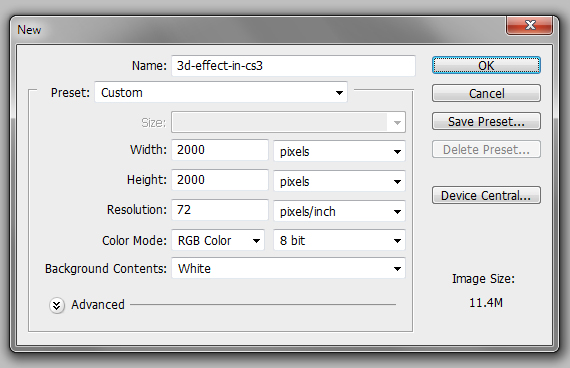
Create a document of 2000 x 2000 px in RGB color mode (File > New…) or a similar file size.
STEP 2
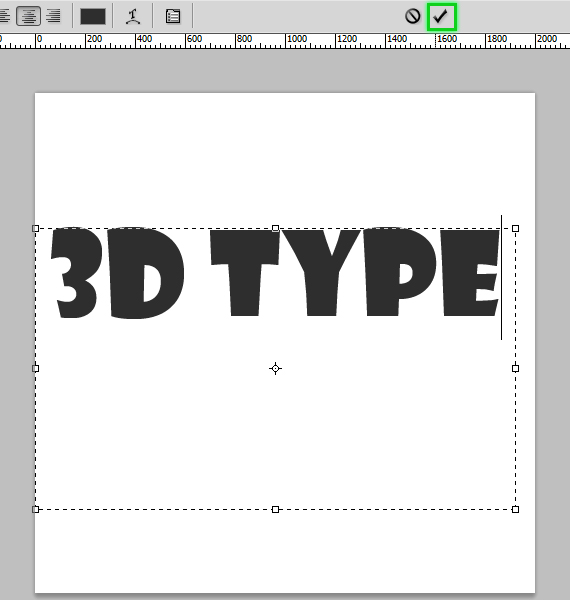
Grab the Horizontal Type Tool (T), draw a type box with the about the same width as the canvas. Type in your desired text and hit the “OK” button in the top side.
STEP 3
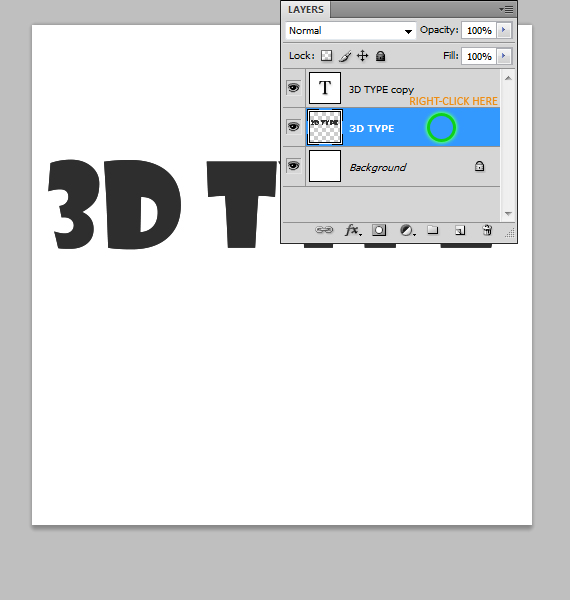
Duplicate this layer (CTRL+J). Select the original layer, make the text another color, go to the Layers palette and right-click near the layer thumb. Select “Rasterize Type”.
STEP 4
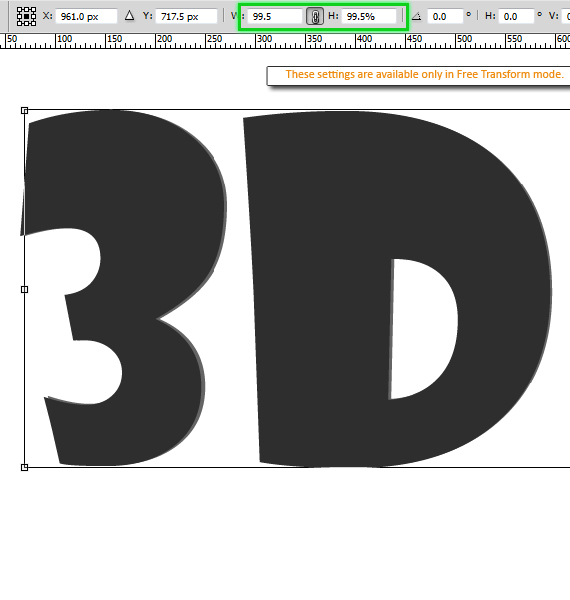
Hit CTRL+T to enter Free Transform Mode, click the chain between the percentile values and change the value to “99.5%”. Hit Enter.
STEP 5
Duplicate this layer (CTRL+J). Select its original and repeat STEP 4.
STEP 6
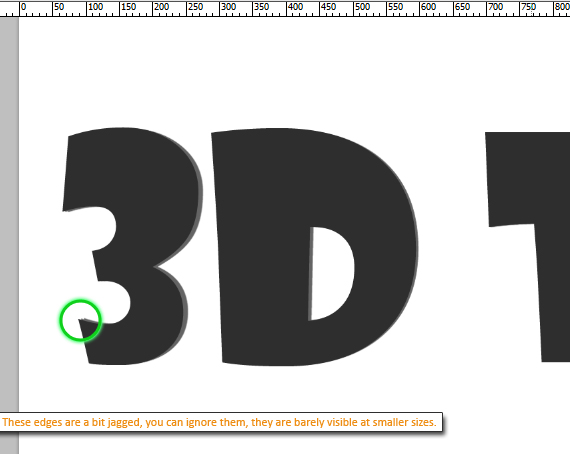
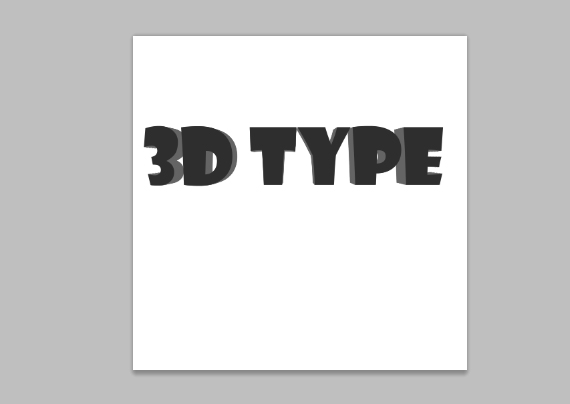
Repeat this step until you get a decent “extrusion” height.
STEP 7
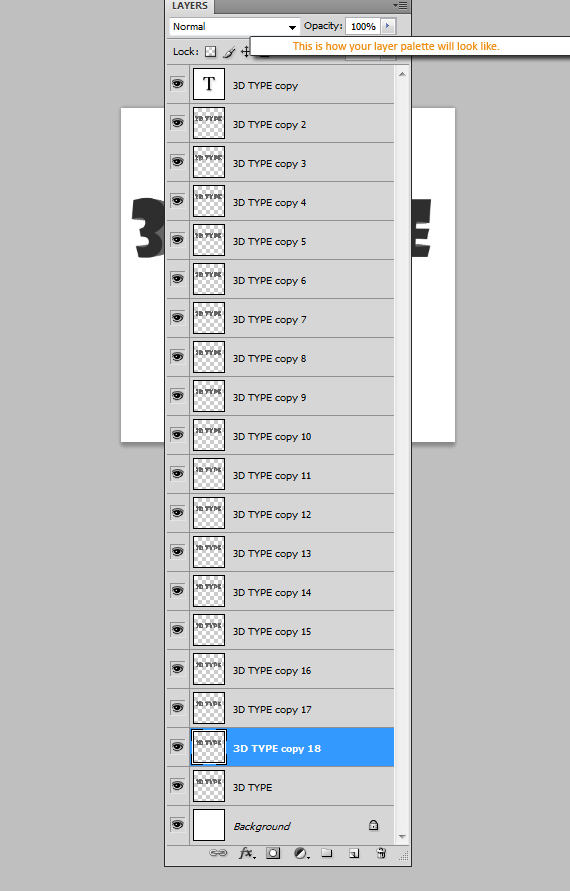
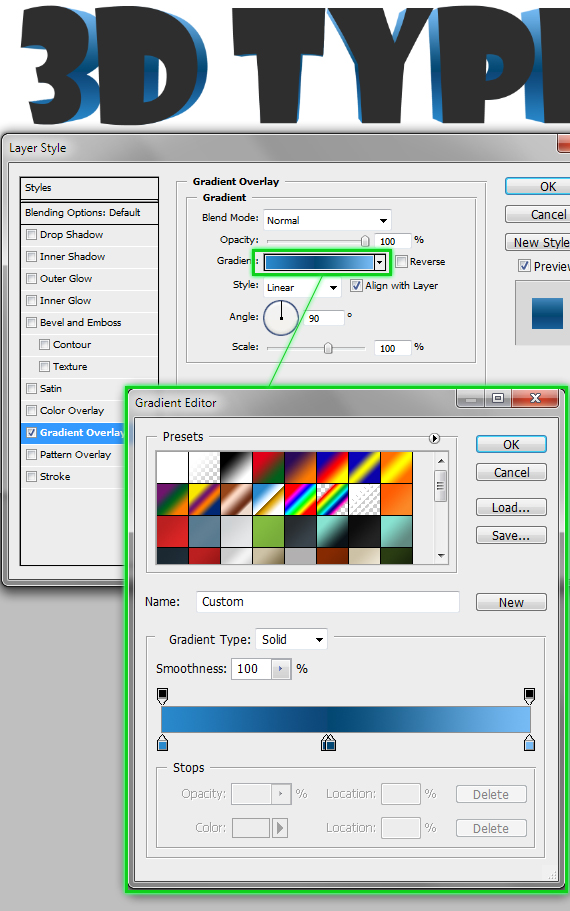
Select all layers except the top-most one and “background” and hit CTRL+E to merge them. Click the “fx” in the Layers palette and select “Blending Options”. Use the settings below.
STEP 8
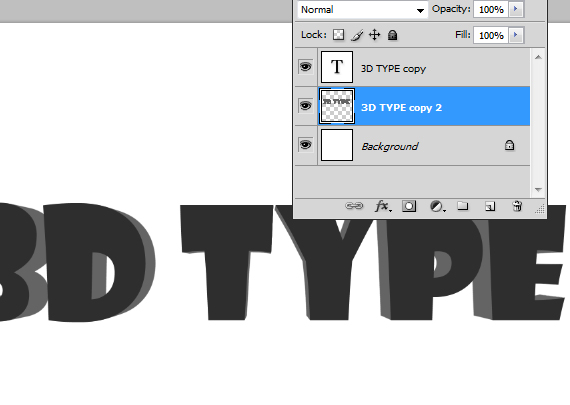
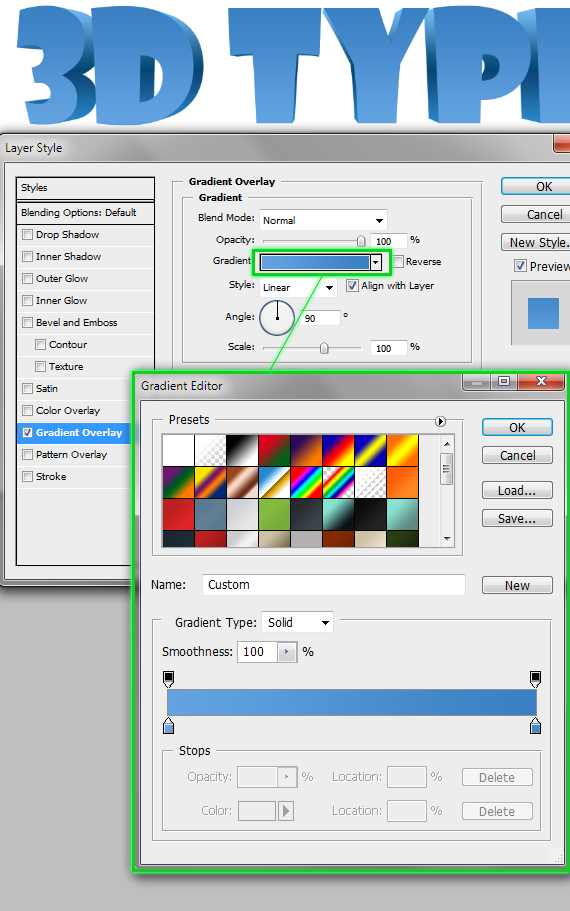
Select the top-most layer and add a similar blending setting, like below.
Done! 3D Text Without The Use Of Special Tools.
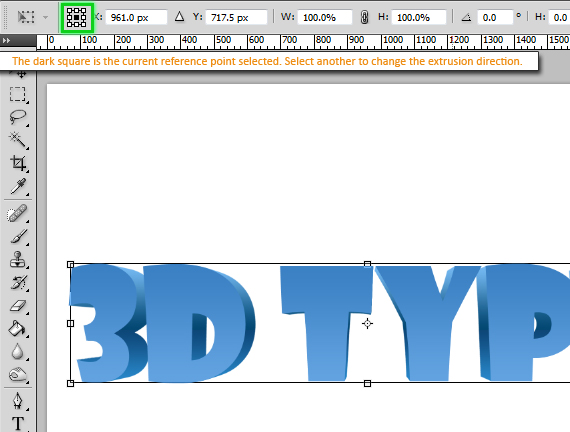
You can explore different extrusion paths if you change the reference point for the Free Transform mode.

So there you have it, a simple way to create 3D text by using only Photoshop.
Editor’s Note: This post was originally published in November 2011 and has been completely revamped and updated for accuracy and comprehensiveness.
nice text effects, thanks for share on joyoge
This is interesting. I followed the tutorial and like the effect.
I wonder if there is a way to do this so that you don’t have to rasterize it, and therefore can apply the effect and still edit the text.
Now that would be cool!
Thanks for sharing.
There is a workaround to do this: turn the whole process into an action :)
It seems like the text came out really nice. :)
your tutorial is just awesome, very clear explanation.
thanks so much :)
good totorials, expecting more from u
nice
Cool, Really like this tutorial…
I like This tutorial…
wow. Thank you for sharing!
I Like this post.
great post
very good post
Thanks for sharing.
Very Very Very Nice.
And more usefull Post.
Excellent site you have here.. It’s hard to find excellent writing like yours nowadays. I really appreciate people like you! Take care!!
Quick and easy, thanks!
How much OK!
Thank
many many thankas
You’re very very welcome!
I love this blog a lot. Thanks for sharing with us. Waiting for your next post.
So amazing 3d text photoshop tutorial. Many many learn this post. Unique information share this post.
Your concept and creativity is upper level. Unbelievable method to create 3D text without using 3D tools.
So amazing write about 3d text photoshop tutorial.TThnaksk for share this post.
Great post with a lot of information. Many many thanks for sharing with us.
Here the data you included is critical to coordinate the region of center, other than we will be very cheerful on the off chance that you customary set up like this post. Much obliged ahead of time!!
Very cool! I’ll be using this for sure.
Wow! I am enjoyed your article.Your tips really helpful. Thanks a lot for sharing
I really looking for these kinds of posts for a long time. Thank you for sharing with us.
Educational post. I hope those who have very little knowledge about this subject will be able to gain a lot of good knowledge from this post. Thank you for giving such a beautiful post.
When you are looking to buy toys for the children, you can often check out the stores like Amazon where you can find dozens of variety of kids toys. Especially these days, many are preferring for the kids cars and among them electric cars have become so popular among the children. If looking for the kids-electriccars.co.uk, then check out the store which offers the best affordable pricing and free delivery all across the UK. You will get the max number of toys which are exclusively coming in the market with the latest stock, thus you can choose either sports cars, trucks, tractors or else even off-road kids electric cars from the store. Thus you can find the best kids ride on cars in the UK from one of the best retailer. You can also buy children kids motobikes or else kids electric scooters which are too popular among the children other than the toys like kids ride on cars. So always makes sure what your kids like and then choose the one which best suits their needs.
nice article
This was great to read
Thank you for sharing :)
This was great to read
This was great to read
seokk123