
Design Process: How To Draw Megamind in Illustrator
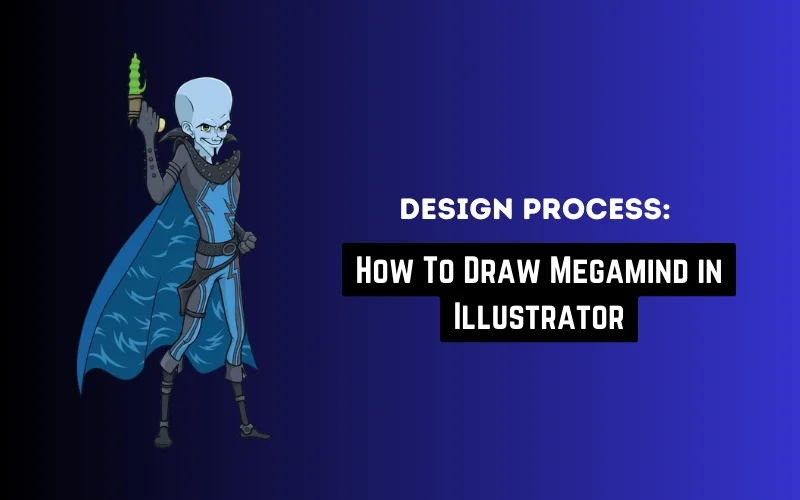
In this tutorial, we will create a vector drawing of Megamind, the supervillain. You will also learn how to observe the “hidden” technical details a design needs to alter the audience’s reaction the way YOU want. Apart from how to draw Megamind,
You will learn how to:
- Make an overall analysis of a design before starting to draw
- Create proper outlining with a professional look
- Organize your work into layers
- Adjust color tones for a better look
- Use vector masks
Difficulty: Intermediate
Completion time: 1-2 hours
Tools: Illustrator CS3
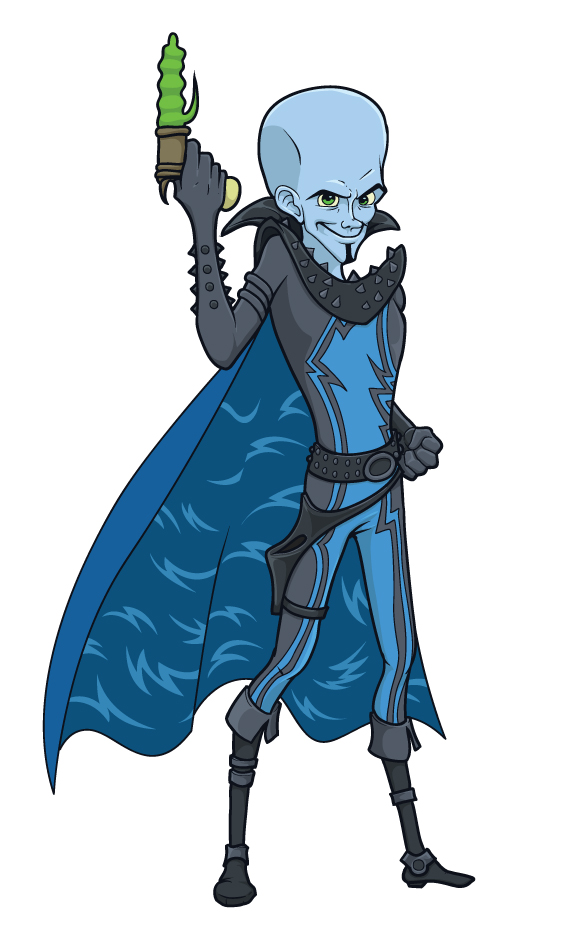
Super-Villain Megamind Final Image
Resources You Need To Draw Megamind:
– pencil, paper, graphic tablet
– favorite music playlist
First, make yourself comfortable. It’s important you are not influenced by external factors, mess on your desk, or thoughts. Clear your mind of any other worries. Now, let’s begin!
Get some posters or see some trailers of the movie on the internet and get an idea of what the character looks like.
Observe the proportions and try to figure out why he was designed like that and write them down.
Check out 2D Character Illustration Tutorial
Characteristics of Megamind :
– Large head and skinny body – Makes the head look a lot bigger
– curved nose bridge and sharp chin, enhanced by the small beard – suggests the character is not completely confident in himself and further enhances the skinny look of his body.
– relatively large eyes, unlike other villains – shows the character is actually kind and sociable. Eyes are considered the mirror of the soul and being able to see them wide open is like reading an open book, you can tell what he’s thinking of.
Let’s take, for example, Joker, from the Batman. His eyes are contoured with black, which makes the character look psychotic and in the same time it makes the eyes look smaller and deceiving, thus the character is more unpredictable and dangerous.
– tight suit – using more loose clothing (such as a long overcoat) would make the character look bulkier and more imposing, but latex doesn’t hide any body traits at all – the best choice to further point out the skinniness of the character.
The bright blue cape contrasts a lot with the dark gray suit, so you can see he is skinny from any point of view.
Check Out: 5 Latest Graphic Design Techniques
So Why All This Skinniness?
To create a focus point on his large head, suggesting he’s “the man with the plan” rather than doing everything by himself.
Now, let’s begin our pencil work! I started with a pose, roughly maintaining the proportions. It was a lot messier than now; I had to clean it up a bit. It’s not compulsory to get it on the first try. Use multiple lines and see which one makes it look the best, then clean the others.
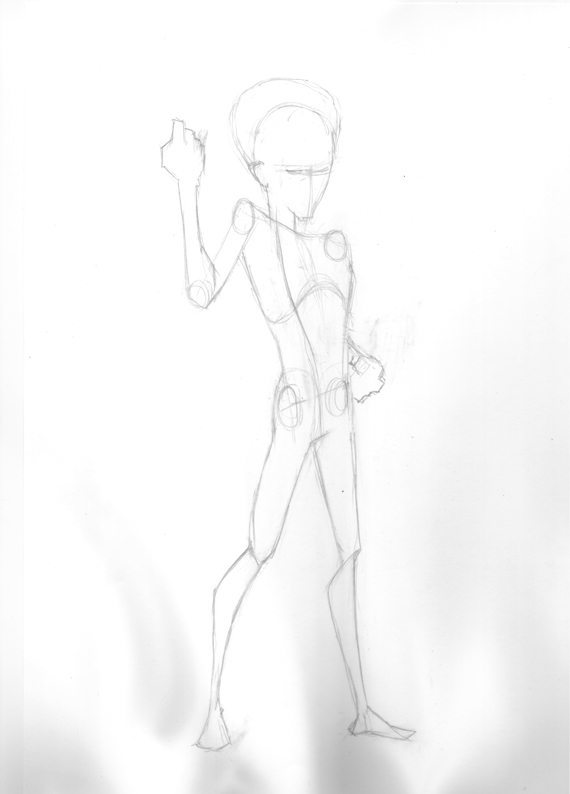
I started building up some details on the pose: the face, body, and some apparel.
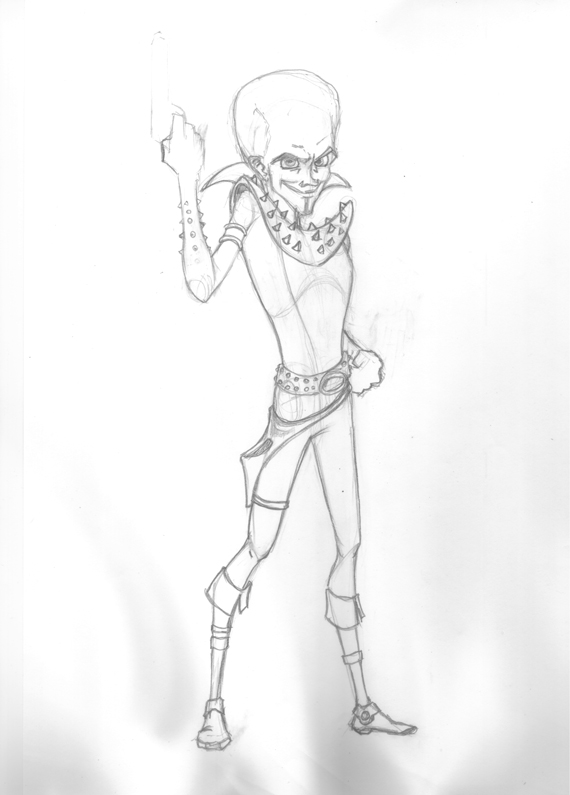
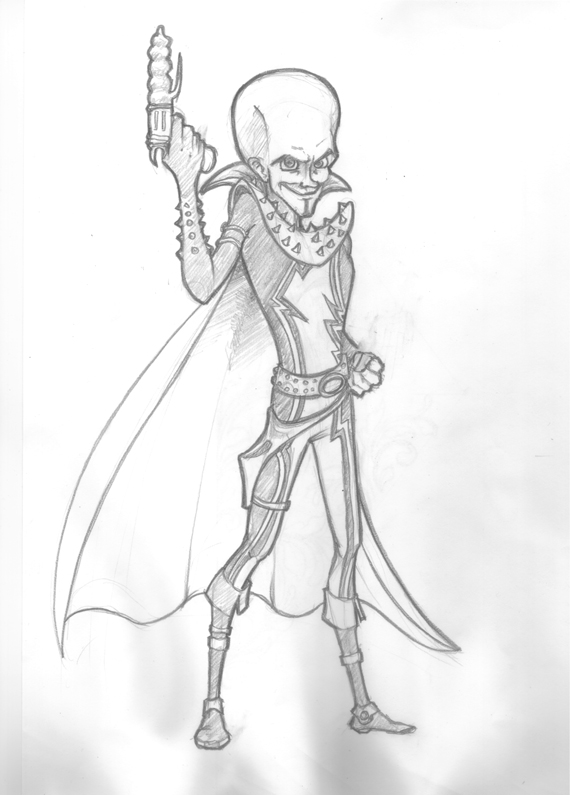
Now that we have our sketch ready let’s turn it into a vector.
Check Out: 20 Free Aesthetic Patterns
How To Draw Megamind In Illustrator
STEP 1: Create a new document
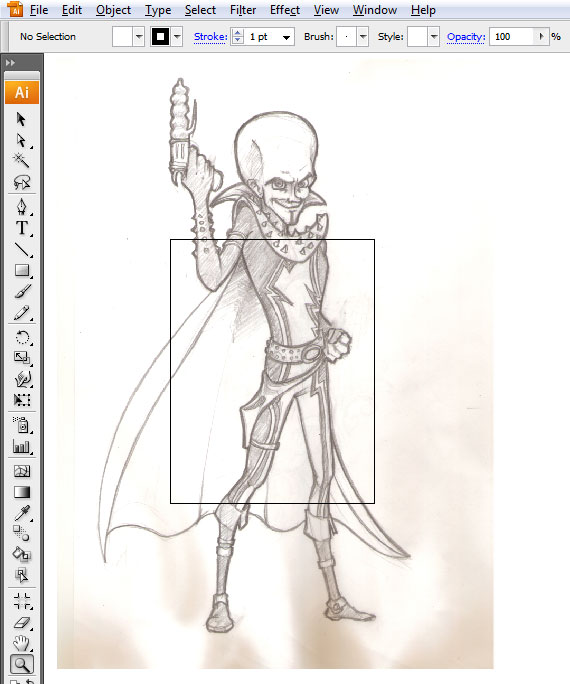
Open Illustrator and create a new document (File > New…) in letter format. Click-drag the sketch onto our canvas. Grab the Selection Tool (V) and make it larger. Hold the SHIFT key while dragging to preserve proportions.
Check Out How To Remove White Background From Scanned Images
STEP 2 Create a new layer
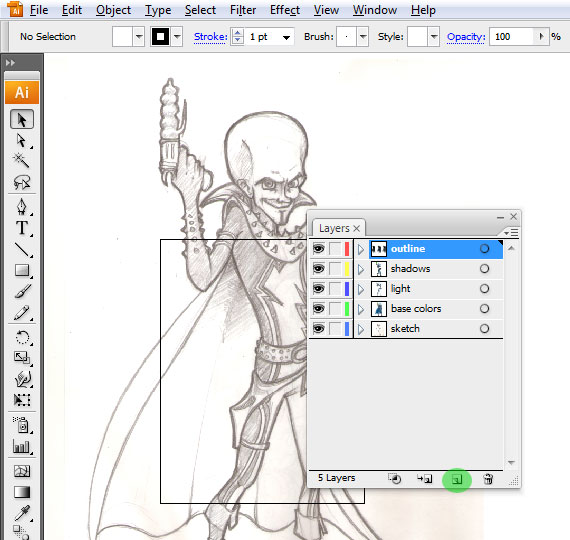
In the Layers palette (F7), double-click the “Layer 1” tag and rename it to “sketch.” Then click the “Create New Layer” and create the layers shown below.
Check Out: Creative Animal Logo Designs
STEP 3: Lock all the layers
In the next step in the guide to how to draw a super villain, Lock all the layers except the “outline” one. Go to the Brushes palette (F5), double-click a brush, and use the following setting. Then, double-click another brush and use the settings below.
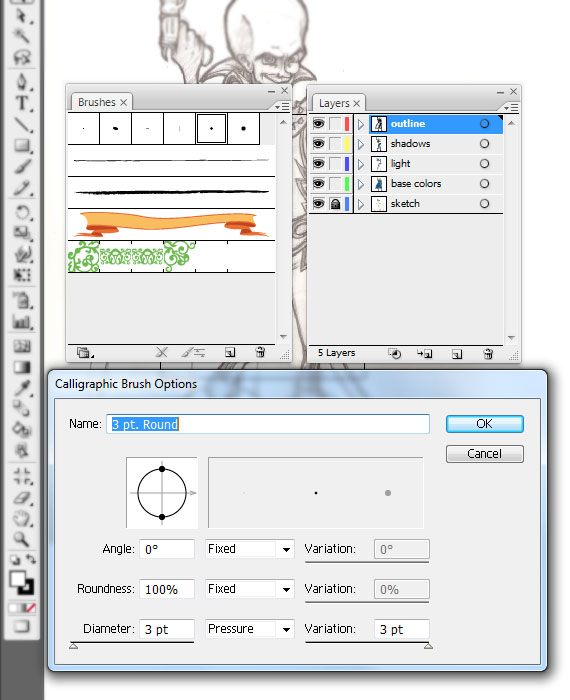
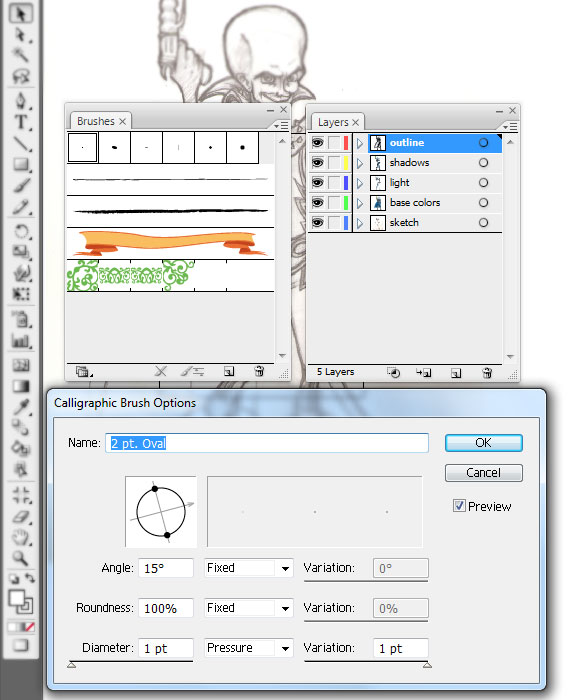
Check Out How To Create 3D Text With Photoshop
STEP 4 Megamind Drawing: Use the brush tool
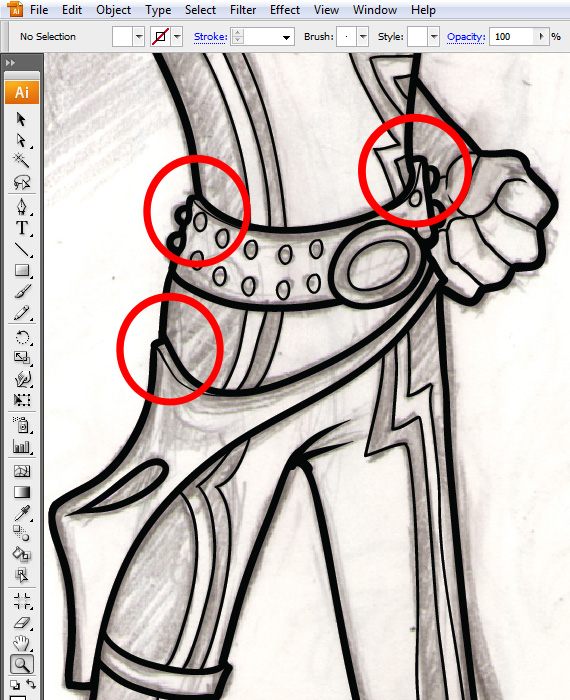
Grab the Brush Tool (B), select the first brush, and trace the major outlines of the character. Then, select the second brush and trace the smaller details: eyes, eyelids, nose, mouth, and parts of his clothing. Notice that I’ve added thicknesses to his apparel.
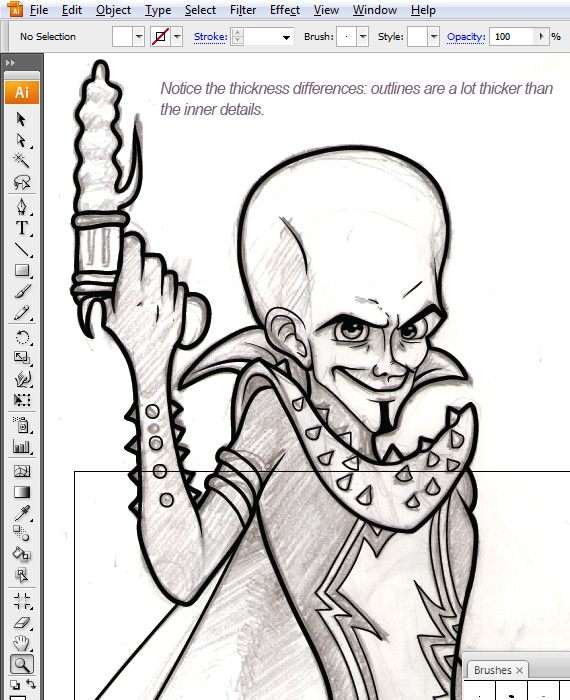
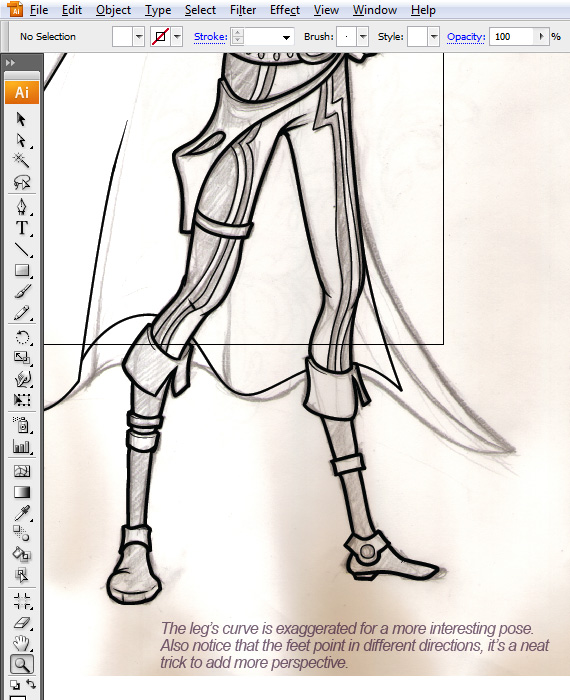
Check Out 160+ Snow Overlays Bundle
STEP 5: Expand Appearance
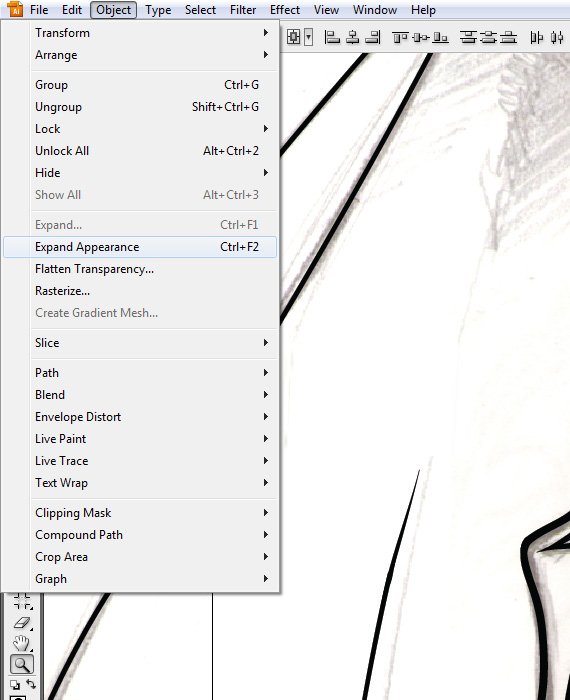
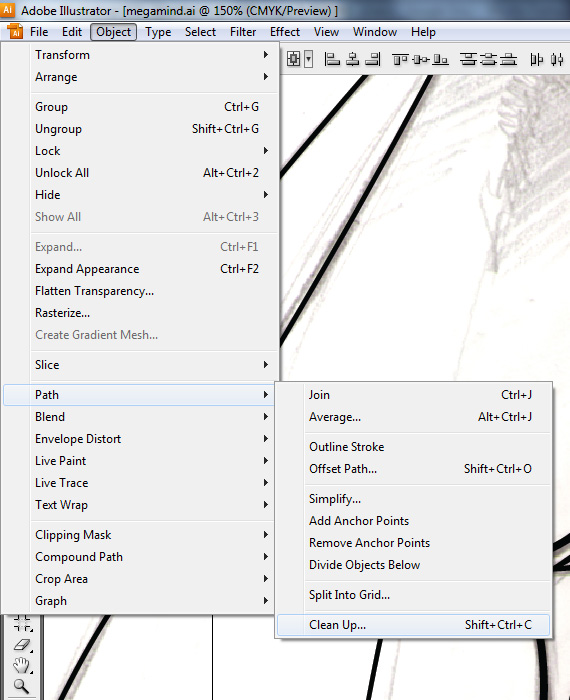
Select all artwork (CTRL+A) and go to Object > Expand Appearance, then go to Object > Path > Clean up.
Check Out Free Glitter Backgrounds
STEP 6: Use the Pathfinder tool
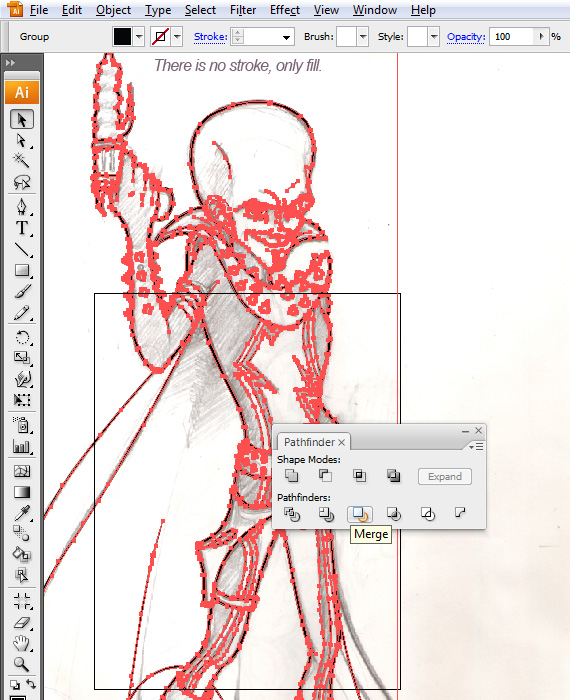
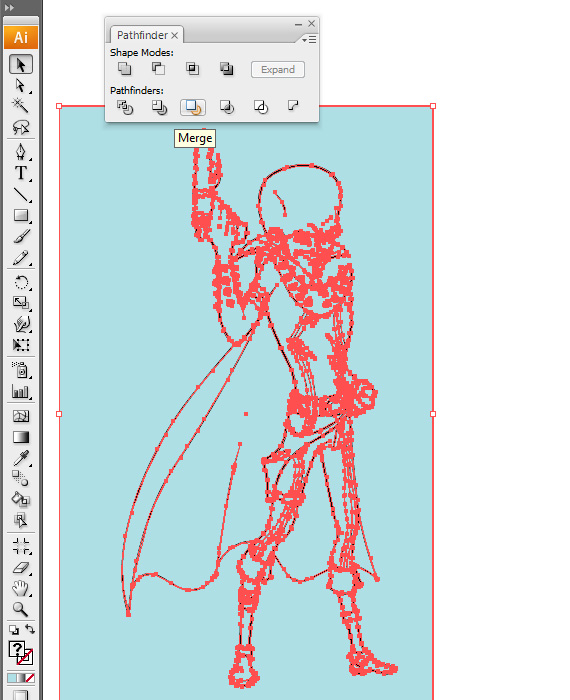
Select all artwork, go to the Pathfinder window (Window > Pathfinder), and click the “Merge” button.
Check Out: Free Heart SVGs
STEP 7: Merge using the Pathfinder tool
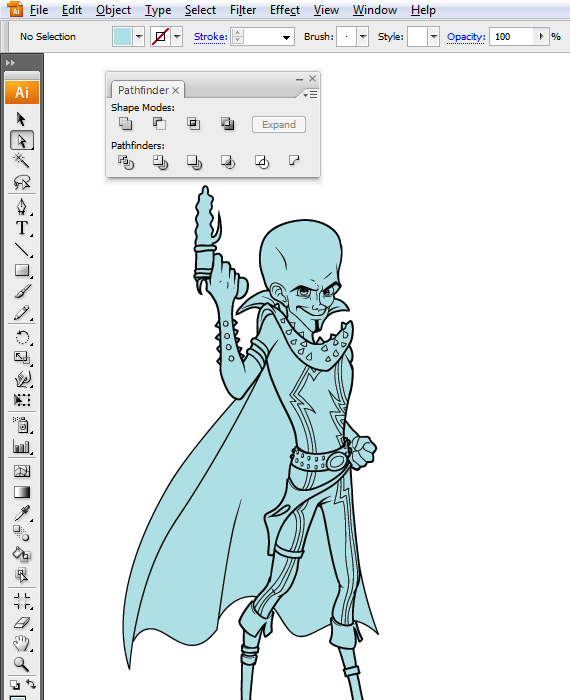
Grab the Rectangle Tool (M), draw a light blue rectangle over the entire outline, and hit CTRL+SHIFT+[ to send it back. Select all artwork (CTRL+A) and hit the “Merge” button again in the Pathfinder window. Then, grab the Direct Selection Tool (A), select the extra color, and hit Delete.
Check out: Build Your Own Characters Kit
Check Out 54 Free Premium Typography Elements
STEP 8 Megamind Drawing: Use the Magic Wand Tool
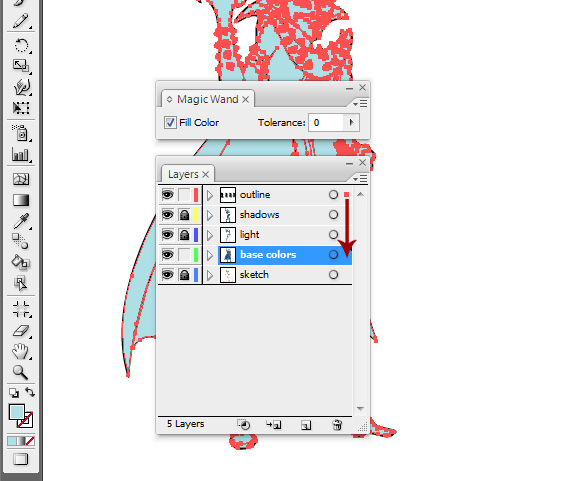
Grab the Magic Wand Tool (Y), hit Enter, set Tolerance to 0%, select the fill of the character, unlock the “base colors” layer, and click-drag the small square onto that layer. Then, lock the “outline” layer.
Check Out: 20 Free Fun Fonts
STEP 9: Use Direct Selection Tool
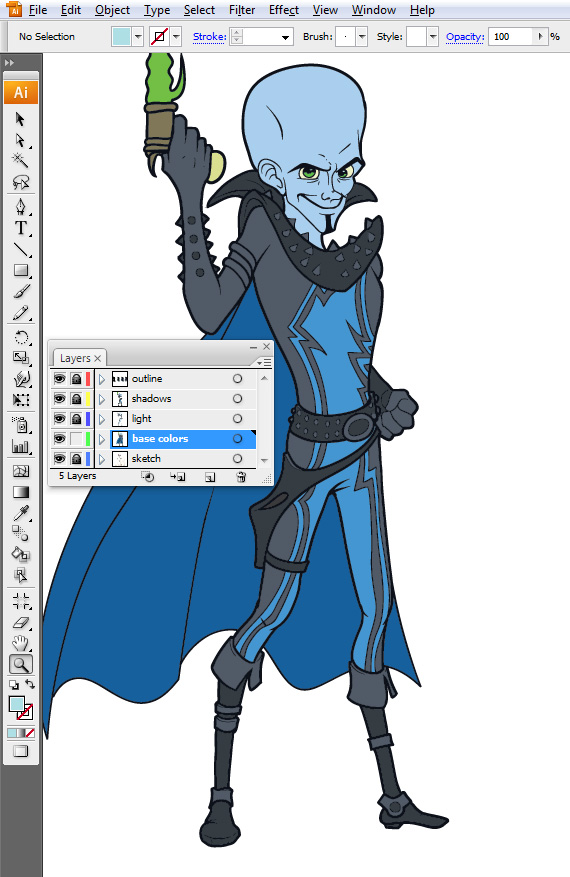
Grab the Direct Selection Tool (A), select each piece of color, and recolor it.
Check Out Free Doodle Icons Vectors
STEP 10: Use the Eye Dropper Tool
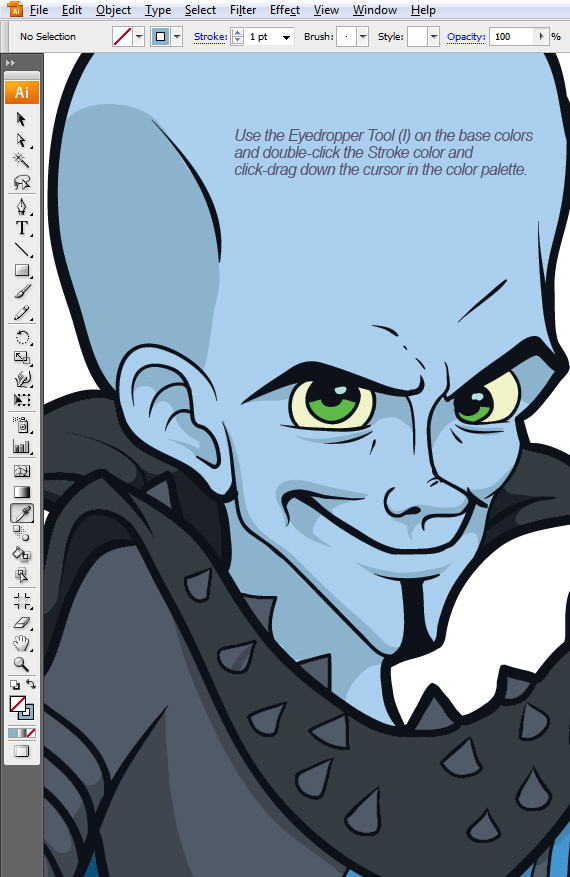
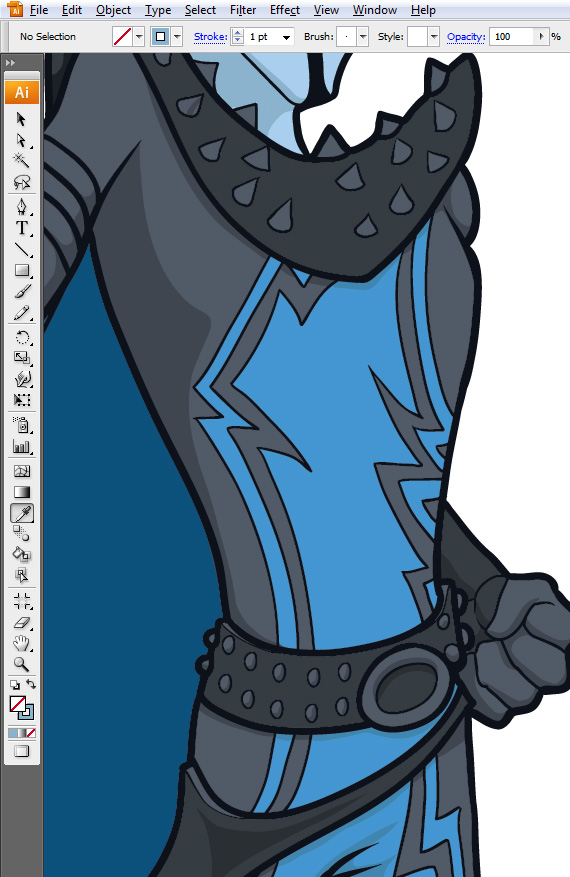
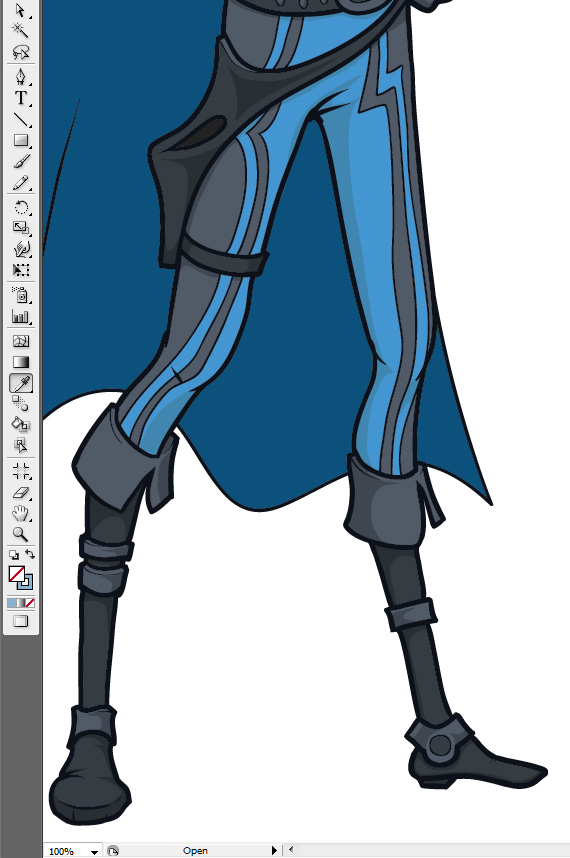
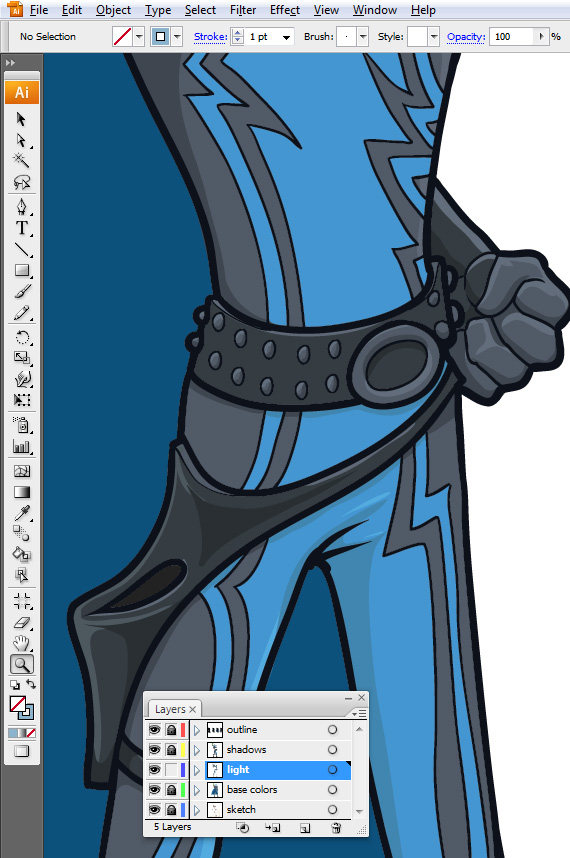
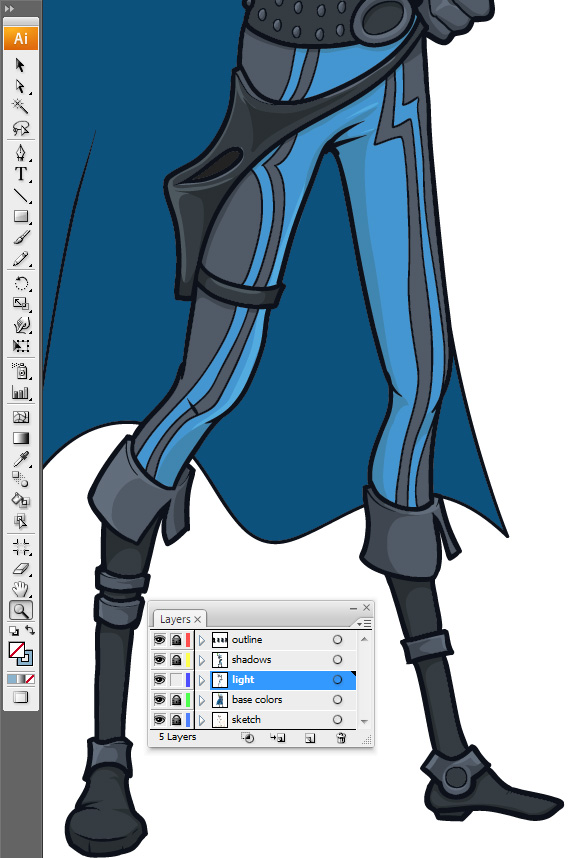
Lock the “base colors” layer and unlock “shadows.” Grab the Eyedropper Tool (I), click on the color of the head, hit SHIFT+X, and grab the Brush Tool (B). Double-click the Fill color and make it a bit darker. Hit OK and paint the shadows of the head. You can go over the outline, but not beyond it.
Check Out Free Premium Design Resources
STEP 11 Megamind Drawing : Make the color light
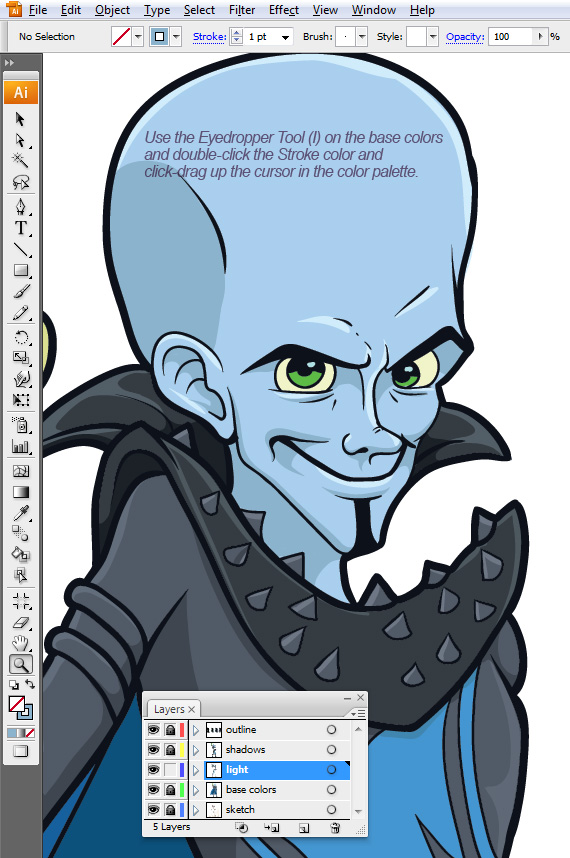
In the next step in this guide on how to draw a super villain, do the same for the lights, but make the color lighter and paint them on the “lights” layer.
Check Out Free Metal Textures
STEP 12: Grab the Path Tool
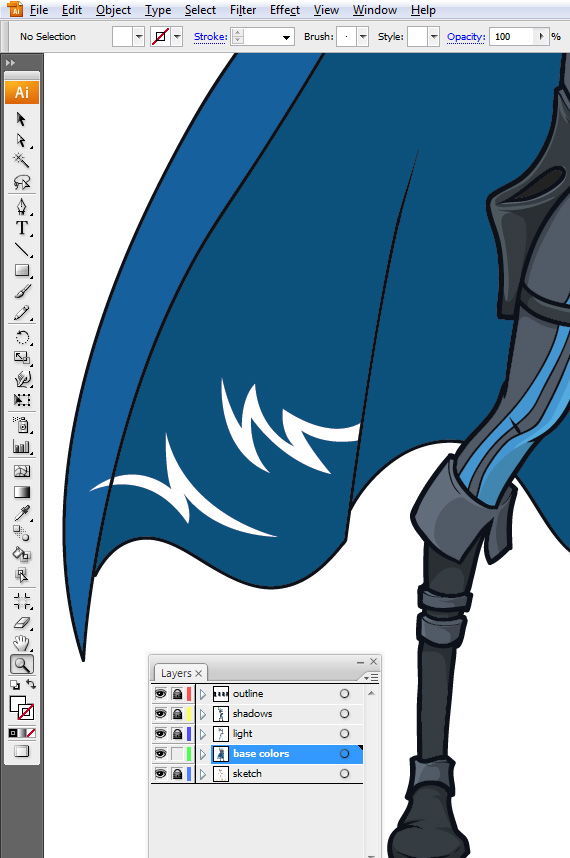
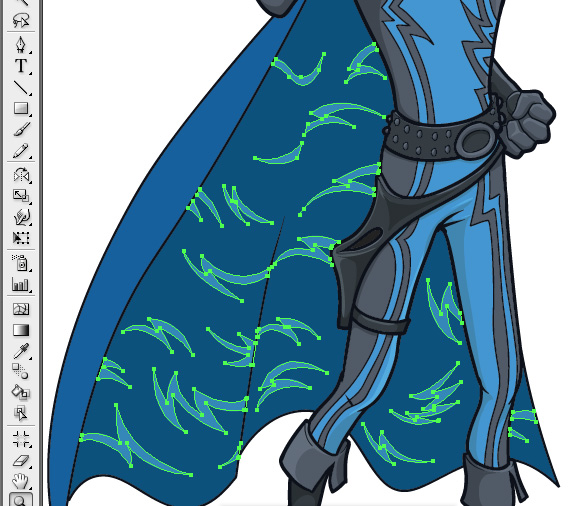
Unlock the “base colors” layer, grab the Path Tool (P), and draw some lightning shapes, following the “3D” shape of the cape.
Check Out: 10 High-Resolution Textures & Patterns
STEP 13: Use Direct Selection Tool
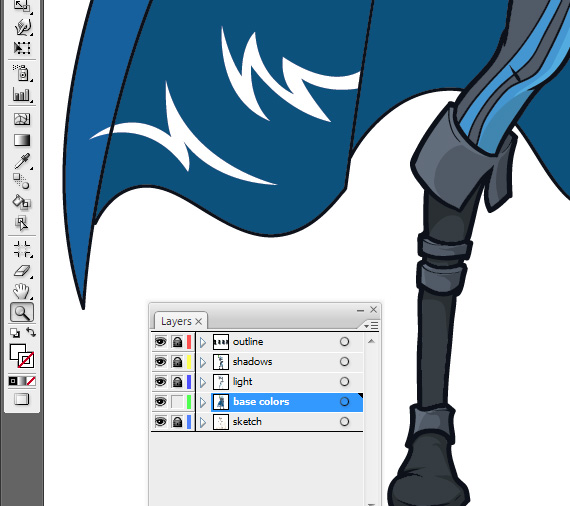
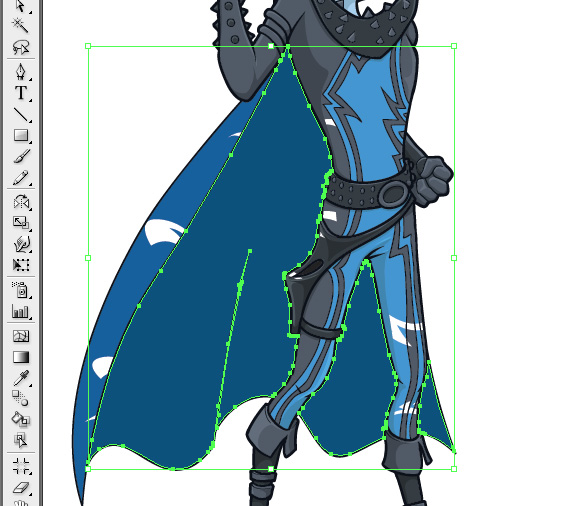
Grab the Direct Selection Tool (A), select the inner side of the cape, and hit CTRL+C > CTRL+F to paste a copy above it.
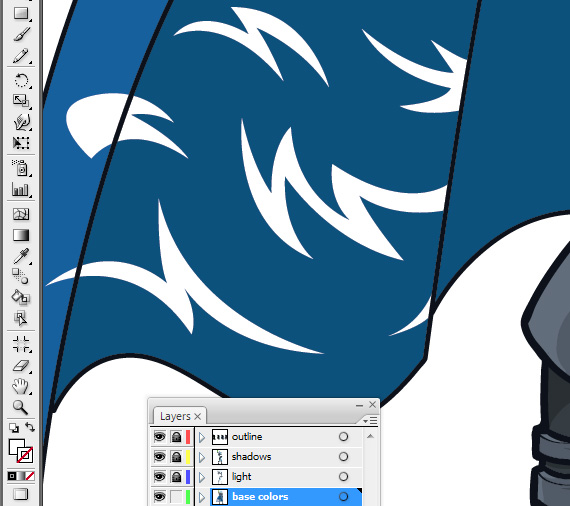
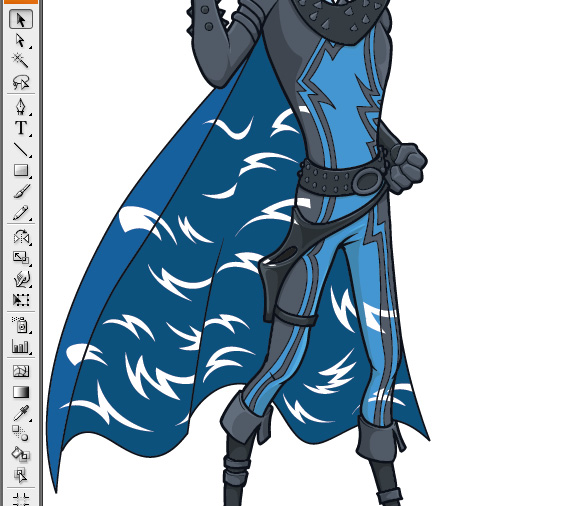
STEP 14 Megamind Drawing: Make a clipping mask
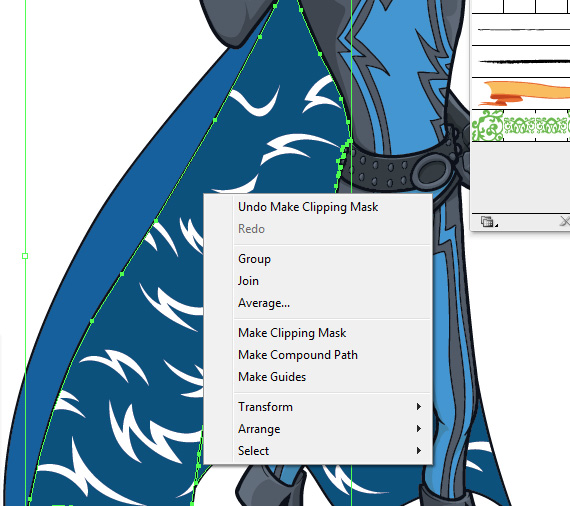
Hit CTRL+SHIFT+] to bring it to the front, select the shapes created (hold SHIFT for multiple selections) in STEP 12 and the copied cape, and right-click > Make Clipping Mask.
How To Draw Megamind – STEP 15: Make the shapes lighter
With this group still selected, hit “Merge” in the Pathfinder window (Window > Pathfinder). Grab the Direct Selection Tool (A) to recolor the lightning shapes: select each and use the Eyedropper Tool (I) on the cape color, then double-click the Fill and make it lighter.
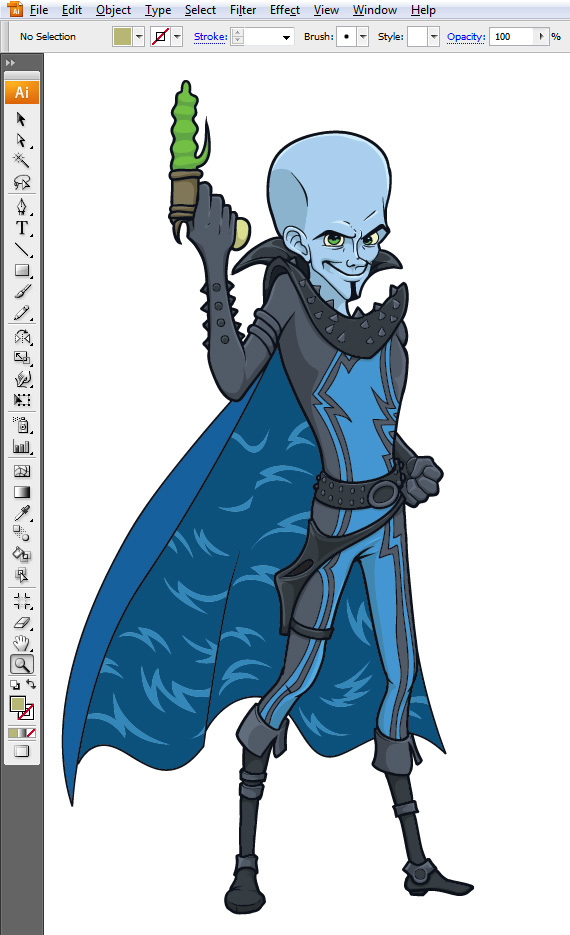
Done! We hope you learned how to draw Megamind in Illustrator.
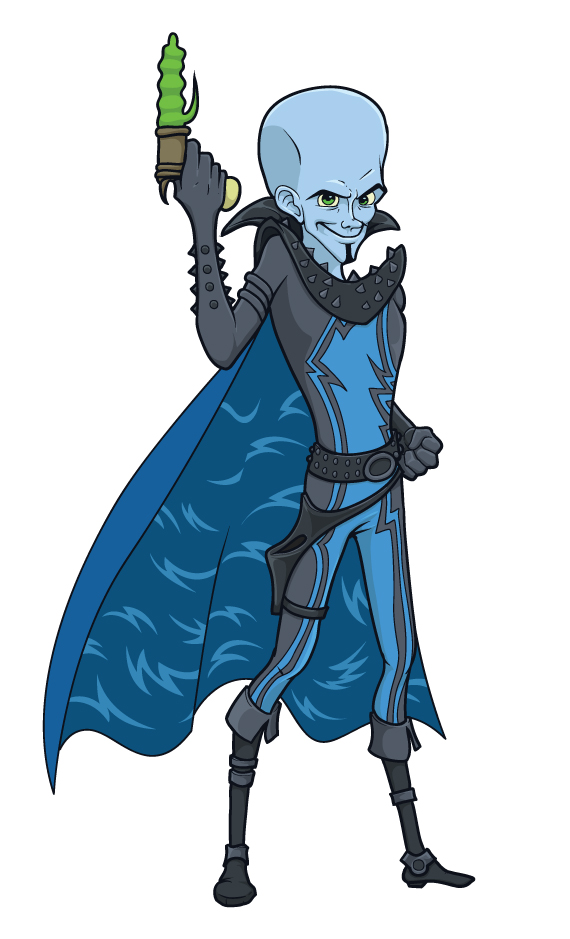
Download the source file from below.
[download id=”171″]
Like this post? Check out more graphic design ideas here.
excellent tutorial, thank you for this gift …
this is awesome!! very detailed! :)
Awesome tutorial. thanks for sharing ~!!
Useful. Thank you for posting this.
great drawing.
His gun looks totally like a dildo with a clit vibrator
Thanks for this tutorial! Very understandable for beginners :)
This is a great tutorial! Thanks for sharing.
The “gun” looks like a sex toy!
Thank you for this tutorial, Its very clear.
Wow, you’re a truly great illustrator. Great work.
Why is he holding a ‘rabbit’?
wow its really amazing, thank you very much for your post!
wow…………really awesome share ! Thanx for sharing
Thank You for sharing, its kinda hard to draw using application on pc
You have created a space for the reader to think.
Great tutorial on drawing Megamind! It’s amazing how design can change the way we perceive characters. For a quick escape, try Snow Rider—perfect for a little fun!
Great tutorial on drawing Megamind
A great article! I love stumbling onto these website while having a coffee and taking a break from photo editing.
Illustrator is still the best design tool for creatives!
Illustrator is still the best design tool
Even the outdated illustrator app used in this tutorial, is way better than most other contemporary apps available!
the way you do it is amazing, I do learn a lot from your post.
Wow! I am amaze with all the design above.
This is a cool tutorial! I always wondered how people create such detailed vector drawings. I might try this Block Blast Club character with these techniques next time!
Wow! You are truly an artist!
Awesome guide! I’ve always wanted to try drawing Megamind, and doing it in Illustrator sounds like a fun challenge.
Awesome tutorial. Thank you!
This is awesome! I’ve always wanted to try drawing Megamind, and a step-by-step guide for Illustrator sounds perfect. I really appreciate that the instructions are detailed and easy to follow. Can’t wait to give this a try and bring my favorite supervillain to life!
Grow a garden in Growden games
I will save this step by step process for future reference! Thank you for sharing.
This step-by-step guide on drawing Megamind in Illustrator is super helpful! I love how the instructions are easy to follow, making it simple for anyone to create this fun character. Thanks for sharing such a detailed tutorial.
Okay, this is a cool Illustrator tutorial! I always wanted to learn how to draw characters better. I’m gonna try this out later. Wish there were more free ios wallpaper resources like this for design inspiration.
This is really helpful
This tutorial’s focus on mindful observation and intentional design reminds me of the deliberate
Design Process: How To Draw Megamind in Illustrator is tough, and we need a lot o practice if we are not expert. You are good to have this beautiful post describing each and every step to draw what you want to draw. It is a great opportunity for us to learn from it.
Wow, this guide on drawing Megamind is fantastic! I loved the step-by-step breakdown; it really makes digital art feel accessible.
What an incredible guide! Your breakdown of Megamind’s design process is super helpful. I love how you emphasized the character’s unique features! By the way, have you checked out slope 2 ? They also explore creative designs—definitely worth a look for inspiration!
The line about “In this tutorial, we will create a vector drawing of Megamind, the supervillain” stuck with me while reading Design Process: How To Draw Megamind in Illustrator. Clear and concrete. Separately, when I print practice sheets for projects like this, a free customizable graph paper PDF saves time vs hunting fixed PDFs.
The Megamind breakdown is brilliant – exaggerating the head-to-shoulder ratio really is the whole character. The forehead-to-cheek proportion tip applies to so many character designs, thanks for the process shots!
8EGDK8 audbngszknvm
It’s great to see discussions here! Just a reminder, while sharing insights, don’t forget the community’s rules. For instance, if you’re exploring gamification ideas, have you considered how Geometry Dash cleverly uses level design to keep engagement high? This could spark interesting conversations about effective strategies in games and beyond. Looking forward to more constructive exchanges!