
How to Draw Wicked Skull Drawings or Vector Skulls in Illustrator
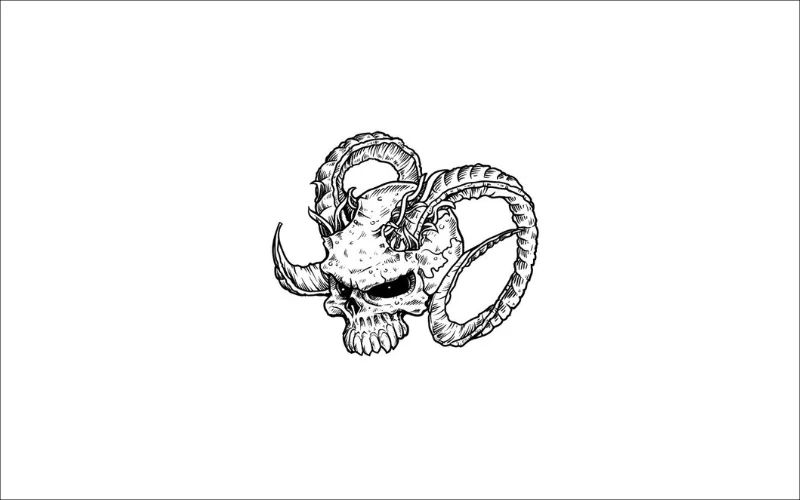
Wicked skull drawings are quite a simple task at a glance, but once you start sketching, it probably looks different from your reference (you are using a reference, right?). Then, it begins to go out of proportion, looks deformed, and has no expression whatsoever. But this is OK. It is a part of the learning process – please do not let this get to you! We have gone through this, and every other artist has, as well.
This tutorial will show you how to draw evil skulls quickly and learn a bit of anatomy along the way. So, let’s draw some really evil and nasty skulls correctly!

Table of contents – Skull Drawing
References – How To Draw A Skull Step By Step
First, we need to learn the anatomy of the skull, and for that, we need a few references, which we are sure you can find on Google images – skull images from Google.
Sketching
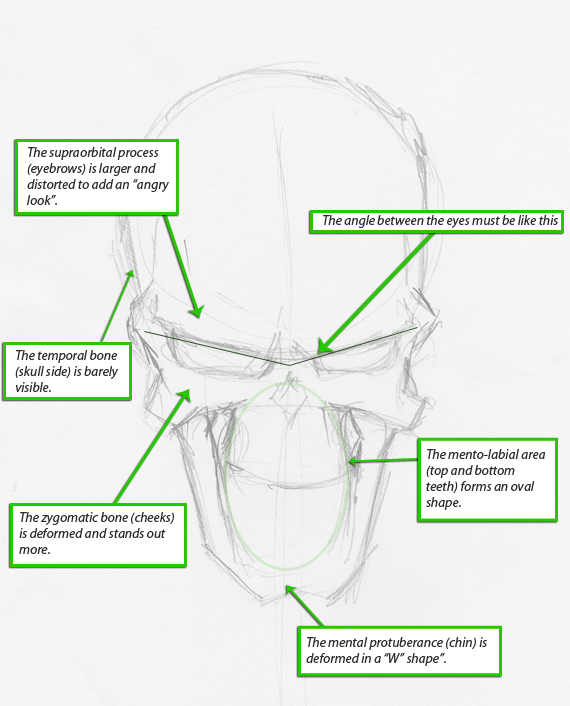
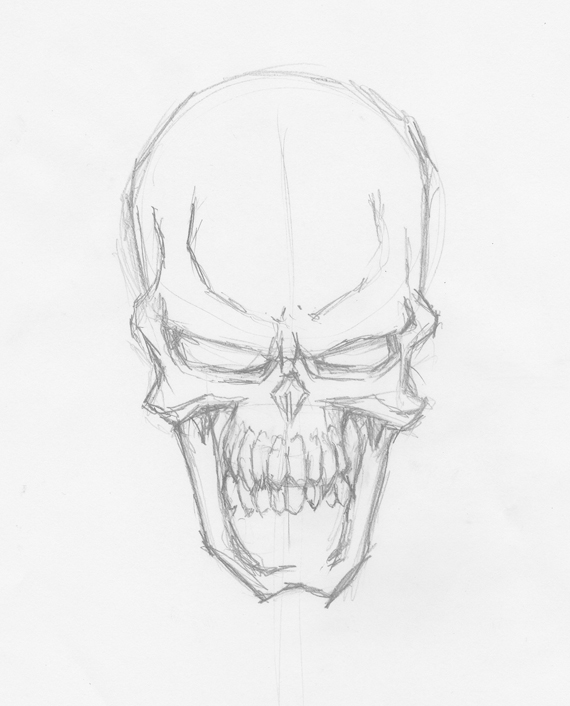
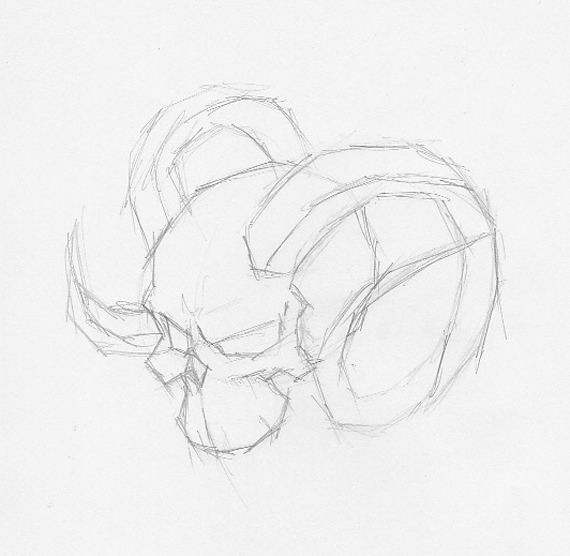
For wicked skull drawing, we start with simple geometrical shapes, just to block in the contour. Use only short, straight lines, do not draw curves yet. A sketch is supposed to be rough; you can adjust it quickly to correct any mistakes. In short terms, keep your roughs rough and your cleans clean.
Unlike regular human skulls, you can add expressions and alter its overall shape to become more aggressive.
Check out 750+ Minimalist Animal Art & Cartoon Images
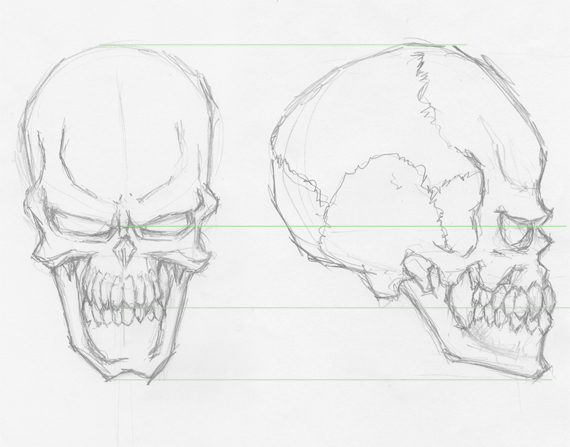
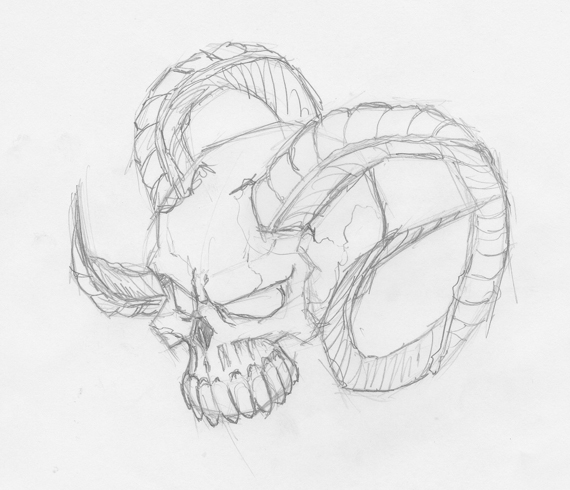
Now that we have a pretty good idea of how to draw one, let’s learn how to draw a skull from a perspective view.
Check Out 5 Steps For Drawing Vector Sun Rays
Skull Drawing – Simple Shading
Now that we have knowledge of the outline let’s make it pop out from the paper! In the sketch below, I’ve marked the 3D shape with a grid. Grab your pencil and paper and mark it on your sketch as well.
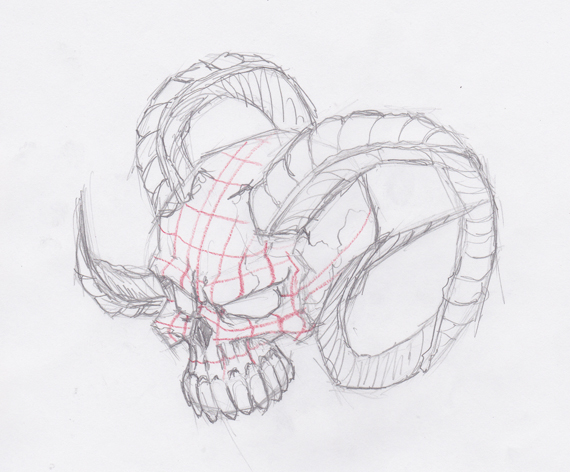
I’m asking you to do this because you have a good photographic memory (you’re an artist, right?) and drawing it yourself will turn the image you see on the screen into an elaborate process customized only for you. It becomes a dialogue between you and the paper and makes it easier to understand and memorize.
Check Out How to Create Flat Design Illustration.
Outline
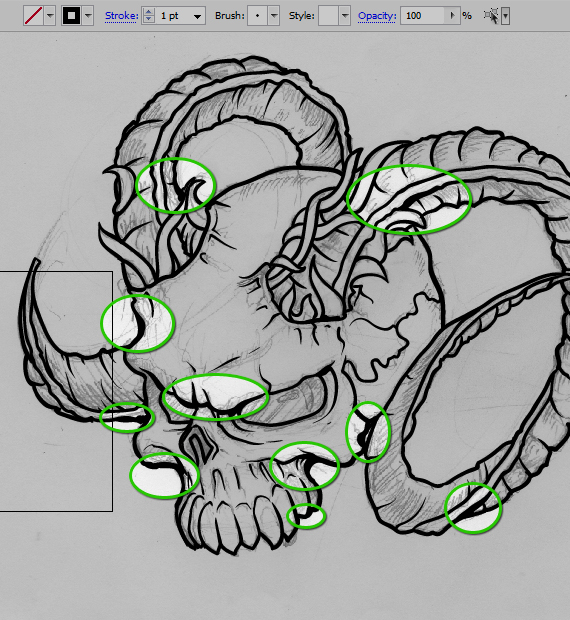
Now that we have a complete understanding of the shape, we can start adding polished details. Let’s begin with the outline and the sharp lines that define it. For that, we will use two pressure-sensitive brushes.
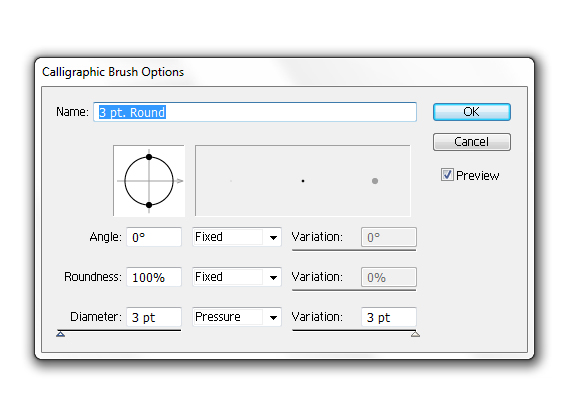
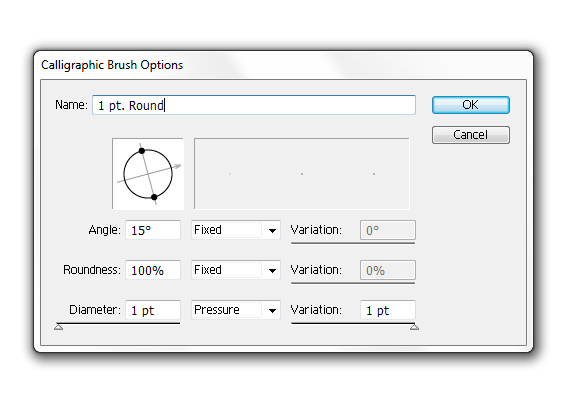
For the contour, we’ll use a thicker brush, and for the inner details, a thinner brush. A strong outline makes it stand out, and it does not confuse the viewer, so outlining like this is a must.
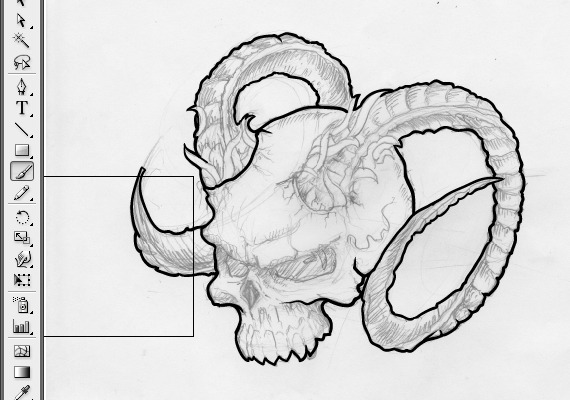
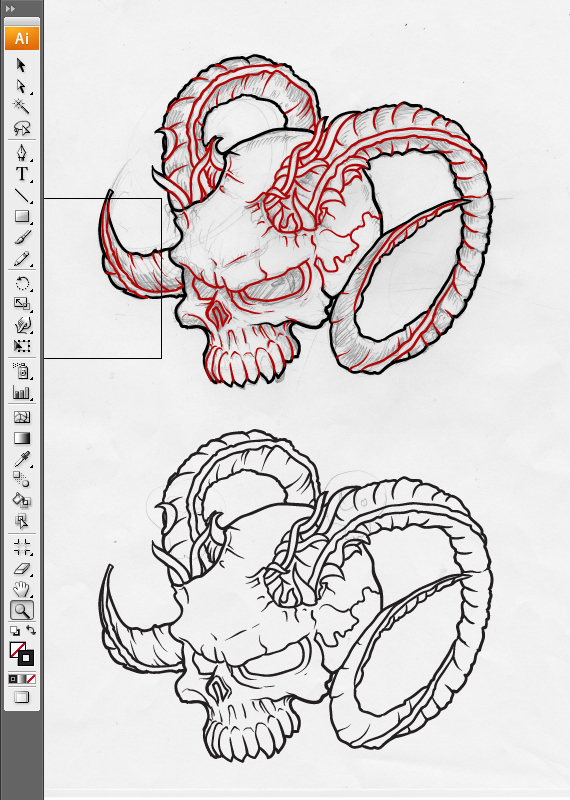
Here’s a little trick to use for the outline: in the areas where you have a shadow, make the outline a bit stronger than the rest. Not only can you dispose of the shadow, but it will add more volume to the overall design.
Check Out The Grand Bundle of 2800+ Illustrations
Details
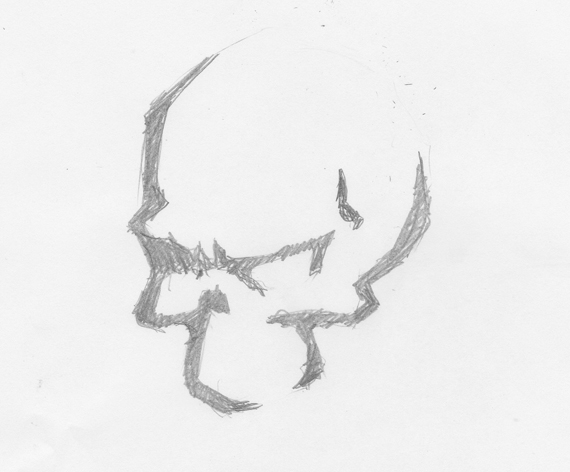
Grab the second brush we created, and let’s start drawing, shall we? This is a very tricky part; we only want the outline to suggest the shape and not draw the entire contour. Keep in mind that the brain can make you see a defined shape, even if there are just a few lines. In the image below, I’ve drawn a skull, and you can tell it’s a skull at first glance, even if it doesn’t have a high level of detail.
So, let’s apply this principle to our drawing.
Check out: 5000+ Kids Illustrations & Patterns Bundle
Shading
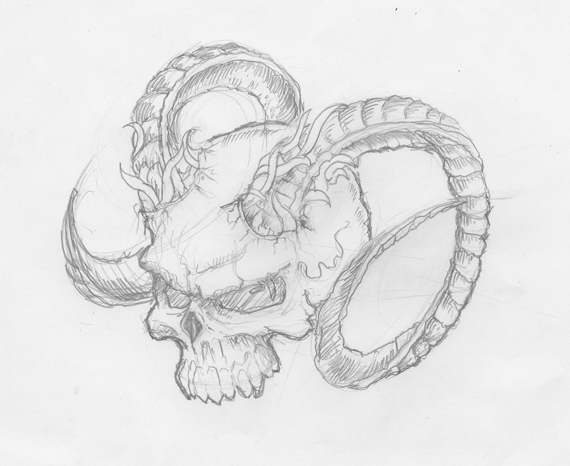
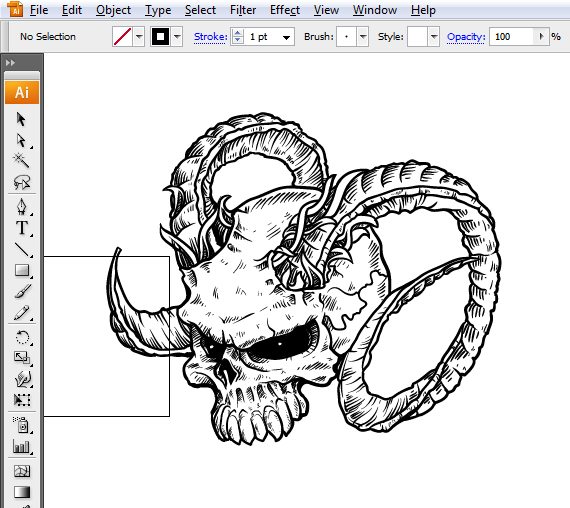
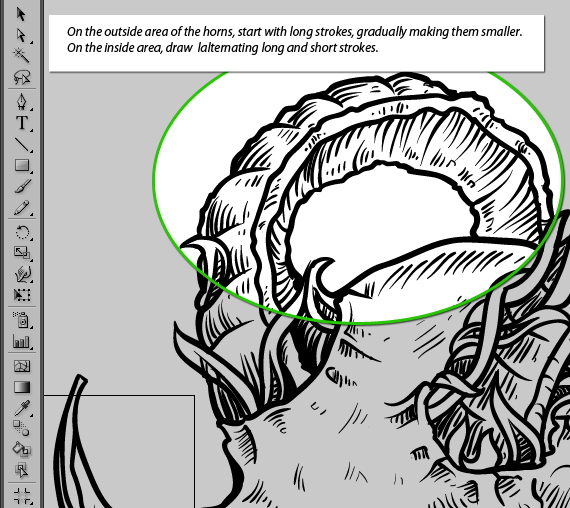
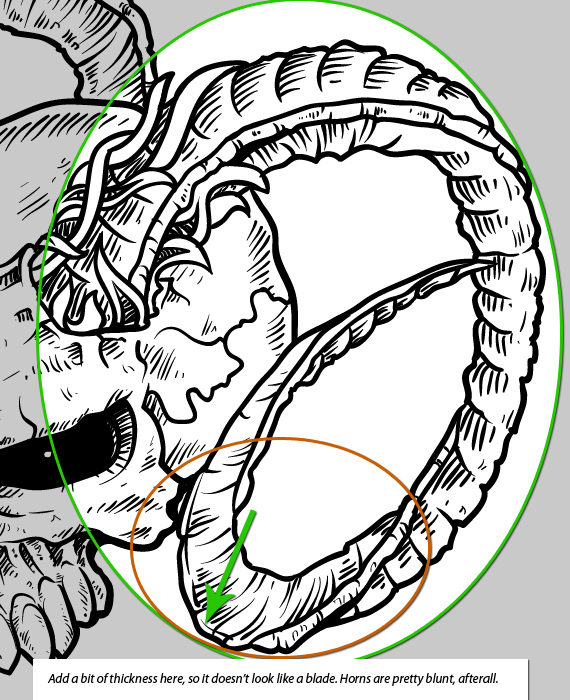
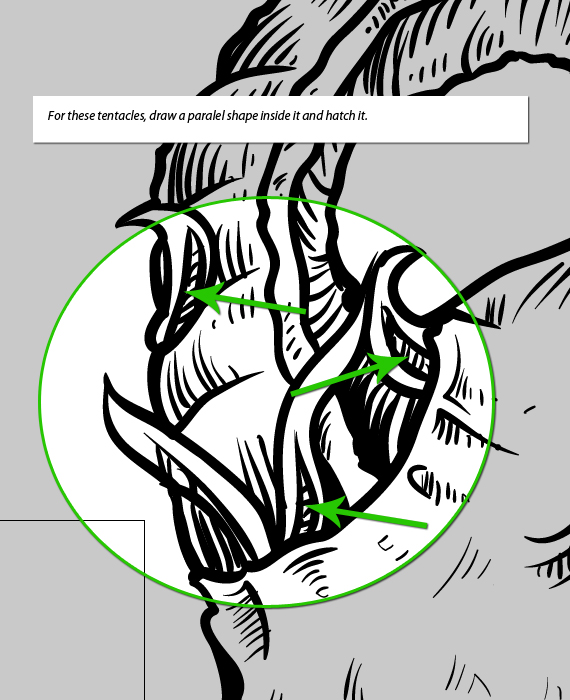
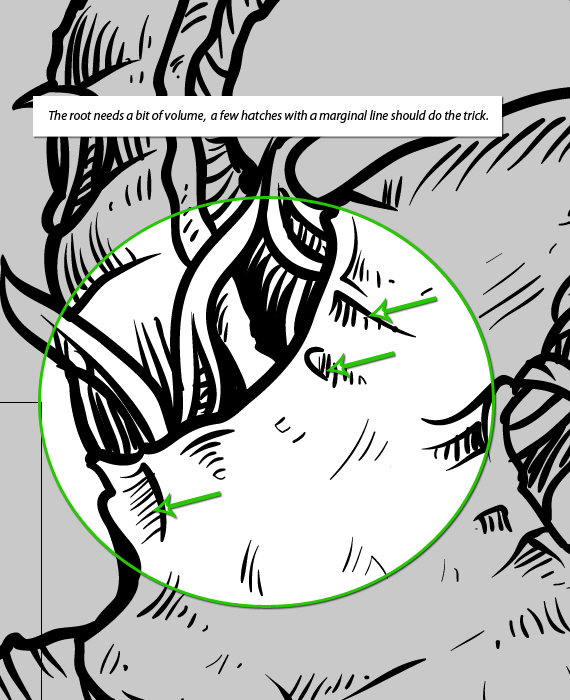
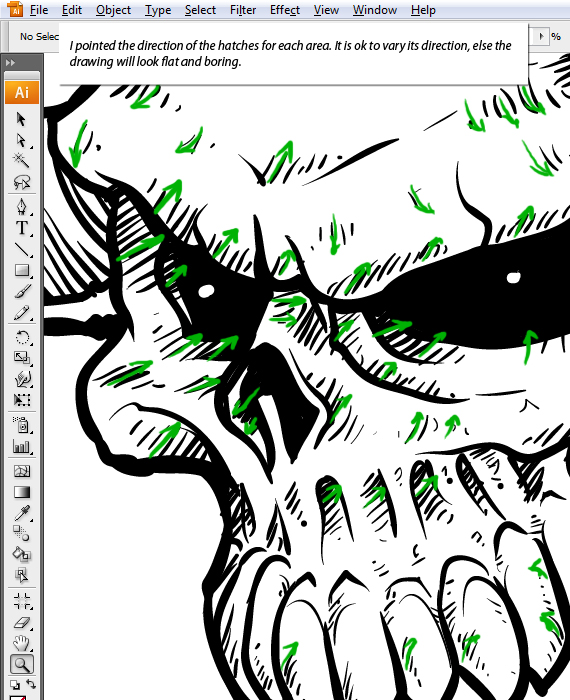
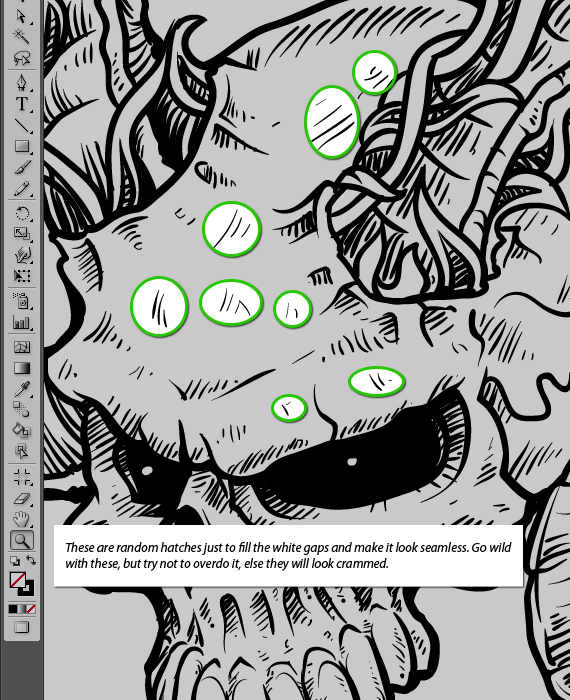
This part is similar to the simple shading, but this time, you have to pay attention to the line spacing and length. Start drawing the basic shadows, then just fill the white gaps with random, short strokes. That’s about it. One important aspect: Keep in mind the position of the light source. If you draw this for a garment print, the light source is not critical, and you must sacrifice everything to the visual impact. A t-shirt will look cool if you manipulate the line spacing and thickness, not shading and lighting.
Check Out: Adobe Illustrator Tutorial: How to Draw a Character
Extra Details For Wicked Skull Drawings
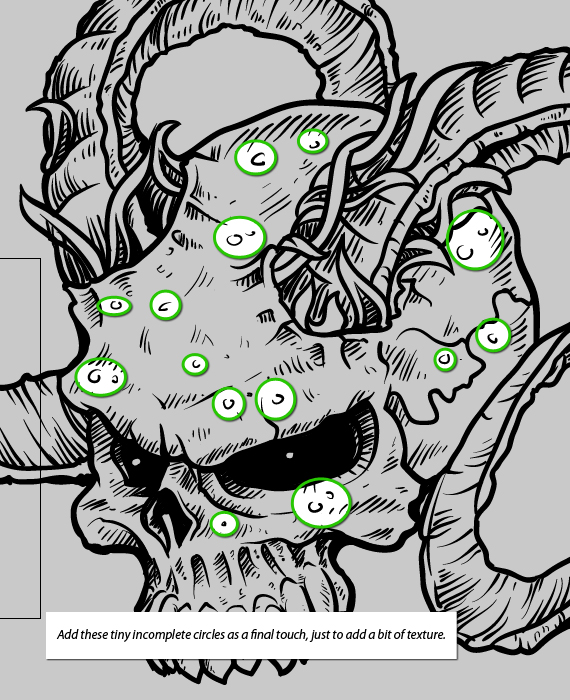
The bone structure is not very smooth, especially if you draw something old and decayed. This enables you to add shaky lines, just to add a wee bit of texture, holes, cracks, or tiny dents. It’s these details that make a huge difference; I recommend you do this for everything you draw from this point on. It is a personal touch and shows how much effort you’ve put into it.
Saving Wicked Skull Drawings
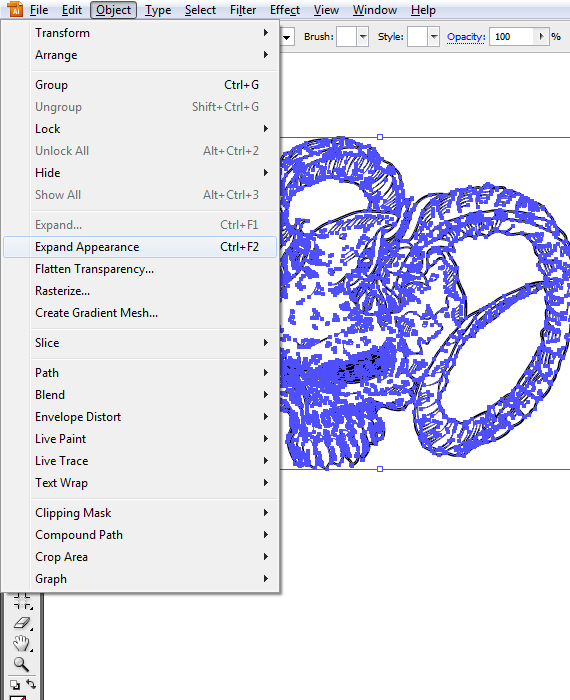
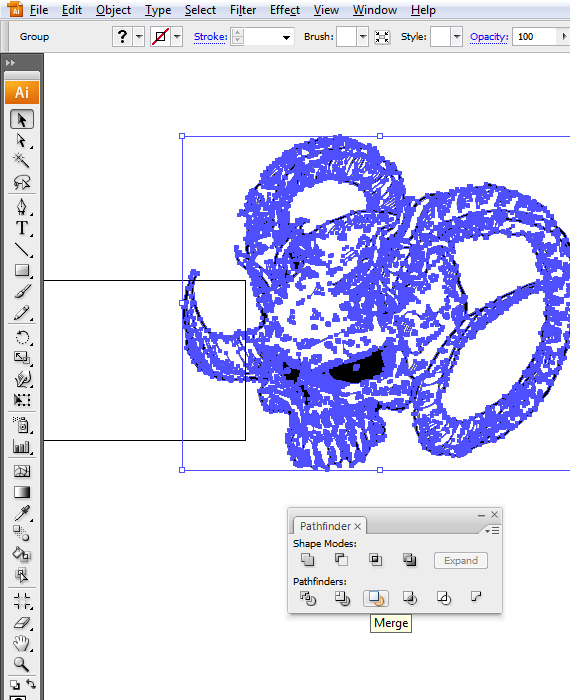
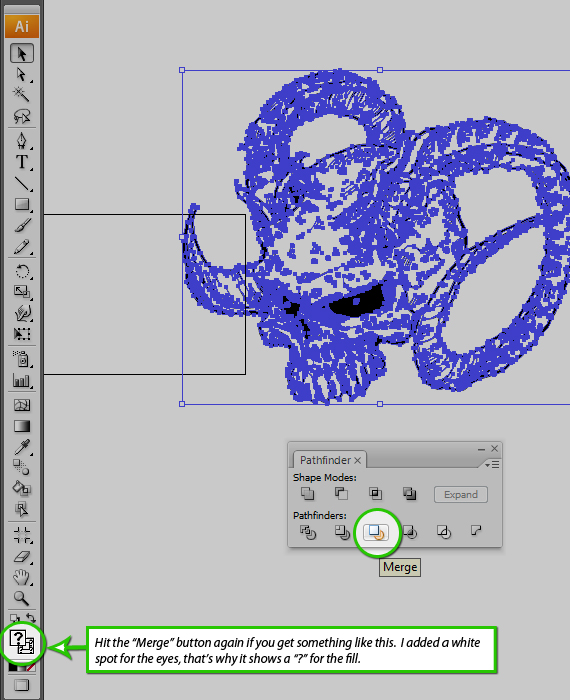
Select the full artwork and expand the strokes (Object > Expand Appearance…), then hit the “Merge” button in the Pathfinder window. Hit it one more time if you still have a Stroke. This is a technical aspect you must do for a couple of reasons: when someone else wants to scale it, the strokes will not scale along unless you explicitly set them, and the source file will have a smaller size.
Check Out 1100 Watercolor Illustrations Bundle
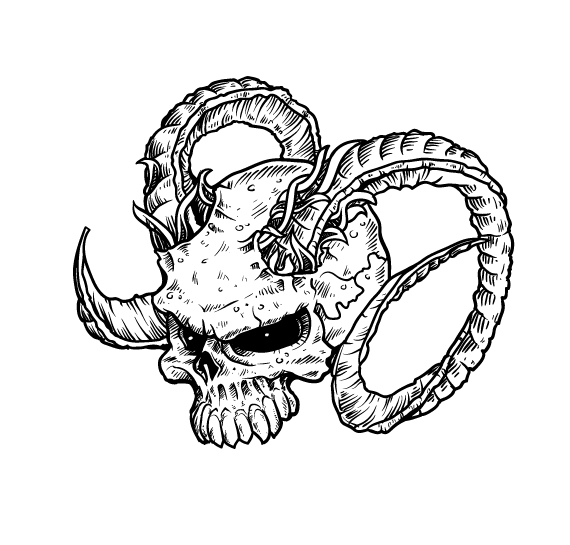
Done! Your Easy To Draw Evil Skull Is Ready!
Editor’s Note: This how to draw a skull step by step tutorial was originally published in October 2011 and has been completely revamped and updated for accuracy and comprehensiveness.
Upgrade your drawing skills! Check out this 2D Character Illustration Tutorial.
Like this post? Check out more inspirational and informational articles on Graphic Design.
Awesome tutorial! Thanks Doink. I think I’ll give it a shot and produce a version with no hatch work and maybe more bold positive/negative contrast that could be used on a pumpkin carving for tonight!
i love this pic it is the best one i seen
design is so LOUD and aggressive ..pretty awesome! :)
I wish I could draw in illustrator! :( you’re so good, I’m jealous. :D
I know who will like this one.
Menino..muito bom. Obrgado
It's awesome.
It's awesome.
Hey man!
What is this version of Illustrator? CS3 or CS4?
I used CS3. But it doesn’t make a huge difference, the techniques used can be used in an even earlier version.
Hi to every one, it’s genuinely a nice for me to pay a visit this site, it includes valuable Information.
Hi there,
I love the awesome tutorial! I would very much like to create such art, but my drawing skills are lacking that department. Is it possible to learn how to draw like that??
Thanks!!!
Q
there are a few youtube channels that explain quite well how to draw stuff. ProkoTV is one of them, check it out.
dude, Thank you so much for this tutorial.
I cant wait to try it right now
And now crystal clear which the Crazies was fmeild on a shoestring budget planning again and forth (in the moment) the manager, but do not permit that acquire away exactly what is in fact a really great movie. An outbreak of your lethal virus in a tiny city in The united states and just before any individual could assume, the military arrive to try to prevent its spread across the region. I liked that this image is unsentimentality characters. The decisions of daily life and death are taken at breakneck speed and with minimal issues. The film moves in a very fast pace, using the action starting more or less immediately and do not brain truly properly dark until the conclude. There are actually some familiar topics discussed: the role of your military in periods of crisis, how persons react to events past their control, etc. etc. It the viewer to decide how these matters are resolved. Or better but, just take pleasure in what’s decent and well-written (if cheaply produced) production. 1 aspect that I discovered incredulous plot wise was the possibility which the virus could be infested metropolis nuked! It seemed incredibly above the highest for me.
This tutorial was super helpful! I loved the step-by-step approach, and the tips on shading added a great depth to my design. Can’t wait to try more of these techniques in my own projects!
This tutorial is fantastic! I love the detail in each step—it’s super helpful for someone looking to improve their illustration skills. The wicked skull designs are so creative! Can’t wait to try this out on my next project. Thank you for sharing!
Absolutely loving the step-by-step approach in this guide! The wicked skull designs look amazing, and I can’t wait to try them out in Illustrator. Thanks for sharing such detailed instructions!
This step-by-step guide is fantastic! The wicked skull designs are so intricate, and your tips on using Illustrator really brought the drawings to life. I can’t wait to try these techniques on my own projects. Thanks for sharing your expertise!
This guide is fantastic! I always struggled with skull drawings, but your step-by-step approach makes it so much easier to follow. The tips on shading and details really helped bring my sketches to life. Can’t wait to try out the techniques you shared!