

How to Create a Music Concept Design in Photoshop

Today we will create a superb music illustration using stock vectors and photos. The tutorial is very well explained and can be approached by both beginners and advanced Photoshop users.
Along with creating this, you will learn how to:
– use vectors in photoshop
– maximize your brushes’ potential
– retouch photos
– create cool compositions
– extract shapes via Channels
– have fun while working
Difficulty: Beginner – Intermediate
Completion time: 2 hours
Tools: Photoshop CS3, Illustrator CS3 (optional)
Resources
– Wings vector pack 6 from designious.com
– Lips vector pack 2 from designious.com
– Music vector pack 1 from designious.com
– Floral vector pack 86 from designious.com
– guitar girl from Marcus J. Ranum
– Cloud brushes by JavierZhX
– Botanical pack from Resurgere
– Speakers from ppreacher
– Tower of Pisa picture from beriliu
– moon from sxc.hu
Final image preview

STEP 1
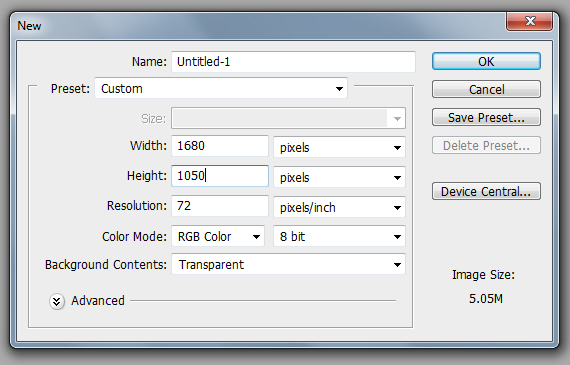
Go to File > New… and set it to 1680 x 1050 px in RGB color mode at 72 dpi.
STEP 2
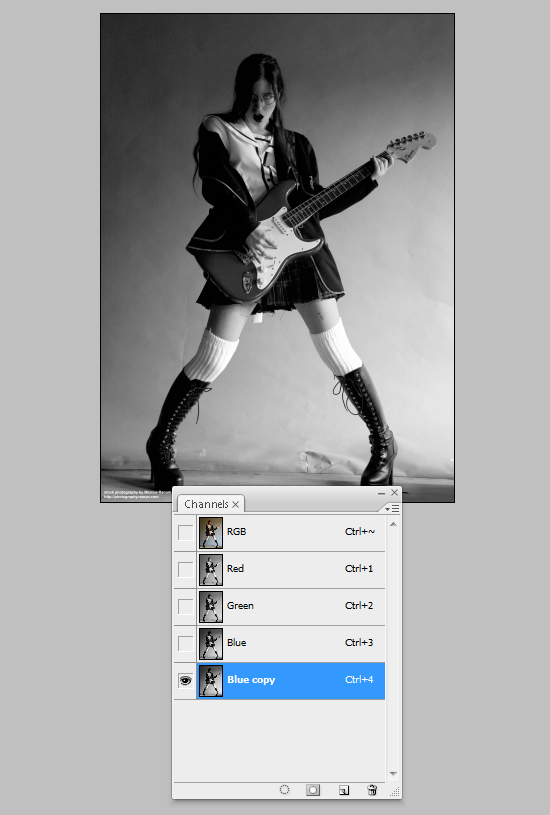
Open the “guitar girl” picture. Now go to the Channels window (Window > Channels), right-click the Blue channel and select “Duplicate channel. Click it. Now it should look like a gray scale image.
STEP 3
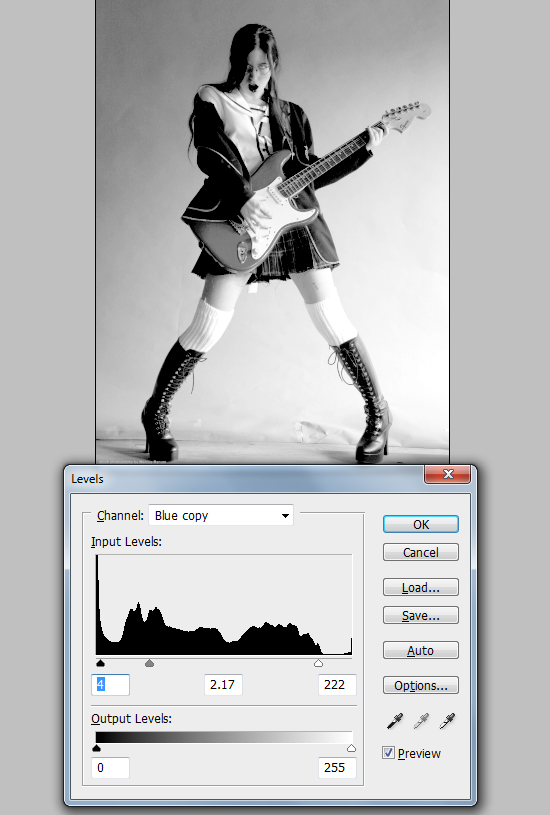
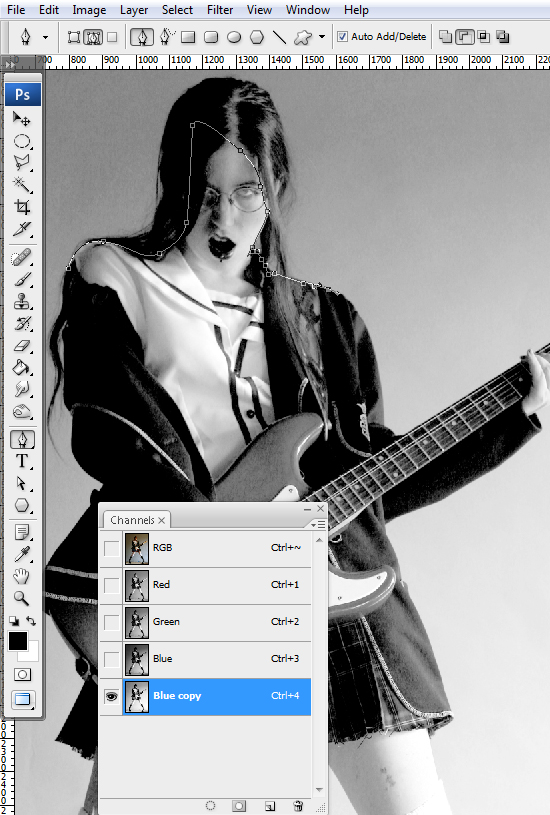
Go to Image > Adjustments > Levels (CTRL+L). Use the settings below. Grab the Path Tool (P), set it on Paths and trace the girl, leaving out the edges of the hair. This may take a while, but be patient. When you’re done, right-click > Make Selection. Set Feather to 0 px and hit OK.
STEP 4
Grab the Brush Tool, Set its Opacity to 100% and Hardness to 100% and paint with black the interior of your selection. Use the Burn Tool (O) on the hair to make it darker.
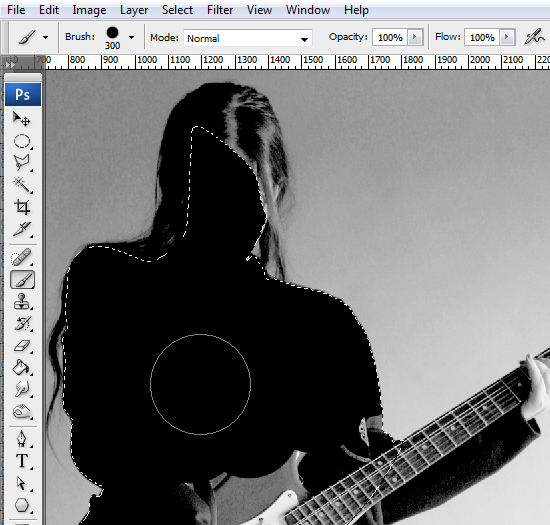
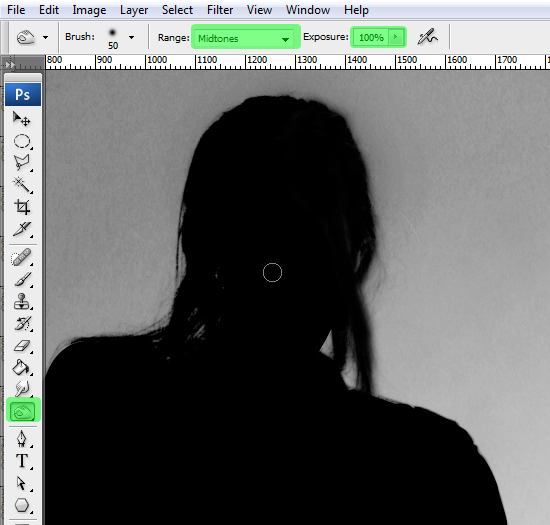
STEP 5
Go to Select > Inverse (CTRL+SHIFT+I), hit X to switch to white and paint over the background. Then go to Select > Deselect (CTRL+D).
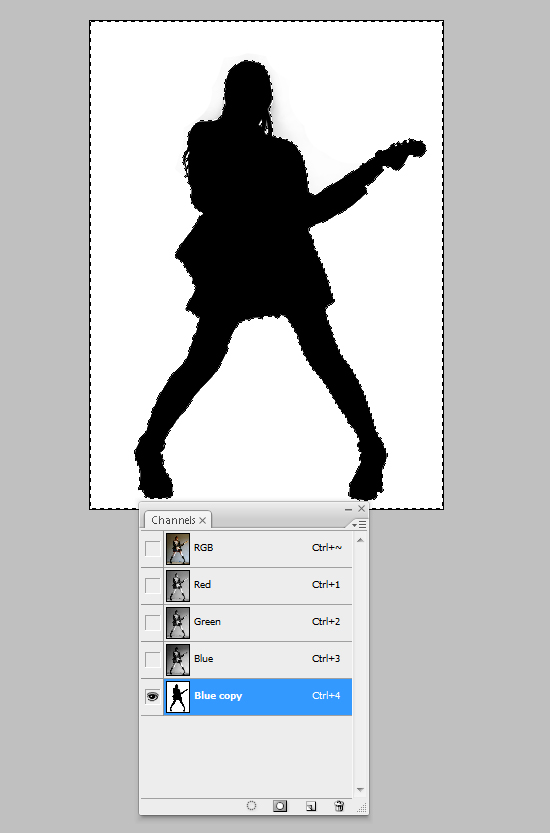
STEP 6
In the Channels palette, CTRL+click the “Blue copy” channel. Go to the Layers palette (F7), double-click the lock, hit OK, then hit Delete.
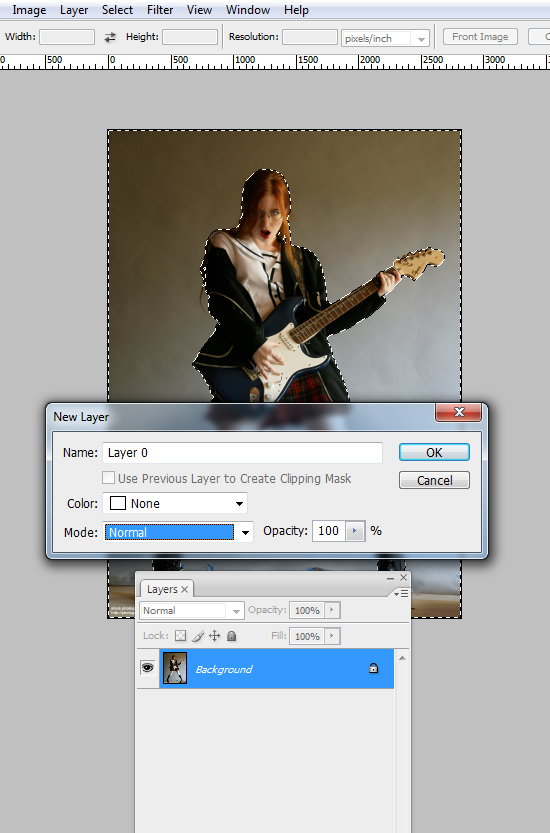
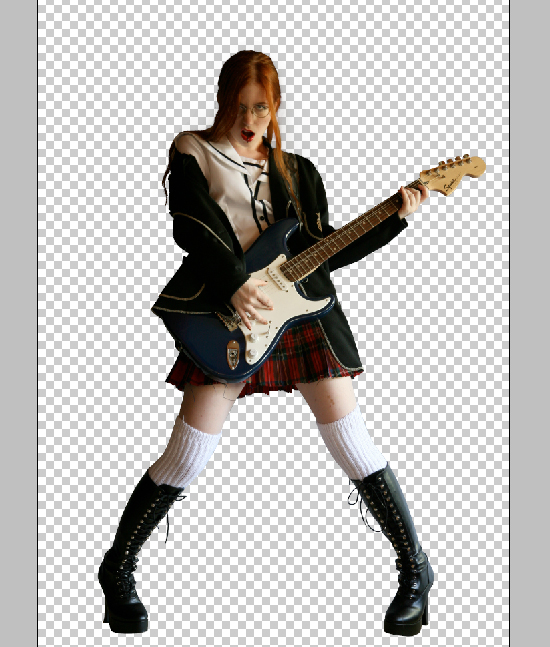
STEP 7
Select the entire picture (CTRL+A), copy it (CTRL+C), go back to our document (Window > Untitled-1.psd – this is the file created in STEP 1) and paste it (CTRL+V).
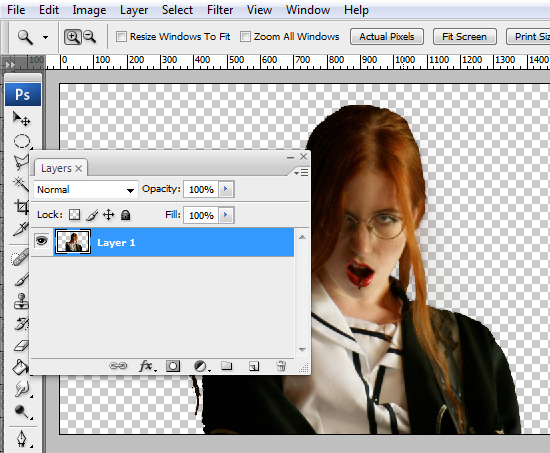
STEP 8
Go to Edit > Free Transform (CTRL+T) and click-drag one of the corners towards its center to make it smaller. Hold the SHIFT key while dragging to preserve its proportions.
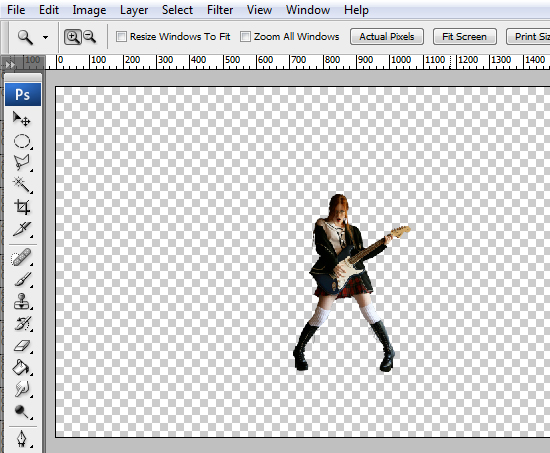
STEP 9
Grab the Eraser Tool (E), set Hardness to 100% and clean up the edges of the cutout. Use “[“ and “]” to decrease/increase the eraser size.
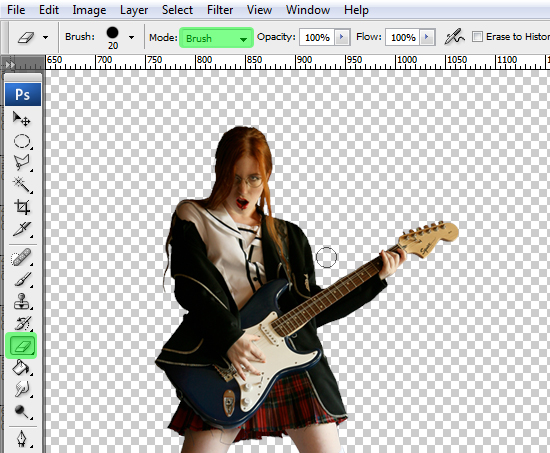
STEP 10
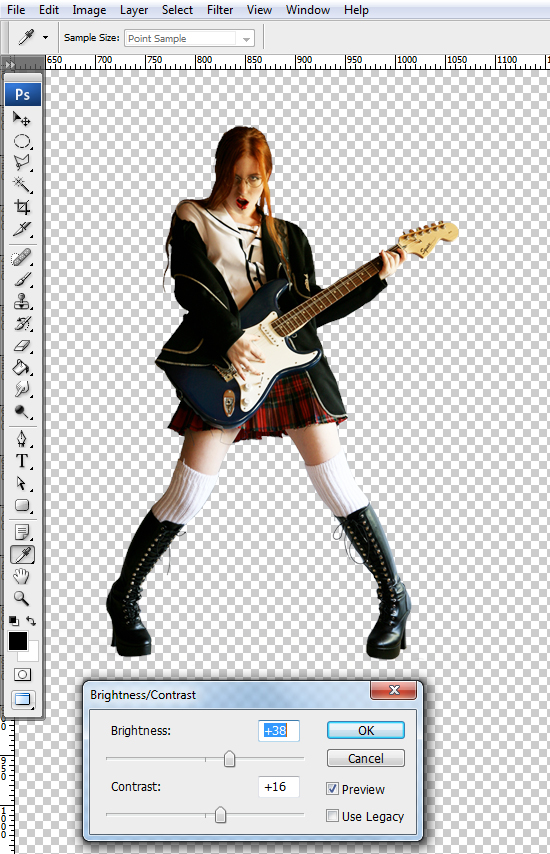
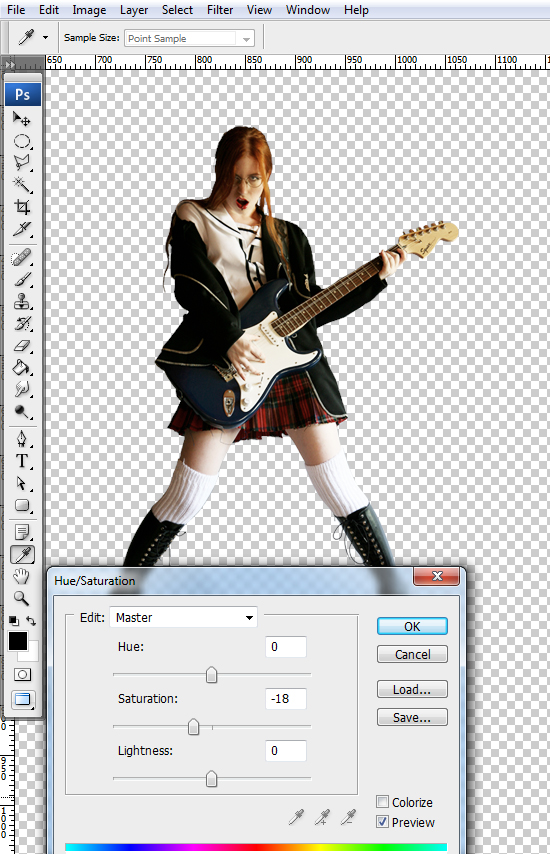
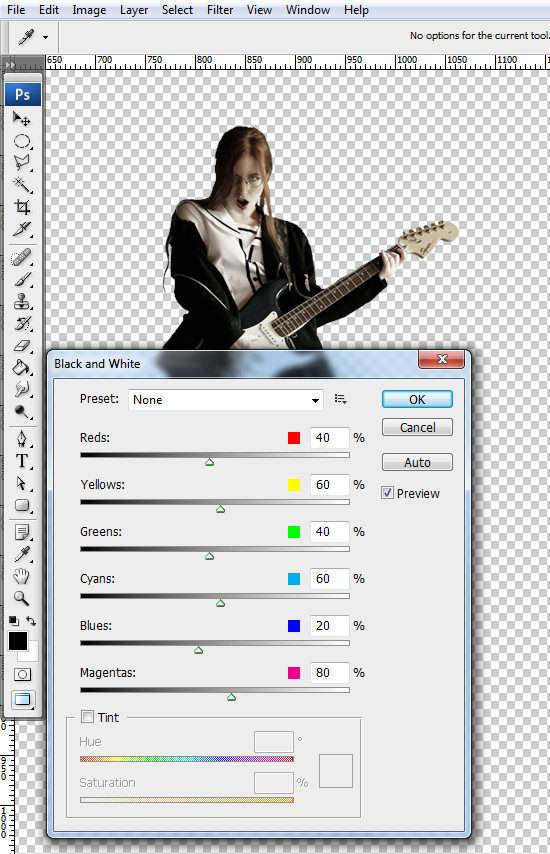
Go to Layer > New Adjustment Layer > Brightness/Contrast, Hue/Saturation and Black&White. Use the settings shown below. For the Black&White layer, set Opacity to 54%.
STEP 11
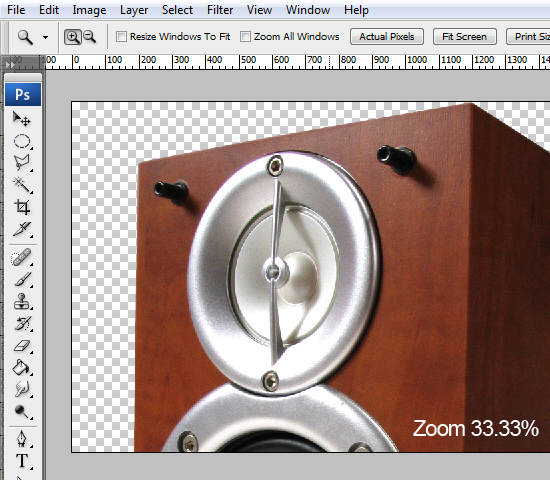
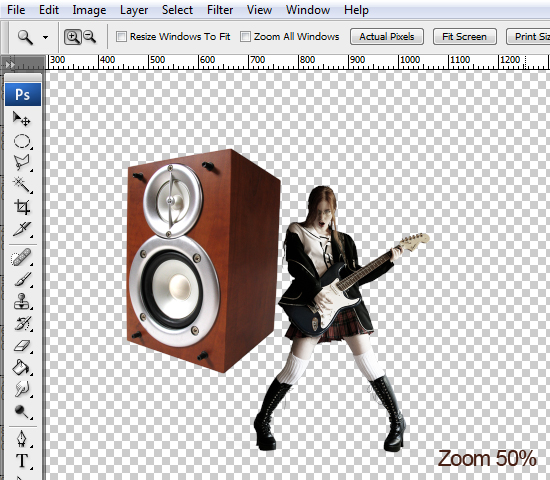
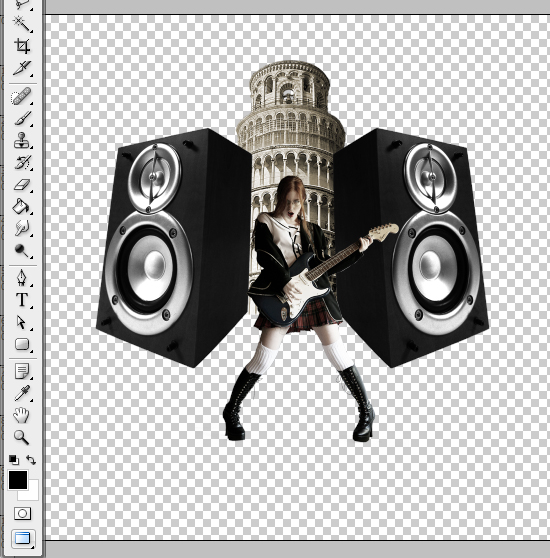
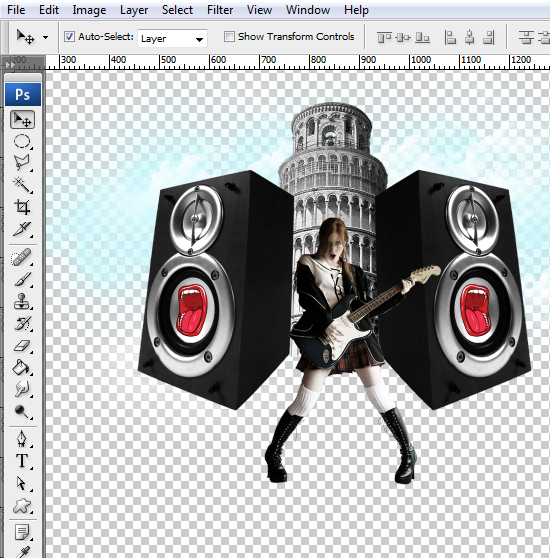
Open the “speakers” image. Grab the Path Tool (P), set it on Paths and trace the speaker. Then right-click > Make Selection, copy it (CTRL+C), go back to our document and paste it (CTRL+V). Hit CTRL+T, resize it and place it like below.
STEP 12
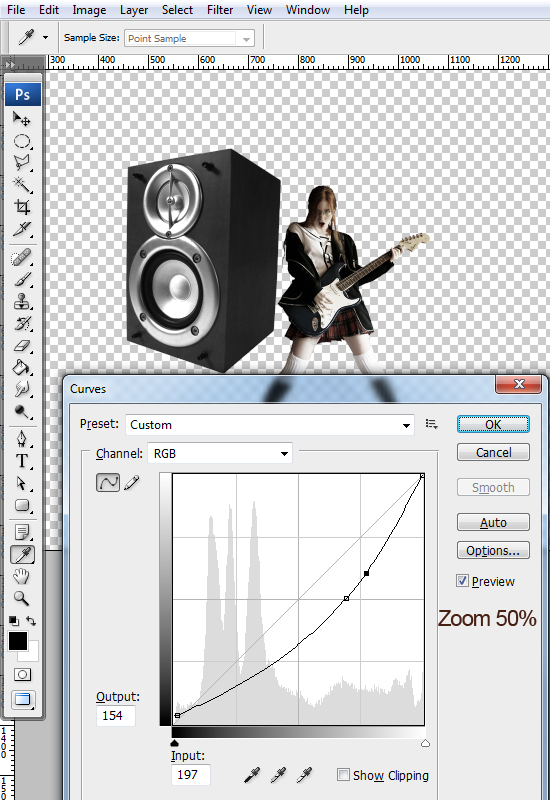
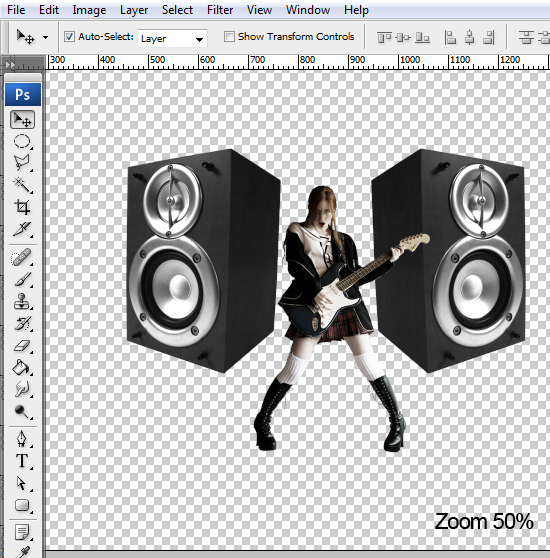
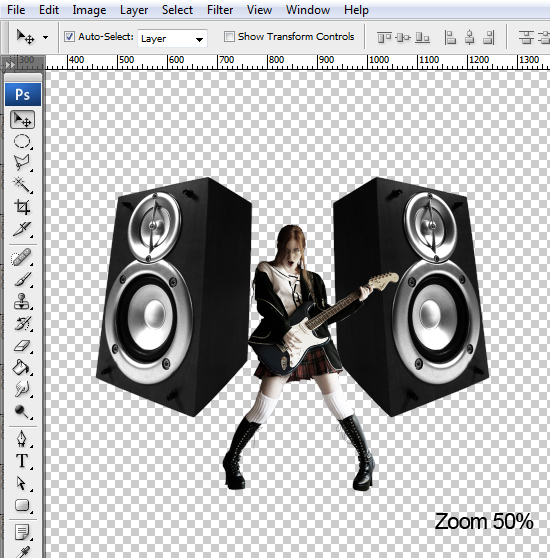
Go to Image > Adjustments > Desaturate (CTRL+SHIFT+U). Then go to Image > Adjustments > Curves. Use the settings below. Then go to Layer > Duplicate Layer, hit CTRL+T, right-click > Flip Horizontal, hit Enter. Place it like below. Hit CTRL+T, hold CTRL and click-drag the corners till you create a perspective similar to mine.
STEP 13
Open the “Tower of Pisa” picture. Extract it like you did with the girl and the speaker, resize it and place it like below.
STEP 14
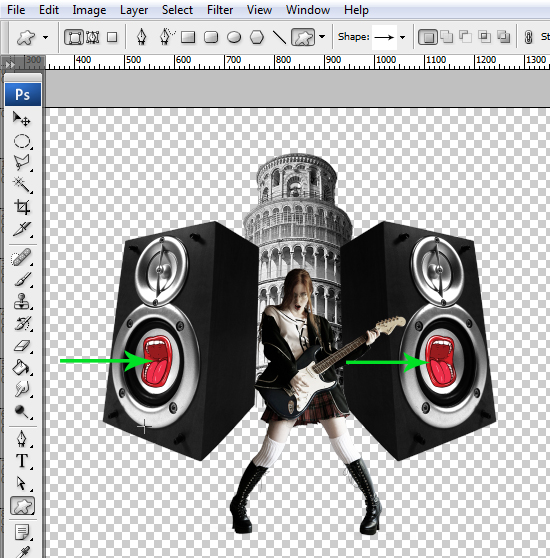
Go to Image > Adjustments > Desaturate. Open the “Lips vector pack”. Grab the Rectangular Marquee Tool (M), select the lips shown below, copy them (CTRL+C), go back to our document and paste them (CTRL+V). Resize them and place them like below.
STEP 15
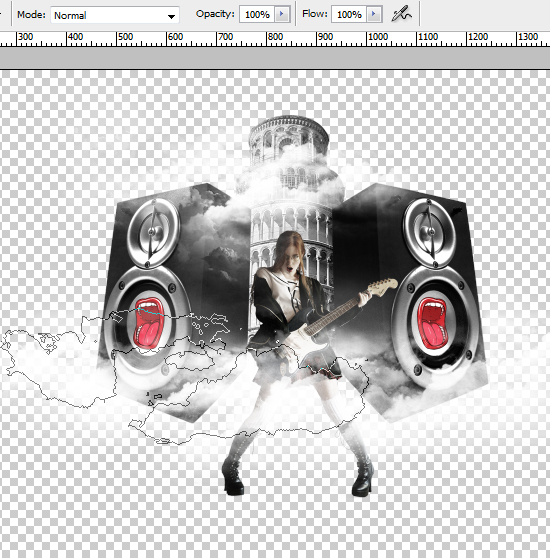
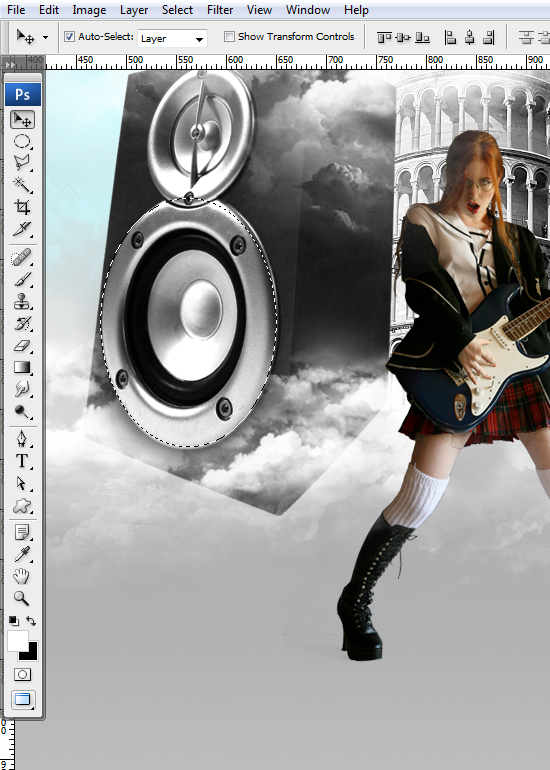
Open the “clouds brush pack”. Double-click the .abr file, it will load it automatically into the Brushes palette. Go to the Brushes palette (F5), grab a cloud brush, hit X, then D, create a new layer (CTRL+SHIFT+N) and paint some white clouds, like below. Select the speaker layer and go to Layer > Layer Mask > Reveal All. Grab the Brush Tool (B) and paint the bottom side with black.
STEP 16
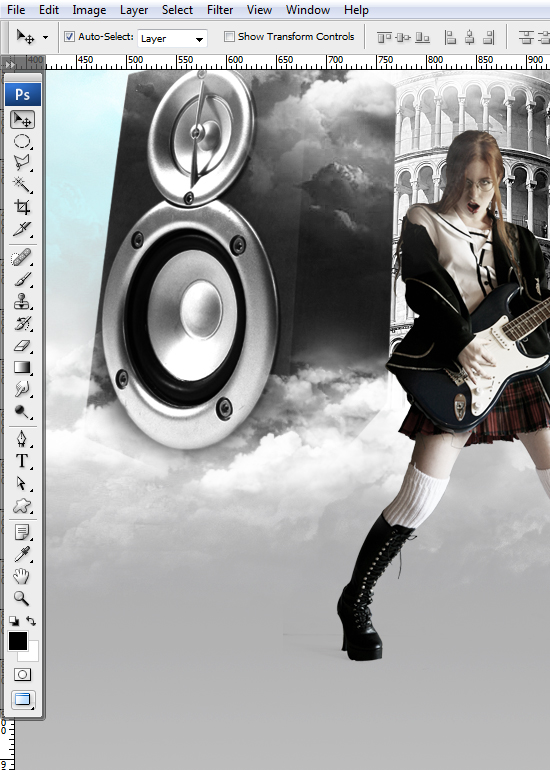
Create a new layer (CTRL+SHIFT+N), hit CTRL+SHIFT+[ to send it to back, set Foreground color to a light sky blue and paint more clouds. Change foreground color to white and paint more clouds. Grab the Elliptical Marquee Tool (M), make a selection of the round part of the speaker, go to Select > Inverse and hit Delete. Go to Select > Deselect.
STEP 17
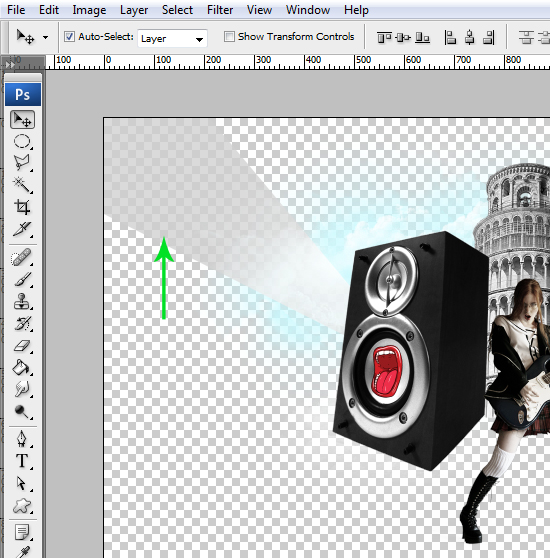
Grab the Path Tool (P), set it on Shapes and draw a triangular shape like below. Then go to the Layers palette (F7) and set Blending mode to “Color Dodge”. Also reduce Opacity a bit.
STEP 18
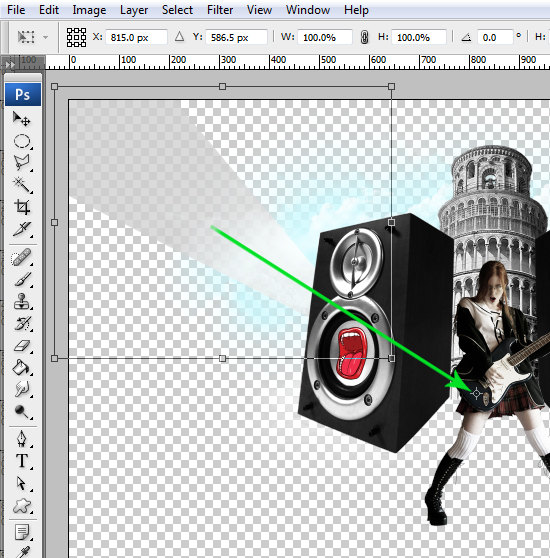
Go to Layer > Duplicate layer (CTRL+J). Hit CTRL+T, drag the rotation center in the center of your image (use a visual reference point)and rotate the shape. Hit Enter.
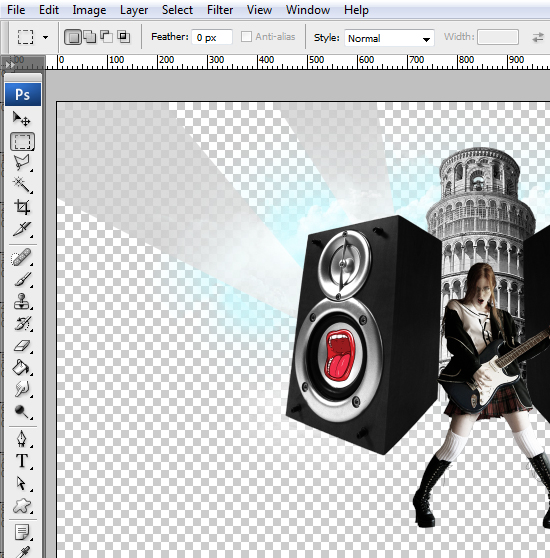
STEP 19
Repeat STEP 18 until you create enough sun rays.
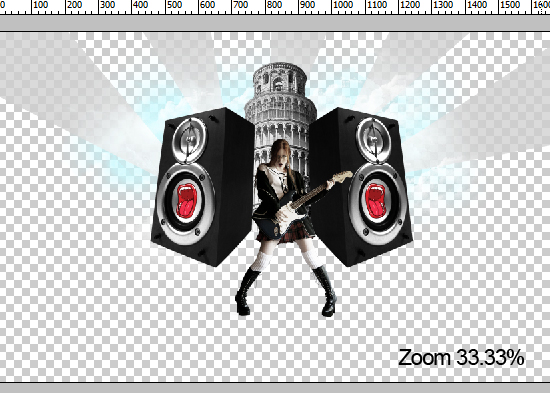
STEP 20
Select all the shapes (hold SHIFT to select multiple layers) and hit CTRL+G to place them in a layer group. Double-click the group’s thumbnail and name it “rays”. Then click the “Add Vector Mask” button.
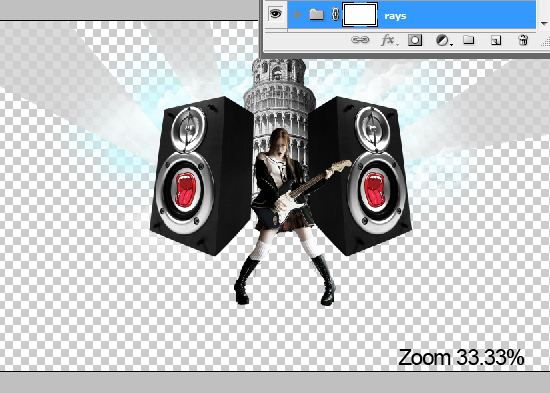
STEP 21
With the group mask still selected, grab the Brush Tool (B), set Hardness to 0%, Opacity to 40% and paint over the edges of the rays, like shown below.
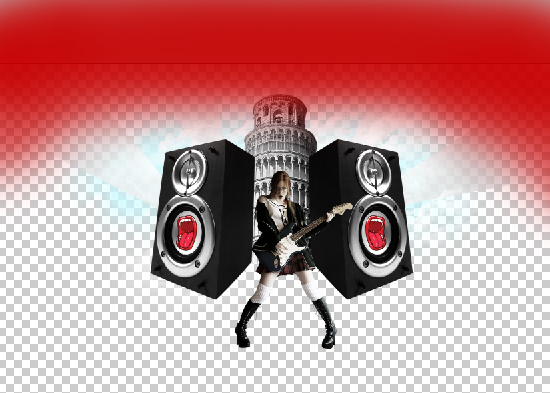
STEP 22
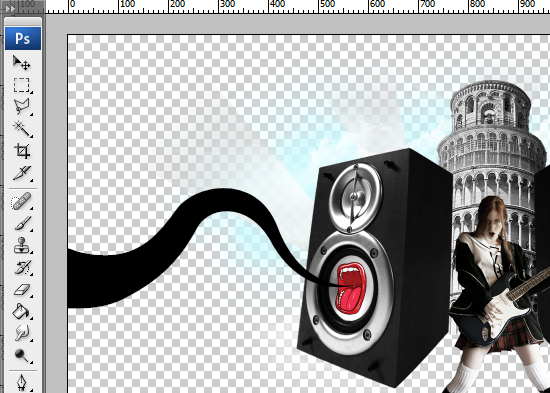
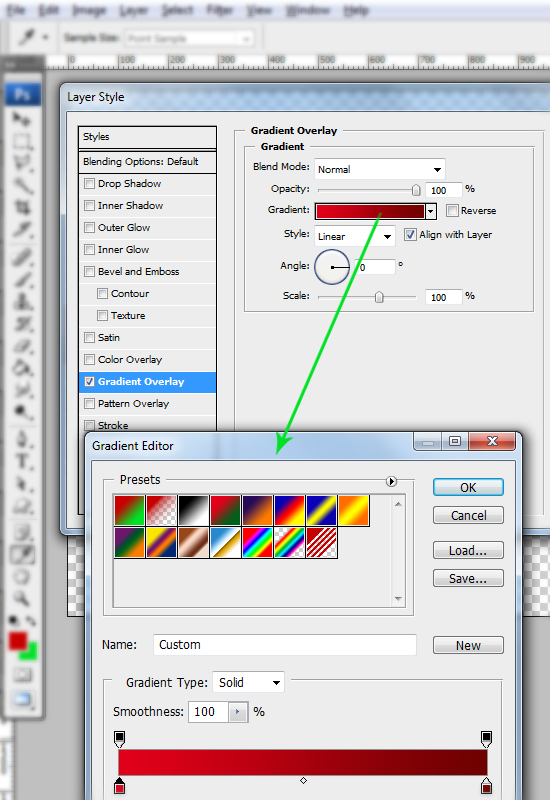
Grab the Path Tool (P), set it on Shapes and draw something similar to the one below. Then go to the Layers palette (F7) and click the “fx” button. Select “Blending Options” and use the settings below.
STEP 23
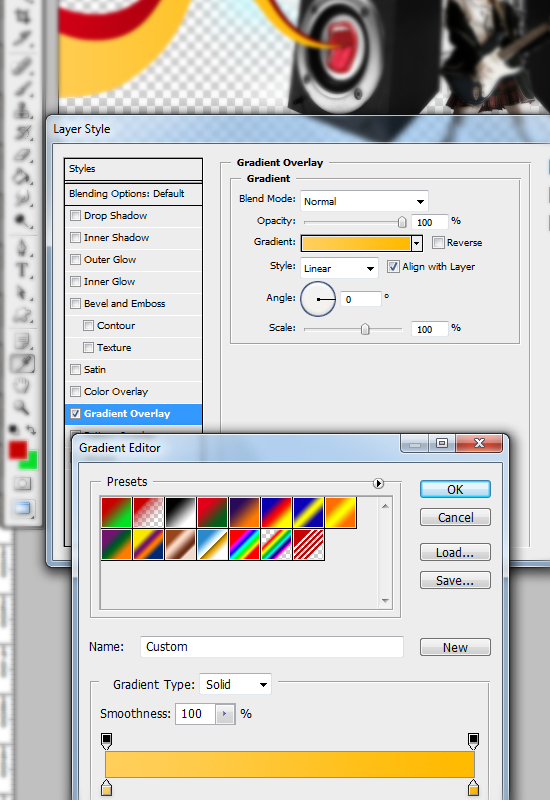
Go to Layer > Duplicate Layer. Hit CTRL+T to enter Free Transform mode, place the rotation center to its thin end and rotate it a bit. Hit Enter. Then go to the Layers palette (F7) and double-click the “fx” near the layer thumb. Use the settings below.
STEP 24
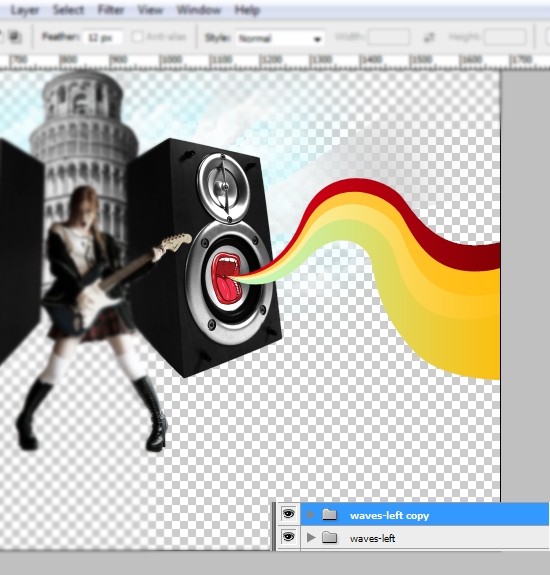
Select all the shapes created and hit CTRL+G to place them in a layer group. Rename it to “wave-left”. Then click-drag the group onto the “Create New Layer” button. Hit CTRL+T, then right-click > Flip Horizontal. Hit Enter and place it like below. Hold the SHIFT key to move the group orthogonally.
STEP 25
Open the “Music vector pack 1”. Grab the Polygonal Lasso Tool (L), select a music note, copy it (CTRL+C), go back to our document and paste it (CTRL+V). Go to Edit > Free Transform, hold CTRL and click-drag one of the corners. Add some perspective like this, then hit Enter.
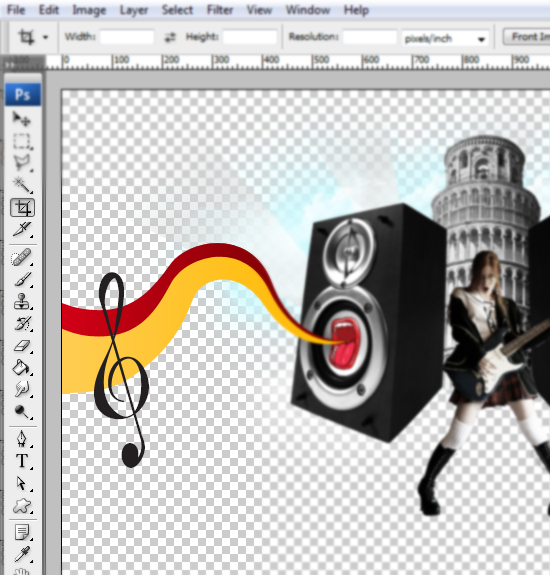
STEP 26
Copy and paste more notes and place them on the waves. It doesn’t have to be exactly like mine. Just make sure their size vary.
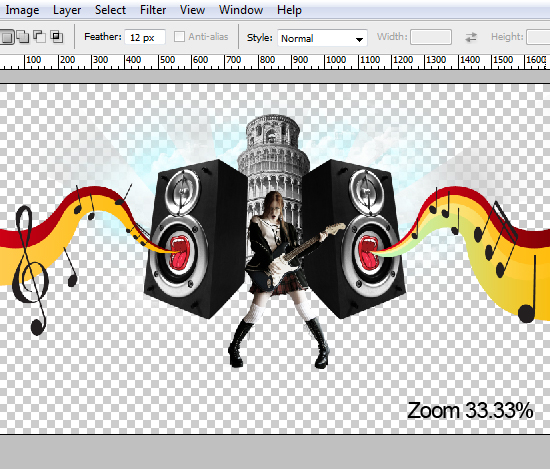
STEP 27
Open the “Floral vector pack 86”. Repeat STEP 26 to place them like below.
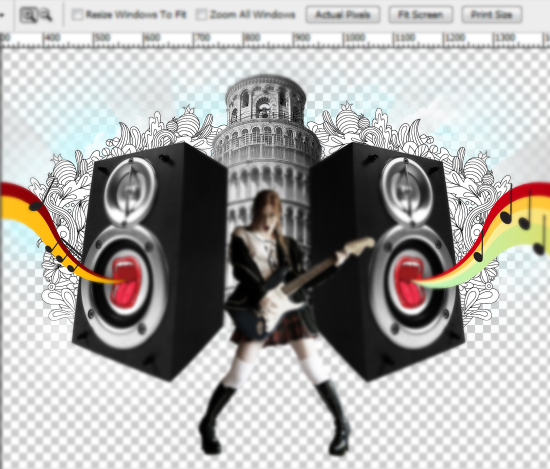
STEP 28
> Open a rock picture from the “Botanical pack”. Then go to the Channels window (Window Channels) and right-click > Duplicate Channel. Extract the rock like you did with the girl. For the tiny leaves, use the Burn Tool (O) to darken them instead of painting over them with black.
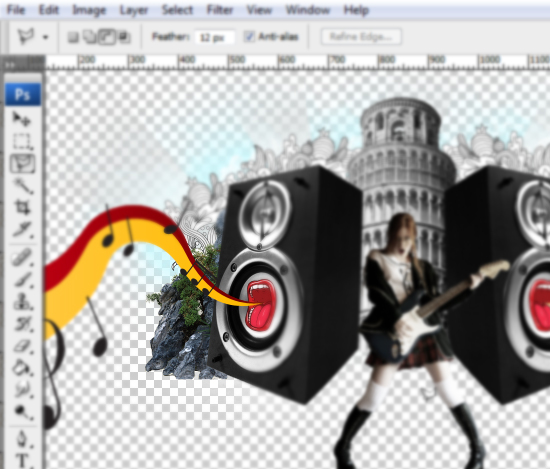
STEP 29
Resize it and place it like below. Also create the mirrored version of it: CTRL+J to duplicate it, then place it in the opposite spot.
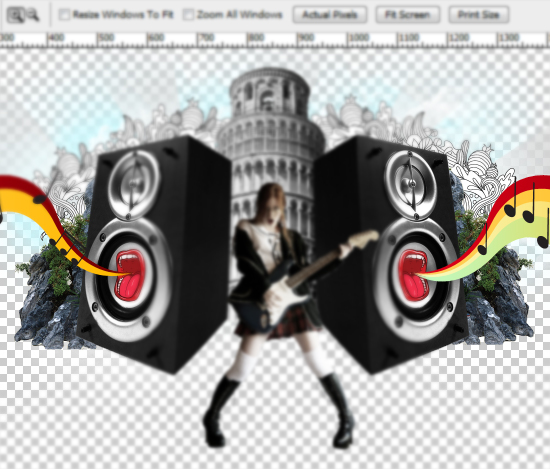
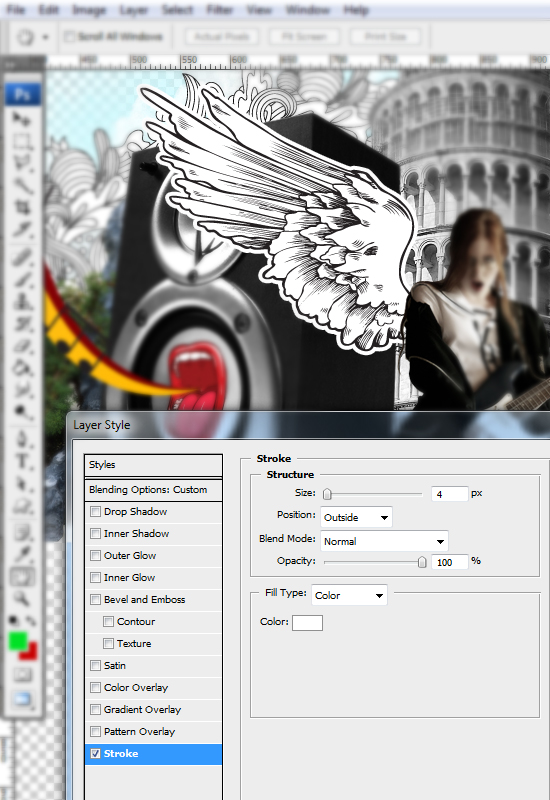
STEP 30
Open the “Wings vector pack 6”. Now copy and paste the wing into our drawing and place it behind the girl. In the Blending Options, use the settings below.
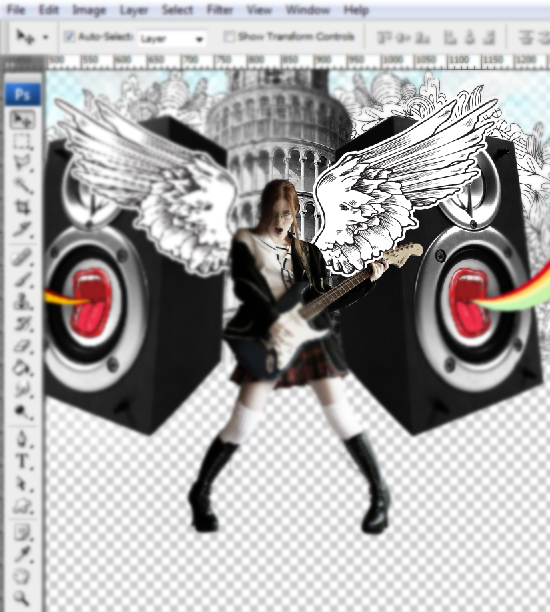
STEP 31
Duplicate CTRL+J) and reflect the wing.
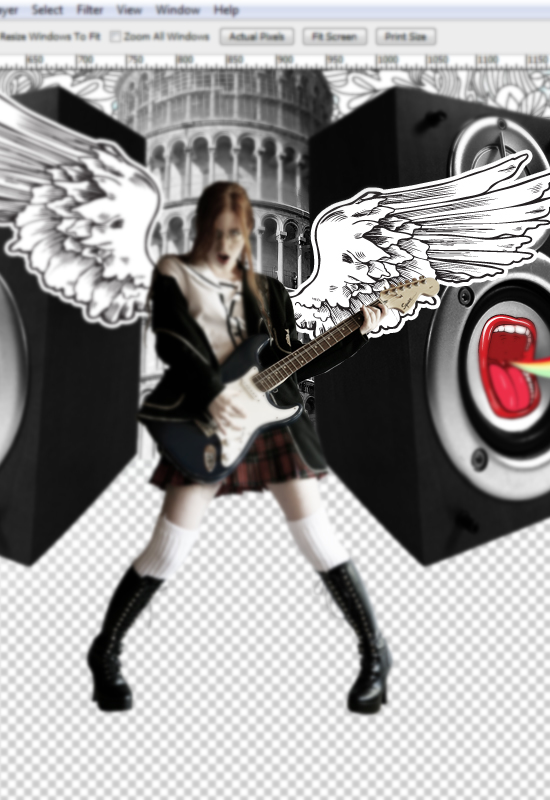
STEP 32
Hit CTRL+T, make it smaller and rotate it a bit. Hit Enter.
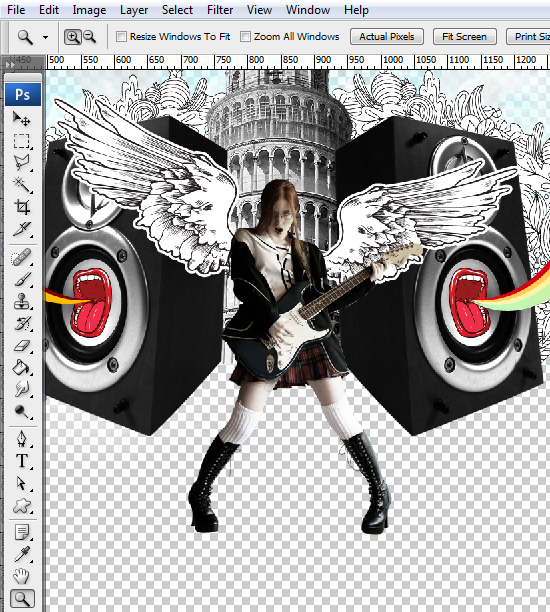
STEP 33
Create a new layer (Layer > New > Layer or CTRL+SHIFT+N) and hit CTRL+SHIFT+] to place it above all the other layers. Then set its Blending mode to Soft Light.
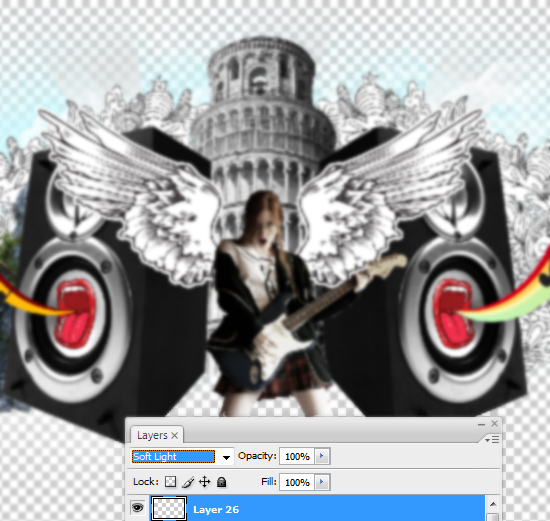
STEP 34
Now grab the Brush Tool (B), set Hardness to 0%, set Foreground color to a light green and paint random spots. Do the same for a purple color.
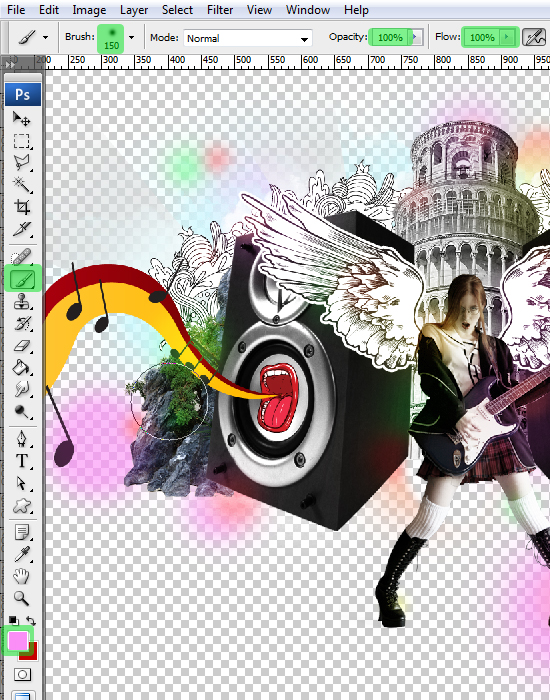
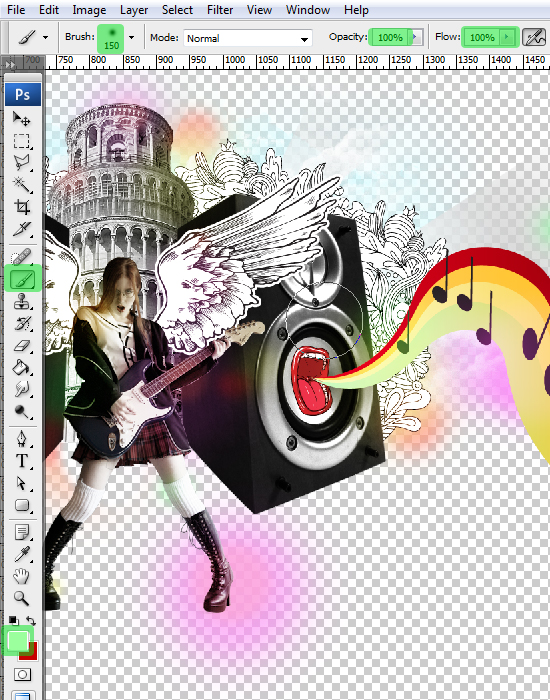
STEP 35
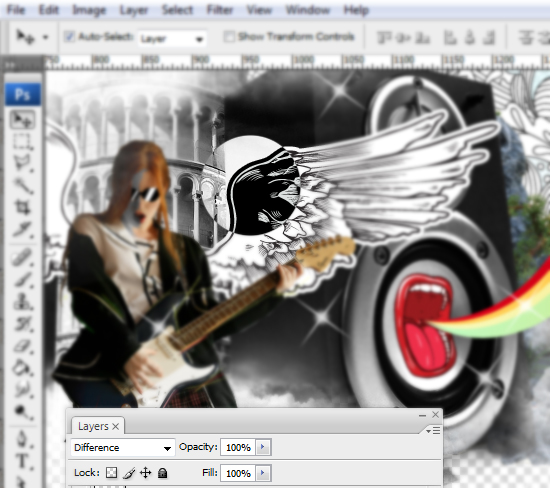
Go to Layer > New > Layer (CTRL+SHIFT+N). Set Blending mode to “Difference”. Now grab the Brush Tool (B), set Hardness to 100%, remove any extra settings and paint a white circle, like below.
STEP 36
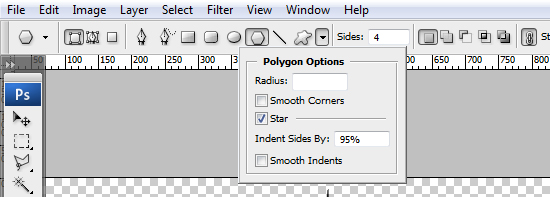
Create a new document of 1000 x 1000 px in RGB color mode at 72 dpi. Grab the Polygon Tool (U). Set the number of Sides to “4”, for the Polygon Options check “Star” and set it to 90-95%, your choice.
STEP 37
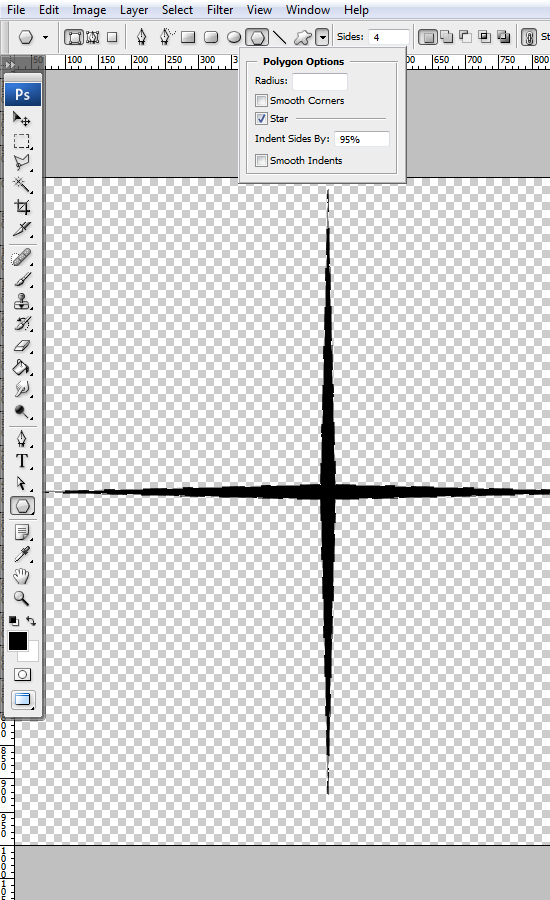
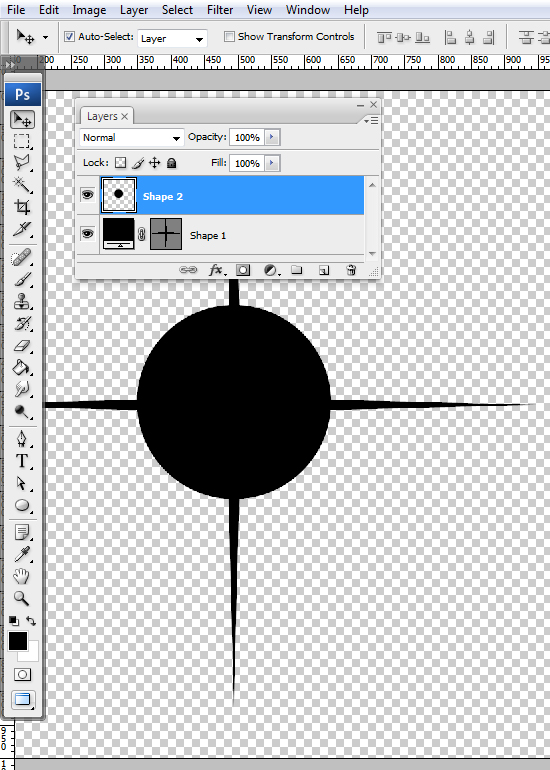
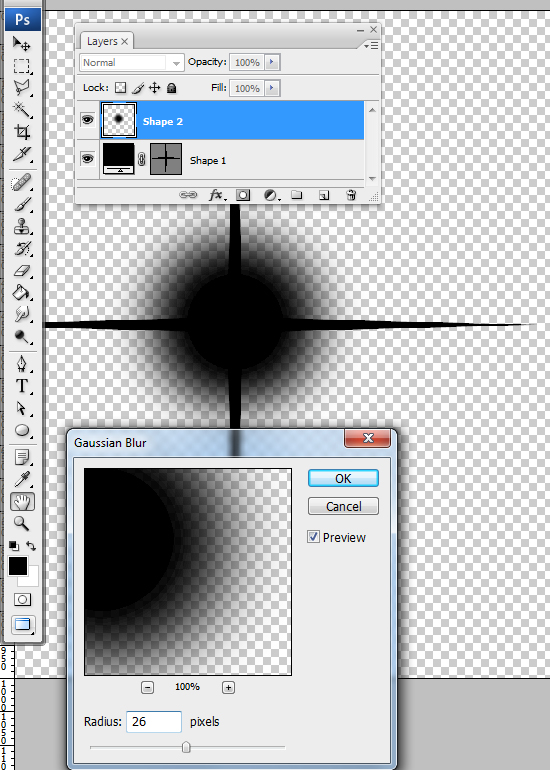
Hit D, then draw a large star. Then grab the Ellipse Tool (U) and draw a circle half the size of the star. In the Layers palette, right-click the circle’s layer thumb and select “Rasterize Layer”.
STEP 38
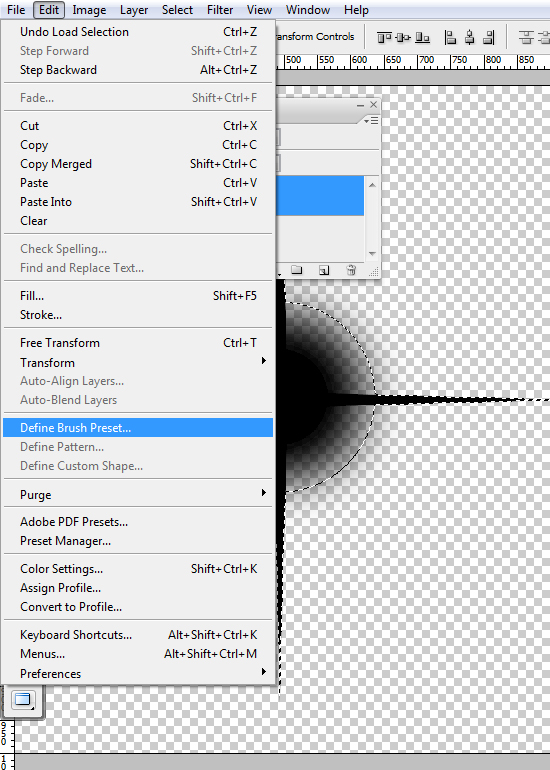
Go to Filter > Blur > Gaussian blur. Use the settings below. Hit OK, then hit CTRL+SHIFT+E to merge all layers. CTRL+click the layer thumb to load a selection. Go to Edit > Define Brush Preset.
STEP 39
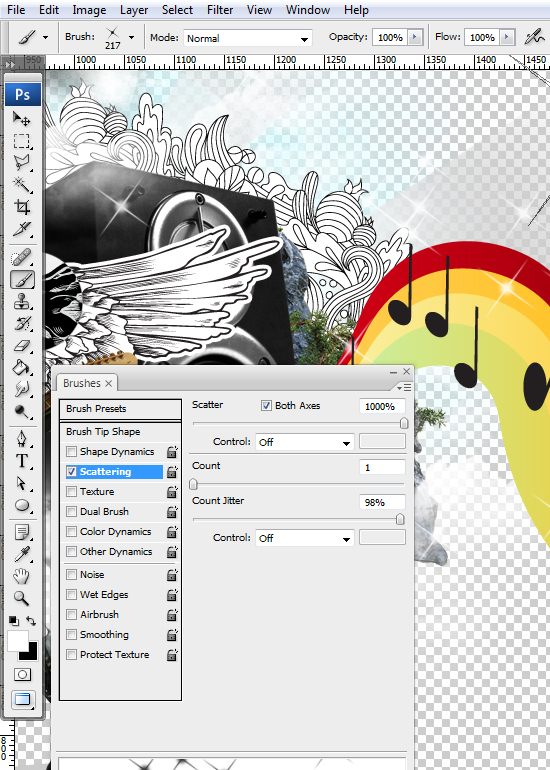
Go back to our document, create a new layer (Layer > New > Layer), hit CTRL+SHIFT+] to place it above all layers and grab the Brush Tool (B). Select the brush we created, hit D, then X and paint random stars of different sizes.
STEP 40
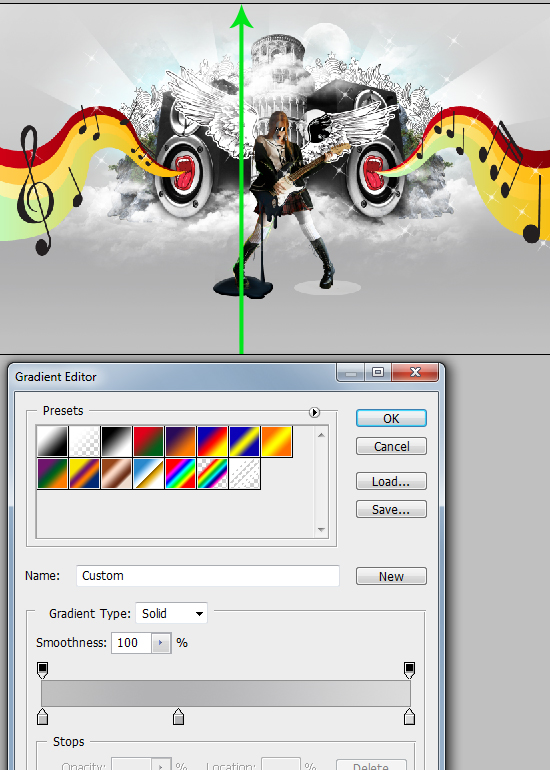
Create a new layer (CTRL+SHIFT+N) and press CTRL+SHIFT+[ to send it below the other layers. Grab the Gradient Tool (G), set the gradient as shown below and apply it to the layer.
STEP 41
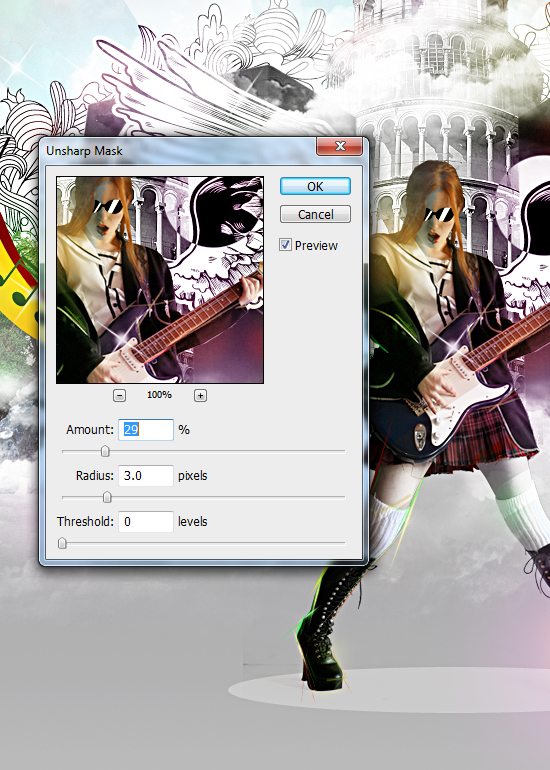
Select the entire artwork (CTRL+A), then copy merged (CTRL+SHIFT+C) and paste it above.
Go to Sharpen > Unsharp Mask. Use the default settings.
Done!
You can add simple shapes and elements using the same techniques to add your personal touch. I added sun glasses and the circle below the girl using simple paths. Get creative and add your own!

Download the source file with the link below.
[download id=”169″]
too many steps but i will try it
INTERESANTE MUY BUENO
Great tutorial thanks
Excellent! Very nice work!
Excellent! Very nice work again!
muy bueno pero claro…
To spend 50 bucks to finish this tutorial!!!!???? Buying all the shit from third-party vendor. You have to be fucking kidding me!!!! Get real