

5 Steps For Drawing Complex Vector Sun Rays
This tutorial shows you how you can make sun rays in Adobe Illustrator, I’m using the CS3 version.
Before you start make sure you set your Fill color to None and Stroke color to Black or whatever color you prefer.
Step 1 : Draw a circle.
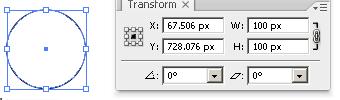
The one I drew was 100 px in diameter.
Step 2 : Setup weight for the circle
Select Window>Stoke (Ctr+F10) to bring up the Stroke Panel and click on the Show options to view all the Stroke options.

Step 3 : Increase the Stroke Weight
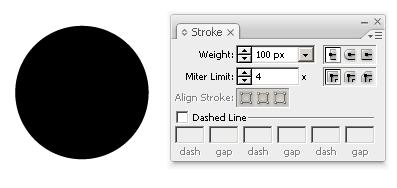
Now increase the Stroke Weight until you get something similar to a circle. For a diameter of 100 pixels, a weight of 100 pixels should do it.
Step 4 : Use the Dashed Line option
Now Click on the Dashed Line option and… tadam!!! You have your Vector Sun Rays. But what if you want to spice things up?
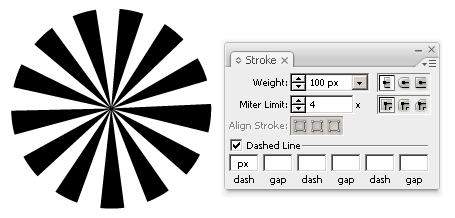
Step 5 : You play with the Dash/Gap Values!
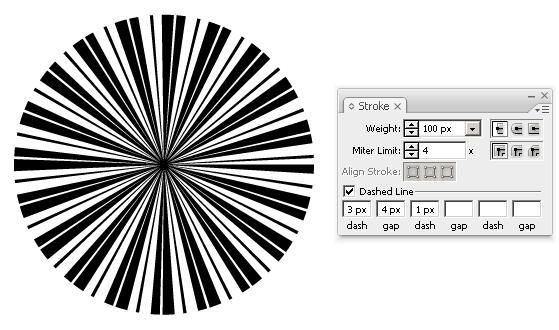
Let’s try a 3-4-1 setting
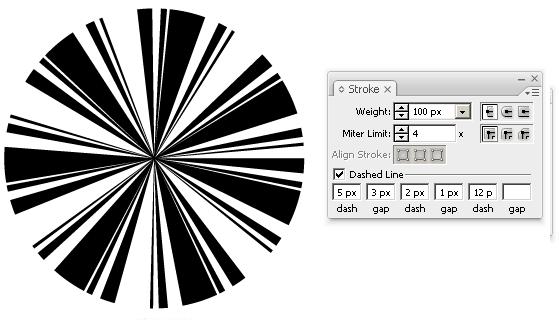
Now a 5-3-2-1-12 setting
Make sure that before you use your customs sun rays you expand your circle by using OBJECT>EXPAND from the menu bar.
As you saw you can get some funky, retro vector sun rays for your backgrounds in less than a minute. Your Vector Sun Rays are ready to be used in your backgrounds. You can easily add a Radial Gradient in Illustrator to add a bit of depth. You now have a cool background for your next illustration.
Keep a close eye on our blog for more Drop-Dead Tutorials.
Do you want to learn more about how to work with Photoshop?
See our Illustrator and Photoshop tutorials. They are all FREE. Also, check all Free Vectors Category.
until now it took me 20 minutes to do this, hard way :)
Thanx!
Great trick, haven´t seen this yet,
I always used one of the preinstalled shapes in Fotoshop, but this ist much better.
Thank you for the info
Sweet trick! This will make it easy to do cool and precise radiant shapes.
This is wonderful! I love tutorials that make my (design)life easier.
I can’t tell you how many times I have searched for a “quick” tutorial on how to do this in the past, and only found crappy tutorials on it. Brilliant in it’s simplicity. Thanks a ton!
This kinda makes me really happy and really angry at the same time.
To think of the time I would have saved….
thanks!
Try this in InDesign too for some really crazy designs. More flexibility with strokes in InDesign.
Thanks for this though.
Well just a quick comment, that some RIPS can’t handle it. Had a customer that used this technique about 2 years ago. When a poster was printed the line width got up to well over 2000pt and the RIP went crazy, lotts of ines everywhere. You may need to expand appearance to make sure you get what you see.
I must be a freakin’ dunce. When I click “Dashed Line,” nothing happens…
hi.. good technic to teach me well,
thank a lot
hi
can you tell an easy similar way to do the same in PHOTOSHOP and not illustrator ? I use photoshop 7 …
thank you very much and waiting for your reply curiously.
Jessy
Thanks for writing Jessica .
It is actually very easy to do this effect in Photoshop as it is in Illustrator…and be sure that you will see a tutorial on this subject in the near future.
A very GOOD tutorial…. I’ve always had a hard time trying to create that in illustrator.
Thank you very much!!
Very nice. i need like this tricks. thanks
WOW! This way is 1 million times easier then drawing each shape out. Thanks a Million!
OMG…this is SO much easier than the other tuts I’ve seen for this effect. You are a genius! Thanks :)
Any chance I can get a gradient on this?
n
I hate to be the clueless one but I need some help. The last line of the tut says to expand with OBJECT > EXPAND. When I do that, the circle turns back to a full black circle. I only get the options to expand stroke and fill, the “object” box is grayed out. What’s wrong? What do I do the accomplish the expand? Thanks!
I get the same results. The same black circle when I expand my radial.
I have CS2 could that be the problem?
Tryout Object/Flatten Transperancy if you use CS2. Should work.
You rock! Thanks so much for posting this. It honestly can’t get any simpler than this. Thanks again.
Wow. Yeah you just saved me a vast amount of time, thanks for posting.
Wow. Yeah you just saved me a vast amount of time, thanks for posting.
Jebus man!!! That was too easy. Thanks for the tutorial!
I did Object>Path>Outline Stroke to get the individual rays and that did the trick.
Thanks for the awesome tutorial!
Thank you so very much!
great!!!! really easy and fast!! thanks again!!!
Wow. Cool stuff. Like it :)
wow, it’s so great and detail tutorial…
very nice technique !! I had been wasting so much of my energy on this lately.
Respect
oh wow!! ..and here I was thinking of the most complex ways to try and draw sun rays. I’m really glad I found this tutorial.. Thanks!! :)
thank’s Alot
wassup, im really feeling this post but the other links arent working. You might wanna make sure your site works in IE 7 cuz you know that browser is prone to errors sometimes.
Ugh, this is ridiculously simple, I feel ridiculous for having spent hours trying to do this using masks and star shapes and all kinds of complicated Pathfinder tools. Illustrator is such an awesome tool, but so hard to penetrate sometimes. Thanks for making it this much easier!
sooo simple !!! i’ve thinking about ‘arrays’ and stuffs like that….ha ha ! THANK YOU VERY MUCH for sharing
I million thanks for your super efficient tutorial. Clean, simple and brilliant! Sure could have saved me
some time on another recent design project…
OMG thanks alot!!!! takes seconds and is flexible…
remember to expand though
wow, this is way easier to do than the rotate-duplicate method. really cool and super easy steps to follow. thanks!
luv it
its gr8
by the way it is much easier to draw with steps
thnx u
wooow!
so simple, so sweat
danke!
gracias!
obrigado!
Thanks… Its a great Tip! XD
Wow this is the quickest way I've seen. You sir are a genius.
this is genius! simple easy fast! woo
Thank you so much! That is genius, and slippery quick. Thanks for sharing.
G R E A T.
There’s a webapp for that: http://thoka.net/inkrays.html :D